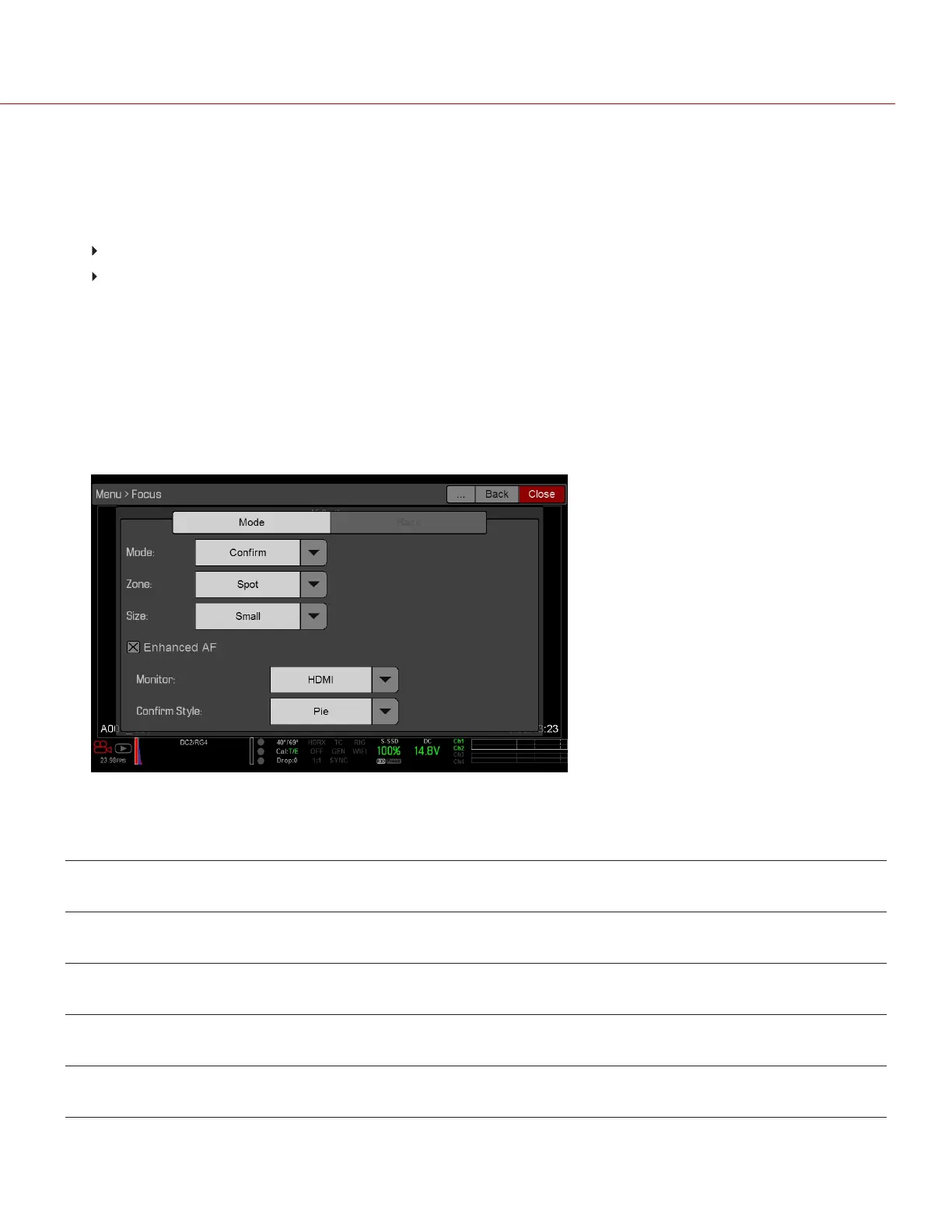
3.
Select an option from the Zone drop-down menu.
4.
If you selected Spot from the Zone drop-down menu, select a size from the Size drop-down menu.
5.
Select the Enhanced A/F check box.
6.
Select the monitor dedicated to using the Enhanced A/F feature from the Monitor drop-down menu:
BRAIN HDMI
BRAIN HD-SDI
The selected monitor is in Clean mode (no overlay) with a set resolution of 720p and update frequency of 60 Hz.
The target does not display on the selected monitor. You cannot control the monitor until you disable the
Enhanced A/F feature.
7.
Select the Confirm target style from the Confirm Style drop-down menu. For more information, go to "Confirm
Style" below.
8.
Close the Focus menu.
The target displays on the touchscreen, and the monitor that you selected for the Enhanced A/F feature is in Clean
mode.
Figure: Enable Enhanced A/F
CONFIRM STYLE
CONFIRM
STYLE
DESCRIPTION OBJECTS IN TARGET ARE IN
FOCUS...
OBJECTS IN TARGET ARE
OUT OF FOCUS
None Square target; operates like the
target square in Confirm mode
Target is yellow or green Target is red
Circle Yellow circle around a square
target
Target is yellow or green; circle is
almost the same size as the square
Target is red; circle gets
bigger
Bar Bar target Target is yellow or green; vertical bar
on the right side is filled up
Target is red; vertical bar on
the left side is almost empty
Pie Pie target Target is yellow or green; line around
the curve is filled up
Target is red; line around the
curve is almost empty
C OPYRI GHT © 2017 R ED.C O M , I NC 955- 01 38 _V6.3, REV-D | 148
WEAPON/EPIC-W OPERATION GUIDE


 To Next Page