MANAGE 3D LUTS
To manage 3D LUTs, go to Menu > Settings > Display > Monitor Control.
3D LUTs can be stored on the camera or transferred to SSD, so that you can build a library of 3D LUTs, or quickly
copy 3D LUTs from one camera to another via SSD.
In Camera: 3D LUTs that are saved internally on the camera.
On Media \luts: 3D LUTs that are on the SSD.
EXPORT AND IMPORT 3D LUTS
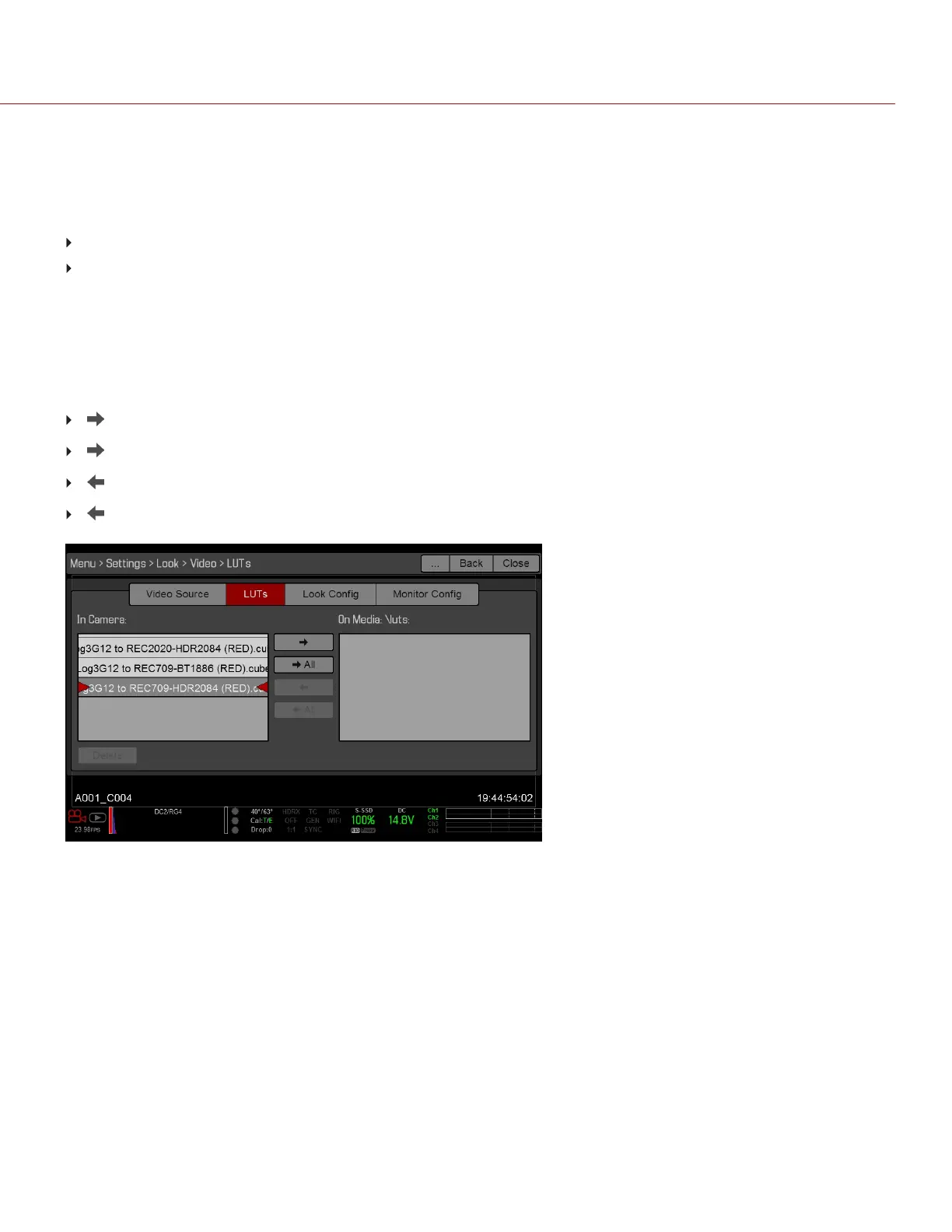
To export and import 3D LUTs, go to Menu > Settings > Look > Video > LUTs. 3D LUTs can be stored on the
camera or transferred to SSD to be shared with other cameras. When exporting 3D LUTs from camera to an SSD, the
3D LUTs are saved to a folder on the SSD called “luts”. When importing 3D LUTs from an SSD to camera, the 3D
LUTs must be stored on the SSD in a folder called “luts”.
: Export selected 3D LUT from camera to SSD.
All: Export all 3D LUTs from camera to SSD.
: Import selected 3D LUT from SSD to camera.
All: Import all 3D LUTs from SSD to camera.
Figure: Export and Import LUTs
LOOK CONFIG (LOOK CONFIGURATION)
Use the Look Config menu to set up Look A. In the Look Config menu, you can rotate the image.
FLIP/MIRROR
Mirror and flip (invert) the graphical user interface (GUI) and footage, effectively rotating the entire displayed image
180°. Use this setting when mounting a monitor or the entire camera rig upside down. This setting only affects the
monitor, and does not affect captured footage.
LUT
Assign a 3D LUT to Look B. LUTs are loaded to the camera in the LUTs menu. For more information, go to "Monitor
Config (Monitor Configuration)" on the next page.
C OPYRI GHT © 2017 R ED.C O M , I NC 955- 01 38 _V6.3, REV-D | 91
WEAPON/EPIC-W OPERATION GUIDE


 To Next Page