GB.41
ENTERING A DESTINATION (6/6)
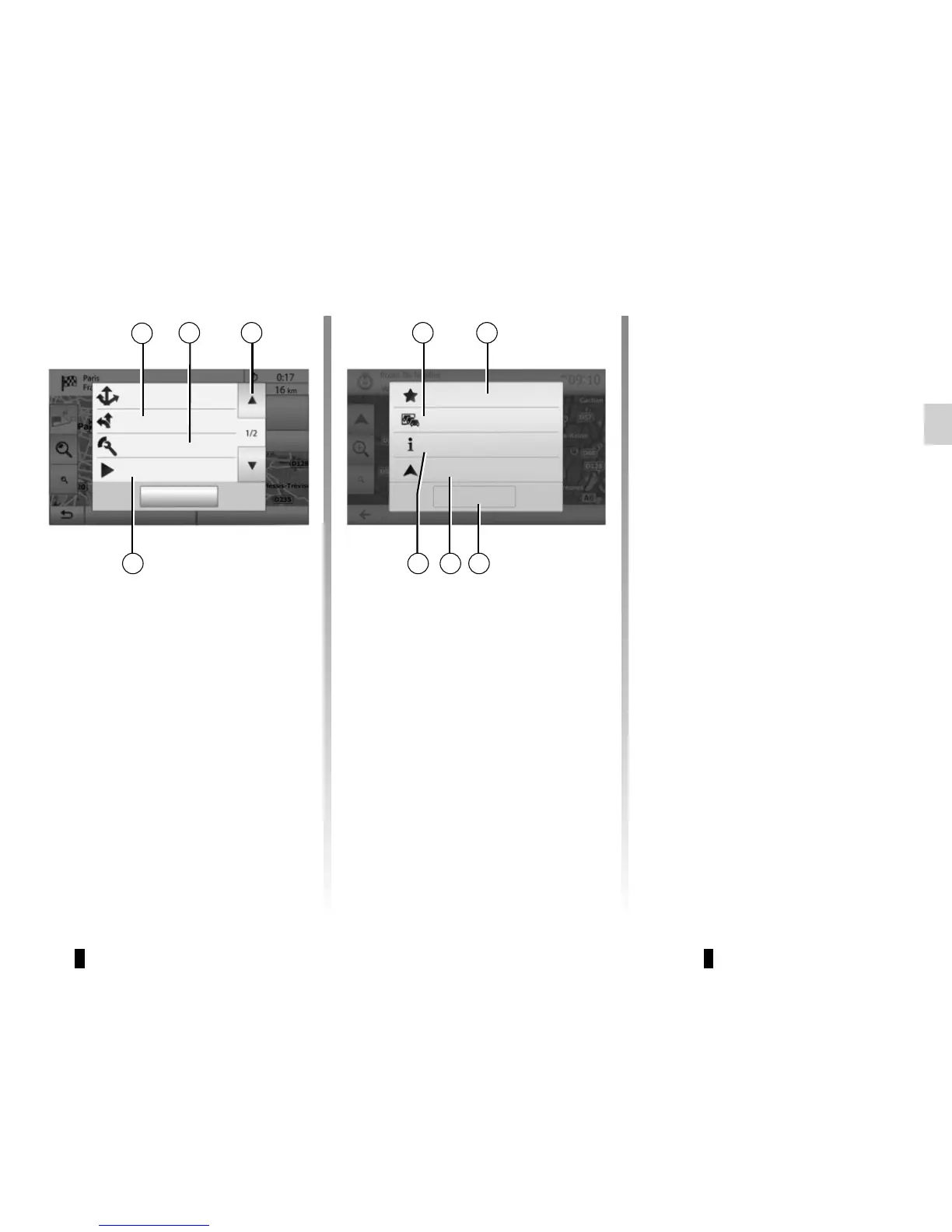
“Current traffic”
This function enables you to obtain in-
formation on traffic incidents over the
course of your trip, or in your immediate
vicinity. To access this, press 14 then
select “Current traffic”.
17
19
16
“Options”
At the end of the 10 second count-
down, the following choices appear on
the screen:
“Add to favourites”
Press 17 to save the selected destina-
tion in your favourite destinations.
“Current traffic”
Press 16 to obtain information about
traffic incidents flagged on your route or
in your immediate vicinity.
“News”
Press 20 to view the address, latitude,
longitude and telephone number of a
point of interest (only activated after se-
lecting a point of interest).
“Back to car”
Press 19 to return to the current vehicle
position.
Note: To close the “Options” window,
press 18.
Current traffic
Close
Add to Favourites
Back to car
News
20
“Route”
Press 12 to view a breakdown of your
route. Please refer to the section on
“Guidance”.
“Route settings”
Press 13 to adjust your route depending
on the desired roads and route mode.
“Simulate navigation”
Press 15 to view of simulation of the
route you have selected. Please refer
to the section on “Guidance”.
Route
Close
Alternative routes
Simulate navigation
Route settings
Options
OK
12
13
15 18
14



 To Next Page