GB.48
MAP SETTINGS
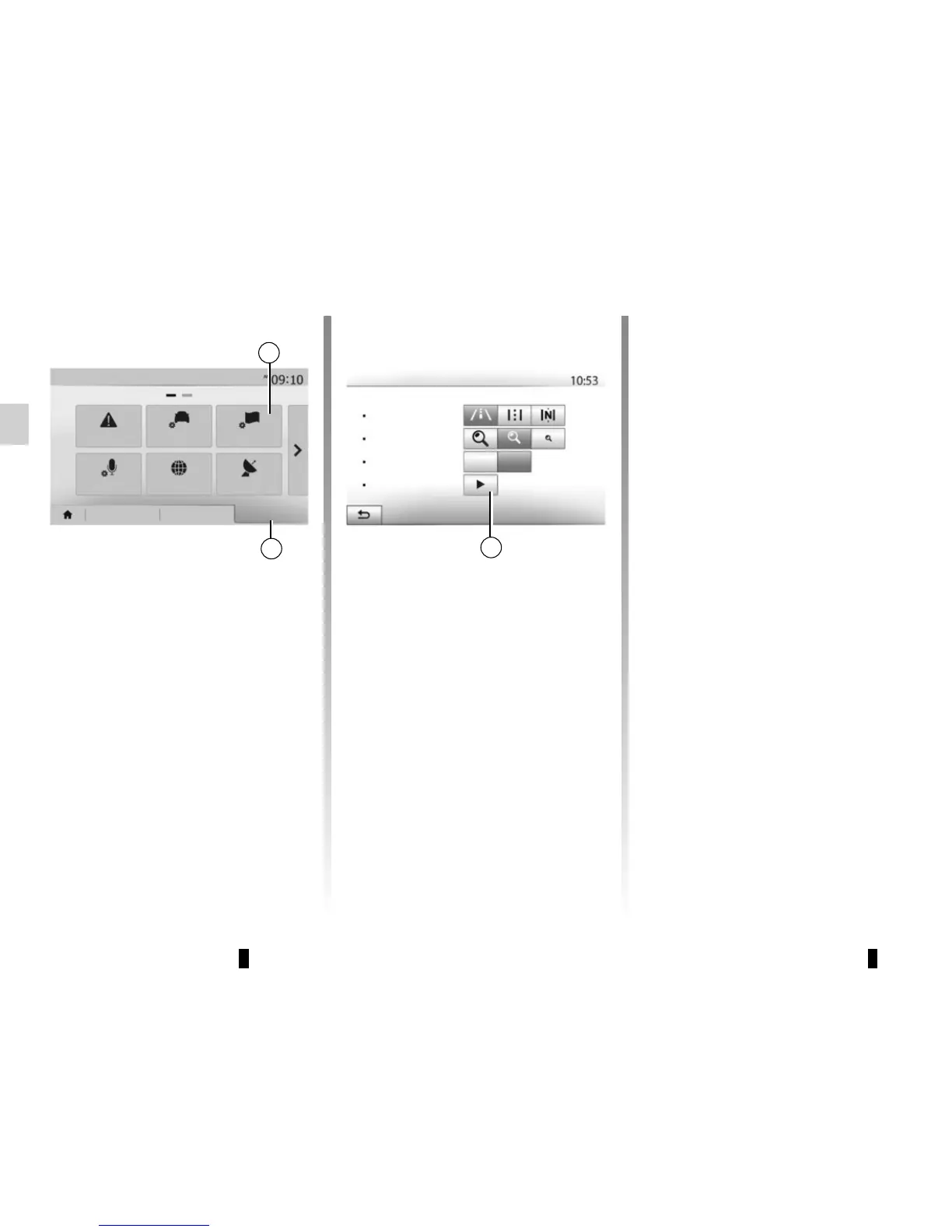
From the navigation menu, press 2
then 1 to access the map adjustment
menu.
Adjusting view mode
This function allows you to switch the
map view between a 3D, view and a 2D
top-down view, and a view with north
always facing upwards.
Press “3D”, “2D” or “2D North”.
Adjusting viewpoint
This function allows you to adjust
the basic zoom and tilt levels to your
needs. Press the required zoom from
three available levels.
Motorway View
This function allows you to activate or
deactivate motorway view.
Press “On” to activate the function or
“Off” to deactivate it.
Display points of interest
You can select certain points of interest
(visible at 100 m scale) to be displayed
on the map.
To access this function directly, press 3
to display the points of interest on the
map:
– accommodation;
– airport;
– automobile;
– business;
– café or bar;
– etc.
Press “On” or “Off” to show or hide the
points of interest.
Tap the name of the point of interest to
open the list of its subcategories.
Note: in countries for which maps
are not available, you can deactivate
the navigation function. In “Home” >
“Setting” > “System”, press “Off” oppo-
site “Navigation” to deactivate the navi-
gation function.
3
2
1
Off
On
Map settings
Viewpoint
Motorway view
POI markers
Navigation
Warnings
Map settings
Voice settings
Coordinate
format
GPS
Destination Route
Options
View mode
Route settings


 To Next Page