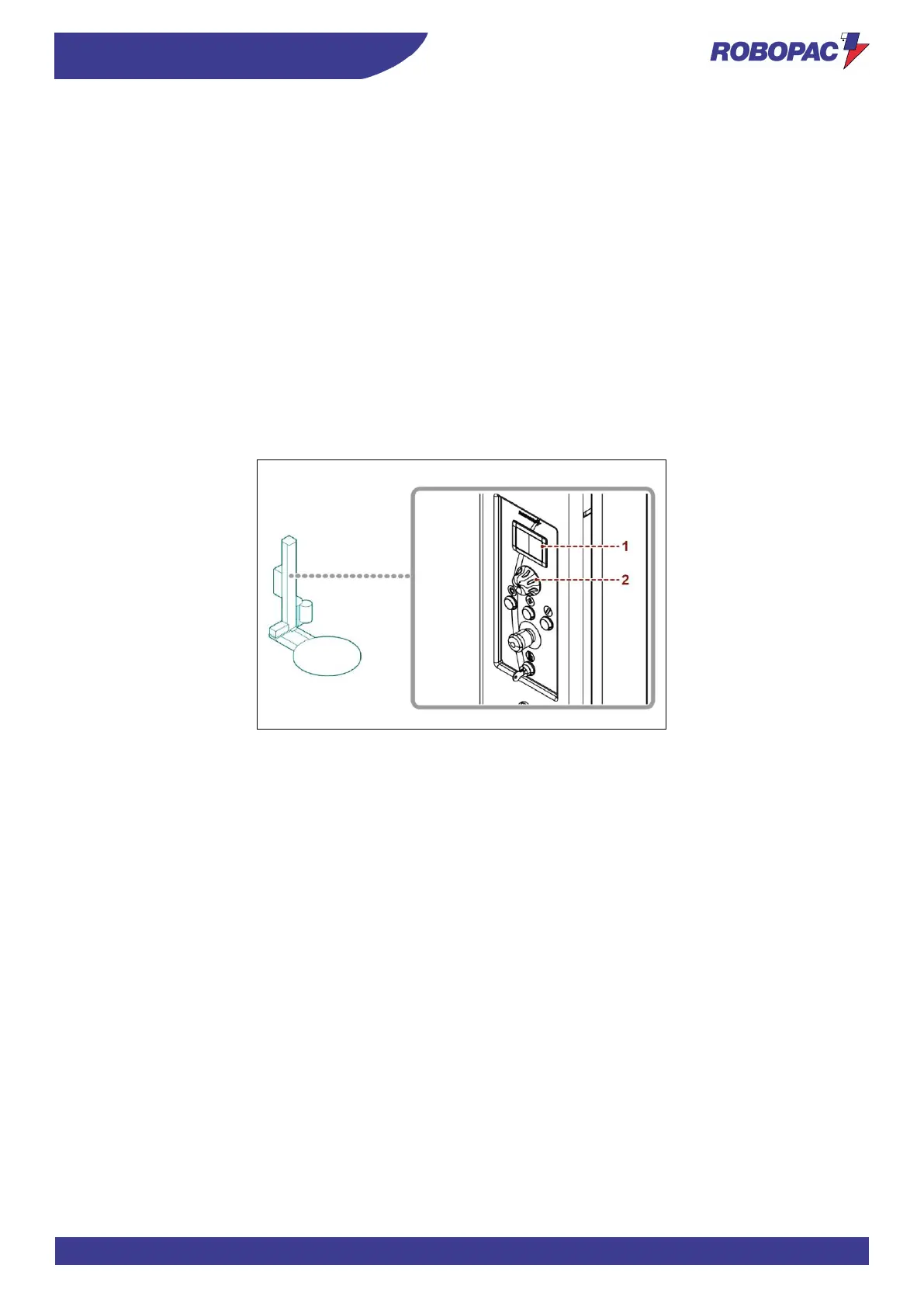
6.3. DESCRIPTION OF USER INTERFACE
The user interface is equipped with a multi-function selector (1), which is used to view and set the machine functions,
and a display (2), which shows recipes, parameters, etc.
To view and/or set the functions, turn or press the multi-function selector.
Functional logic diagrams show the navigation modes.
The illustration corresponding to each view shows the abbreviation which indicates the activation mode.
Abbreviation “R”:
turn the control to access the views or to modify the values.
To modify the values, press the control, turn it until the concerned value is displayed and press it again to
save it.
Abbreviation “P”:
press the control to activate the selected function.
Abbreviation “PH”:
it indicates a long pressure of the multi-function selector (1), which allows accessing the second level
functions.
Colours of page edges:
Yellow: machine in “Stop” mode with locked values (padlock function).
Green: machine in “Stop” mode with editable values.
Purple: machine in “Manual” mode.
Blue: machine in “Reset” mode.
Orange: machine in automatic “Run” mode.
Red: machine in alarm mode.
White: parameter value edit pages.



 To Next Page