o Scan again to see all networks appears if there are more wireless networks than the
strongest ones it initially listed. If you don’t see your wireless network name in the list,
this option displays the complete list. If you still don’t see your network name, you
might have your router configured to provide wireless service as a “private network.”
Note: Highlighting either of these options displays an informational panel with the
unique media access control (MAC) address of your Roku TV. You will need the MAC
address if your wireless router is configured to use MAC address filtering.
Private network – If your wireless network name is hidden, it won’t appear in the list. Select
Private network to display an on-screen keyboard, and use it to enter your network name.
Unless you changed the factory-set network name, you can find the name (also called SSID)
on a label on the router.
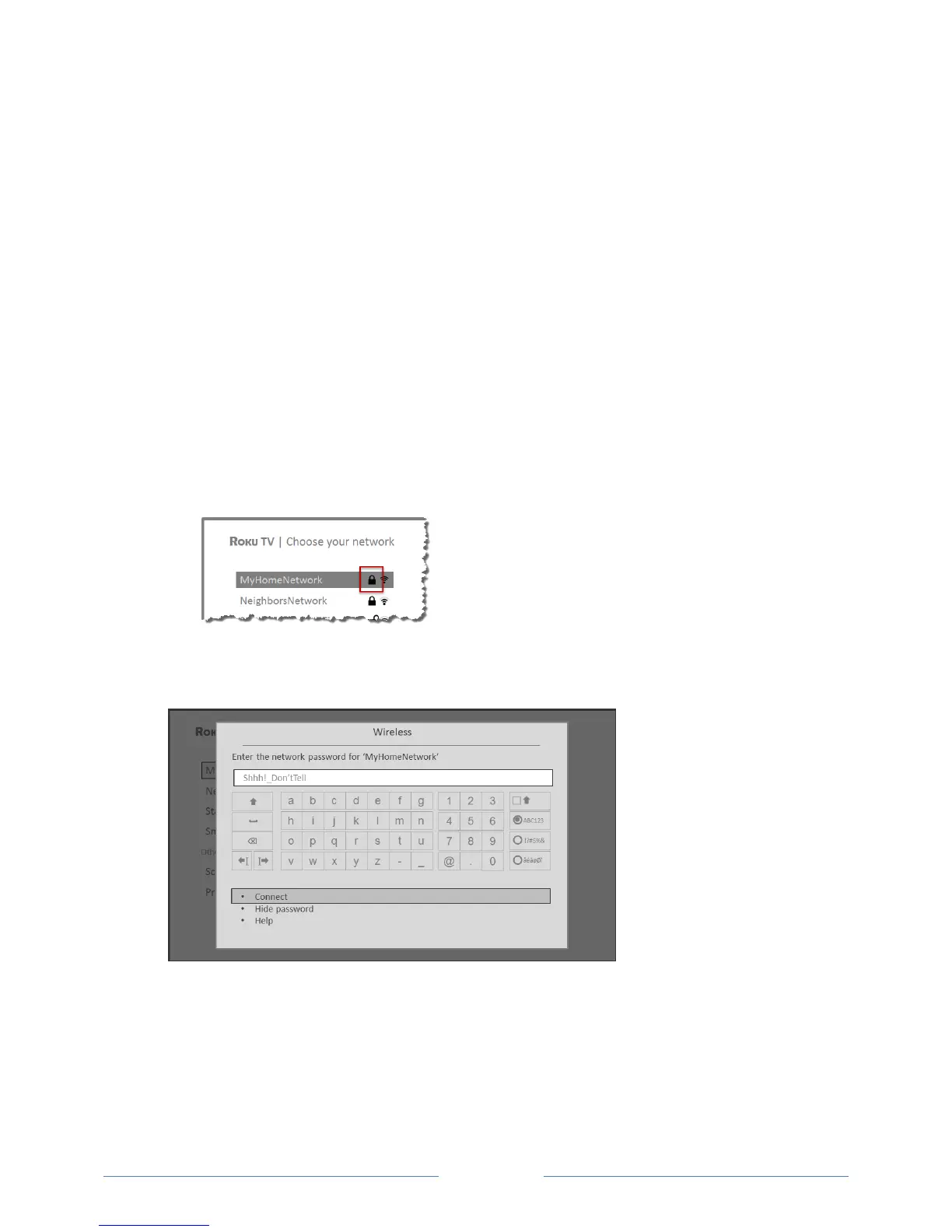
Tip: Wireless networks that are password-protected display a “padlock” icon adjacent to the
name. This icon enables you to know that you are going to be prompted to enter a password
after you select that network.
8. Only if you select a password protected wireless network: An on-screen keyboard appears. Use
the keyboard to enter the network password.
After you submit your wireless network password, the TV displays progress messages as it
connects to your wireless network, your local network, and the Internet.



 To Next Page