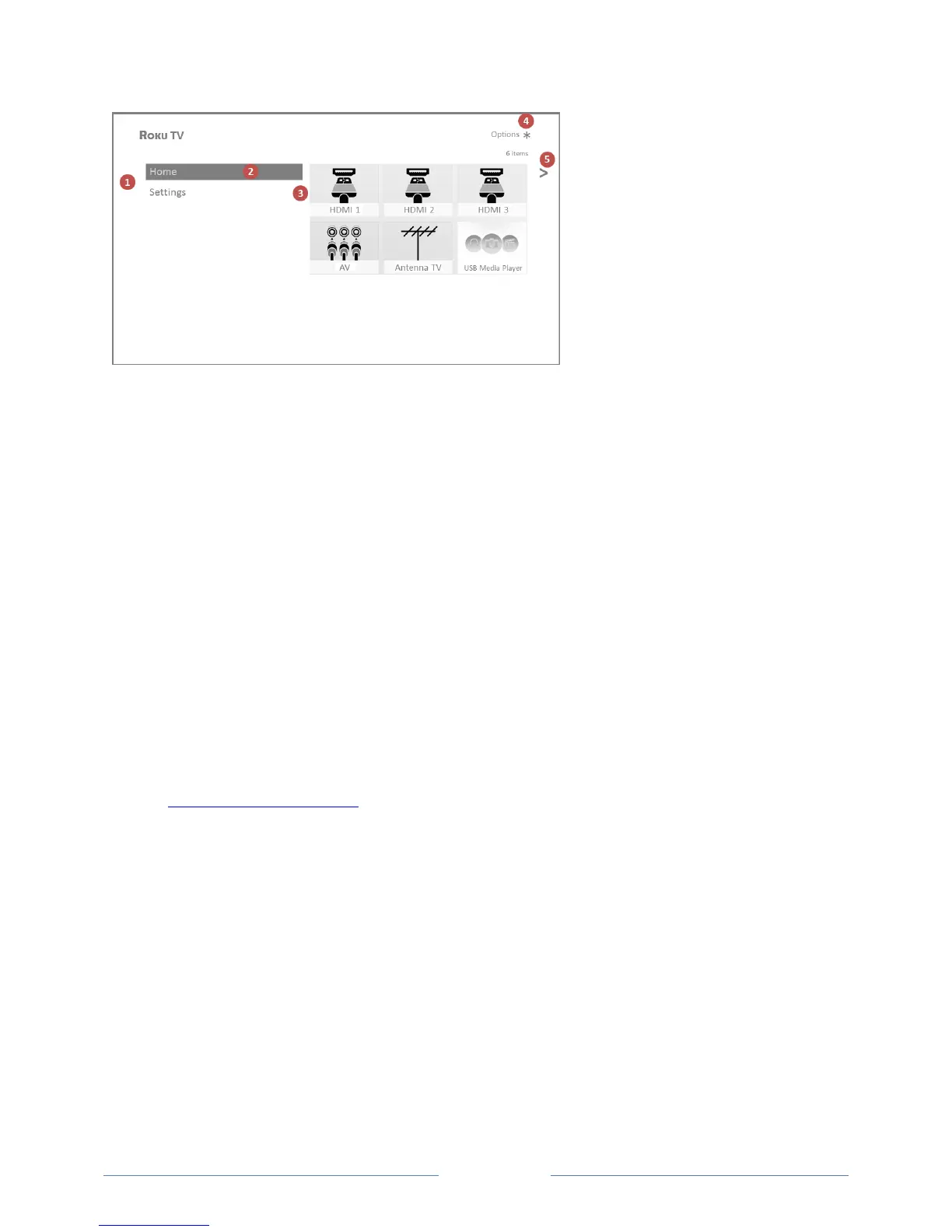
Typical non-connected Home screen
1. Home menu—shows options available to you when you are on the Home screen.
2. Highlighted option—press OK on the remote control to select.
3. TV input tiles—select an input to watch the connected device.
4. Options hint—press on the remote control for options when this symbol is present.
5. Next screen hint—press the RIGHT arrow button on the remote control to see the next screen.
Personalize your Home screen
There are many things you can do to personalize your Home screen and make it just right for you and
your family:
Only in connected mode: Add streaming channels by using the Streaming Channels menu option
to browse the Roku Channel Store.
Only in connected mode: Change the screen theme by going to Settings > Themes to find and
pick one to suit your mood.
Only in connected mode on U.S. models: Hide Movie Store, TV Store, or News as explained in
Configure parental controls.
Remove a tile by highlighting it and pressing . Then highlight Remove input or Remove
channel and press OK.
Move a tile by highlighting it and pressing . Then highlight Move input or Move channel and
press OK. Use the arrow buttons to move the tile, and then press OK to lock it in its new
location.
Rename a TV input tile by highlighting it and pressing . Then highlight Rename input and press
OK. Highlight a new name in the list, and then press OK to assign that name to the tile.
Rather than using the predefined names and icons, you can set a custom name and icon. To do
so, scroll up or down to highlight Set custom name & icon, and then press OK. Follow the
instructions on the screen to enter a name and select an icon for the input.



 To Next Page