Network connection
After you select Set up for home use, the TV prompts you to make a network connection. If your
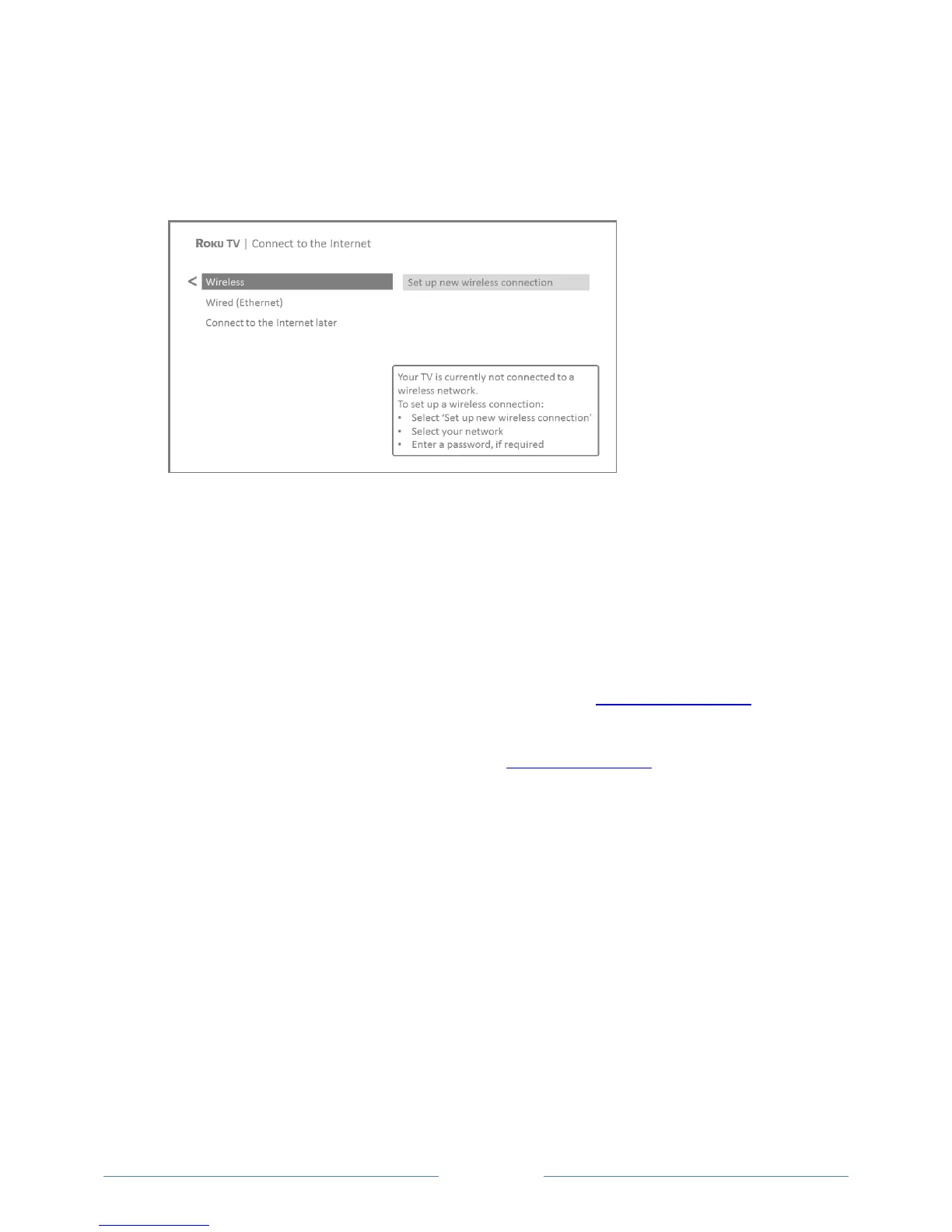
TV has both wired and wireless connections, you’ll see the following screen.
6. Only models that display the Connect to the Internet screen: Make a selection:
Wireless connection – Highlight Set up new wireless connection and press OK. The TV
prompts you through wireless setup. Skip ahead to the next step for help with the process.
Wired connection – Highlight Connect to wired network and press OK. The TV immediately
attempts to connect to your wired network, your local network, and then the Internet. Go
to Step 9 to continue with Guided Setup.
Connect to the Internet later – If you don’t want to connect to the Internet right now, you
can skip this step and use the TV to watch broadcasts, play games, and watch DVDs. When
you’re ready to connect, it’s easy. We’ll show you how in Benefits of connecting.
Note: If you decide not to connect, Guided Setup skips ahead to setting up the devices that
you’ve connected to your TV. Jump ahead to Connect your devices to complete Guided Setup.
7. On models that have wireless only, or models with both wired and wireless and you’ve selected
Wireless: The TV scans for the wireless networks within range and displays them in order, with
the strongest signals first. In addition to your own wireless signal, the TV might pick up signals
from your neighbors.


 To Next Page