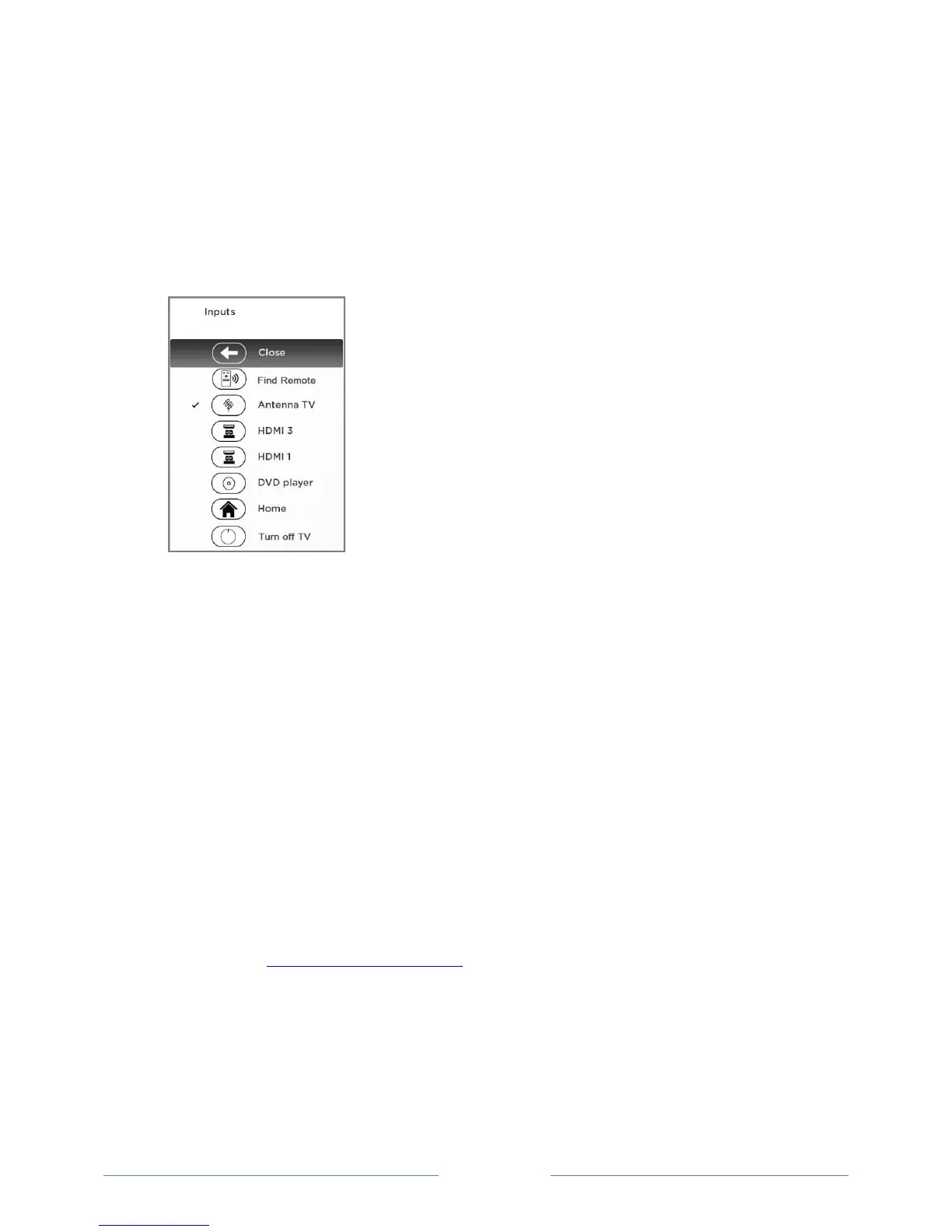
Activate Find Remote
If your TV has a game controller-style control on the back right side of the TV, press the Left or
Right pad to open the Inputs menu, and then press the Right pad once to scroll down to Find
Remote.
If your TV has a column of labeled panel buttons on the left or right edge of the TV, press the
INPUT button to open the Inputs menu, and then press the INPUT button again until you
highlight Find Remote.
A moment or two after highlighting Find Remote, the remote control starts emitting your selected Find
Remote sound to let you know where it is hiding. The sound automatically stops after a minute, or after
you find the remote and press any button.
Changing and previewing the Enhanced Remote Control finder sound
If you prefer to customize the sound your remote control makes when you use the Find Remote feature,
navigate to Settings > Remote > Change remote finder sound. Select the sound you want to use from
the available settings.
To preview the sound you have chosen, select Preview remote finder sound, and then hold down the
OK button on the remote control to play the sound. When you release the OK button, the sound will
stop.
Note: When you preview the remote finder sound, the sound comes from the TV speakers ,not from the
remote control. To hear the sound you have chosen through the remote control, activate the Remote
Finder as explained in Finding your remote control.



 To Next Page