Customizing your TV
There are several things you can do to personalize your TV.
Rearrange tiles
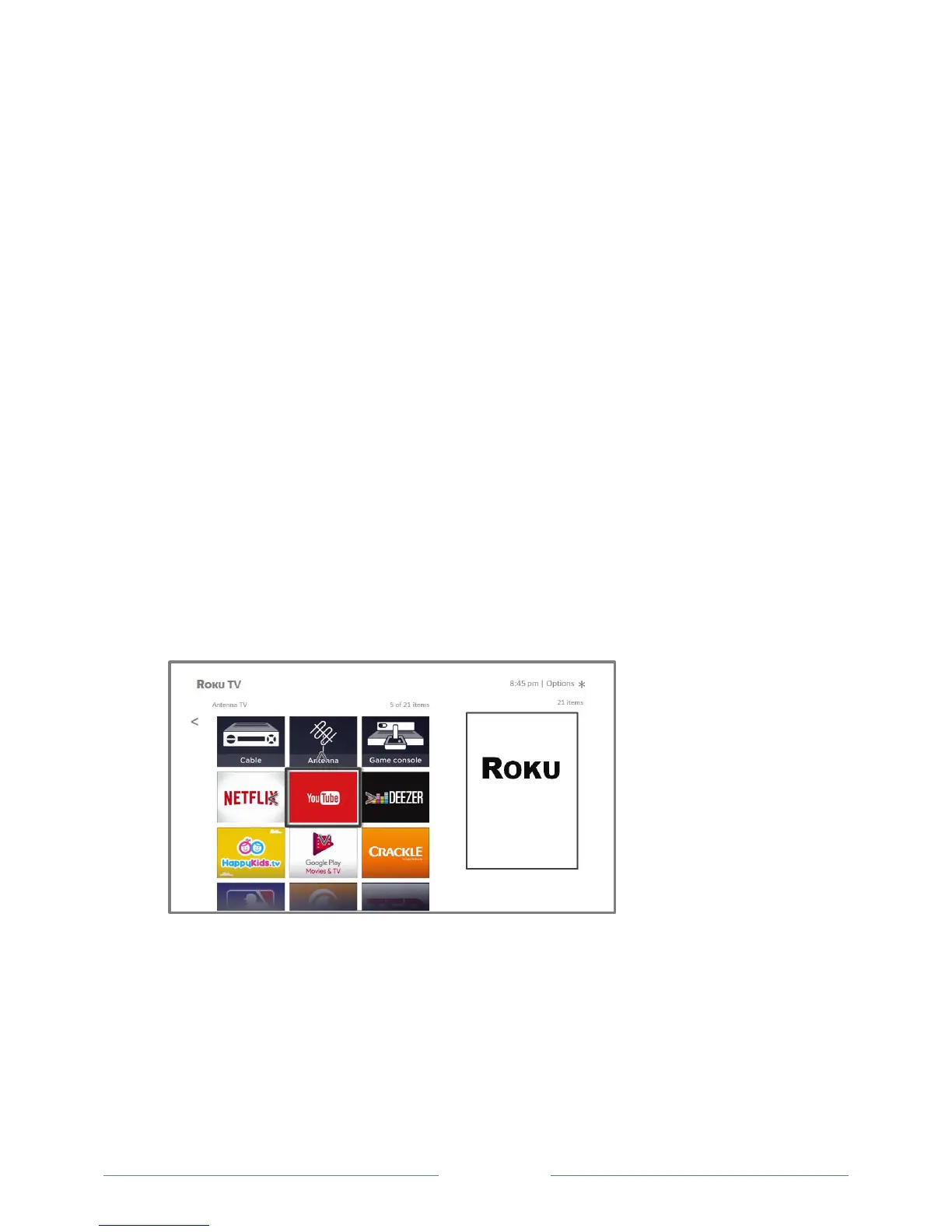
Whenever you add a TV input tile, it’s added at the top of your Home screen. Whenever you add a new
streaming channel from the Roku Channel Store, it’s added at the bottom of your Home screen.
You can easily rearrange the order of the tiles on the Home screen to suit your viewing preferences. For
example, you might want Antenna TV to be the first tile in your Home screen. But if you mostly watch
one streaming channel, you might want its tile to be the first one on your Home screen.
Rearranging tiles is easy:
1. From the Home screen, highlight one of the tiles you want to move.
2. Press to display a list of options for the type of tile you selected.
3. Select Move input or Move channel. The list of options disappears and the highlighted tile
shows arrows indicating how it can be moved
Note: A paid subscription or other payments may be required for some channels. Channel
availability is subject to change and varies by country. Not all content is available in countries or
regions where Roku® products are sold.
4. Use the arrow buttons to move the highlighted tile to its new position. As you move the tile, it
pushes other tiles out of its way.
5. Press OK to lock the tile into its new position.
6. Repeat these steps to move other tiles until you have arranged your Home screen to your liking.



 To Next Page