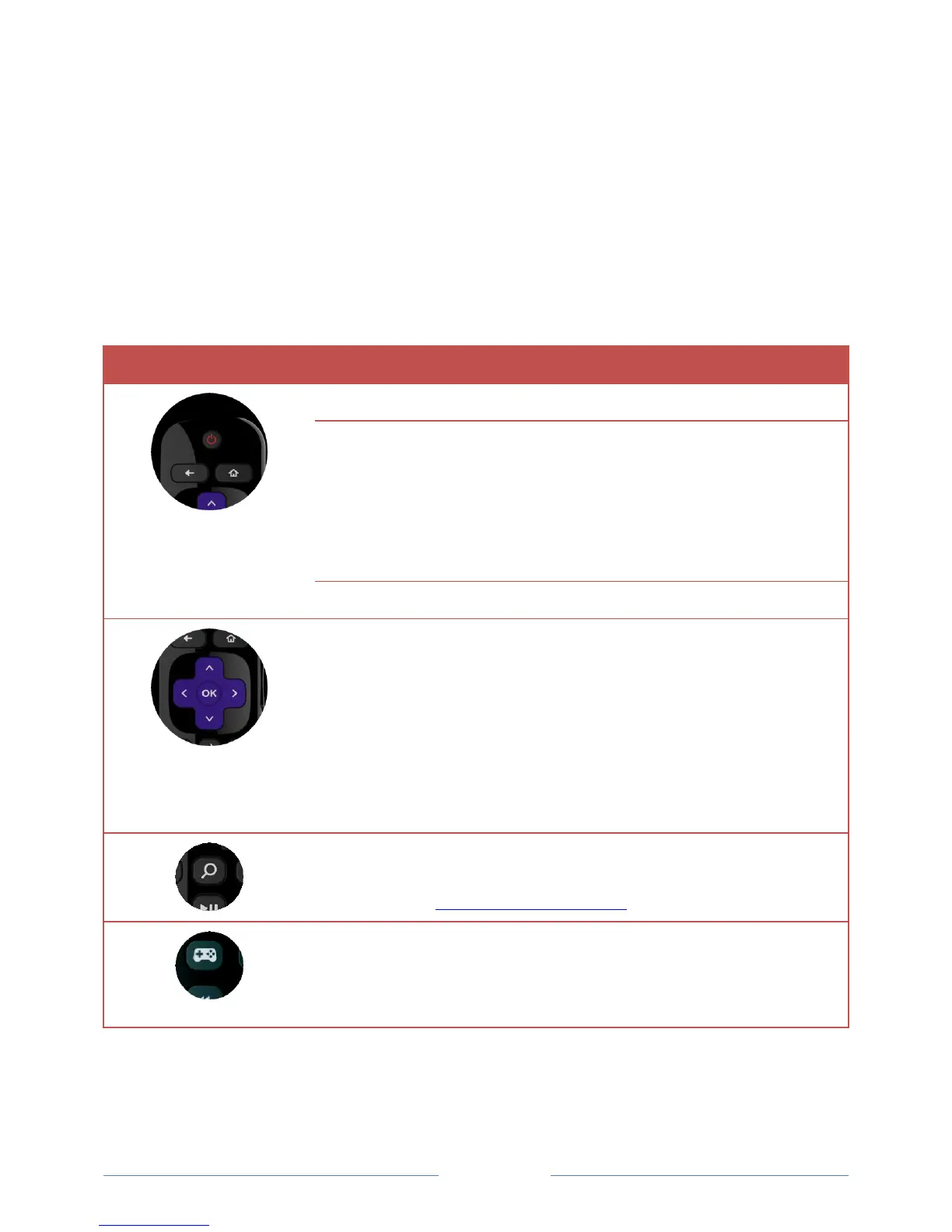
Roku TV Remote control
Use the following information to identify the buttons on your Roku TV remote control.
Note: Certain remote control buttons and features vary by model. Your remote control might not
have all buttons or features listed. If your remote control has a headphone jack on its left side,
then you have a Roku TV Enhanced Remote Control, which has additional capabilities as noted
below.
Menu: Goes back to previous menu/screen.
Home screen tile: Moves highlight back to the Home screen
option.
Watching Antenna TV or a TV input: Returns to Home screen.
Playing streaming content: Stops playing stream and returns to
the previous menu or screen.
Browsing streaming content: Goes to the previous level in the
content tree.
Immediately returns to the Home screen.
LEFT/RIGHT/UP/DOWN moves the highlight in the corresponding
direction.
OK selects the highlighted option.
While watching TV:
UP/DOWN changes channel.
LEFT displays the channel list.
LEFT/RIGHT while in the channel list switches between All
Channels and Favorite Channels.
OK while in the channel list selects the highlighted channel.
While watching live TV, displays the program information banner.
Select models with Roku TV Enhanced Remote Control. Displays the
Voice Search prompt. Say the name of a movie, TV show, actor, or
director to search across top channels. For more information, see
Searching for something to watch.
Select models. Displays a banner showing the current Game mode or
Not available at this time. Subsequent presses toggle Game mode.
When On, the TV performs less image processing and has less input
lag, producing a better experience with action games. Available only
for HDMI and AV inputs.



 To Next Page