Using Live TV Pause
If you have used the Roku remote control to watch streaming channels, using Live TV Pause should be
very familiar to you.
While watching a digital broadcast TV channel, press the PLAY/PAUSE button to pause or play
the content. After the TV program has been paused for 90 minutes, the TV resumes playing.
After watching a channel for a while, press REWIND to jump back up to the point where you first
started watching the channel, up to 90 minutes.
After pausing or rewinding, press FAST FORWARD to jump ahead up to the point where you are
once again watching the live TV program.
Press FAST FORWARD or REWIND repeatedly to cycle through 1x, 2x, and 3x skip speeds. Press
the INSTANT REPLAY button to play back the last several seconds of the program.
When the program is paused, press the LEFT and RIGHT arrow keys to move forward and
backward through the program approximately 10 seconds per press. Small frames appear across
the screen to identify your location in the program.
Note: If is not available on your remote control, you can use this feature in the Roku mobile app.
For more information, see Getting and using the Roku mobile app.
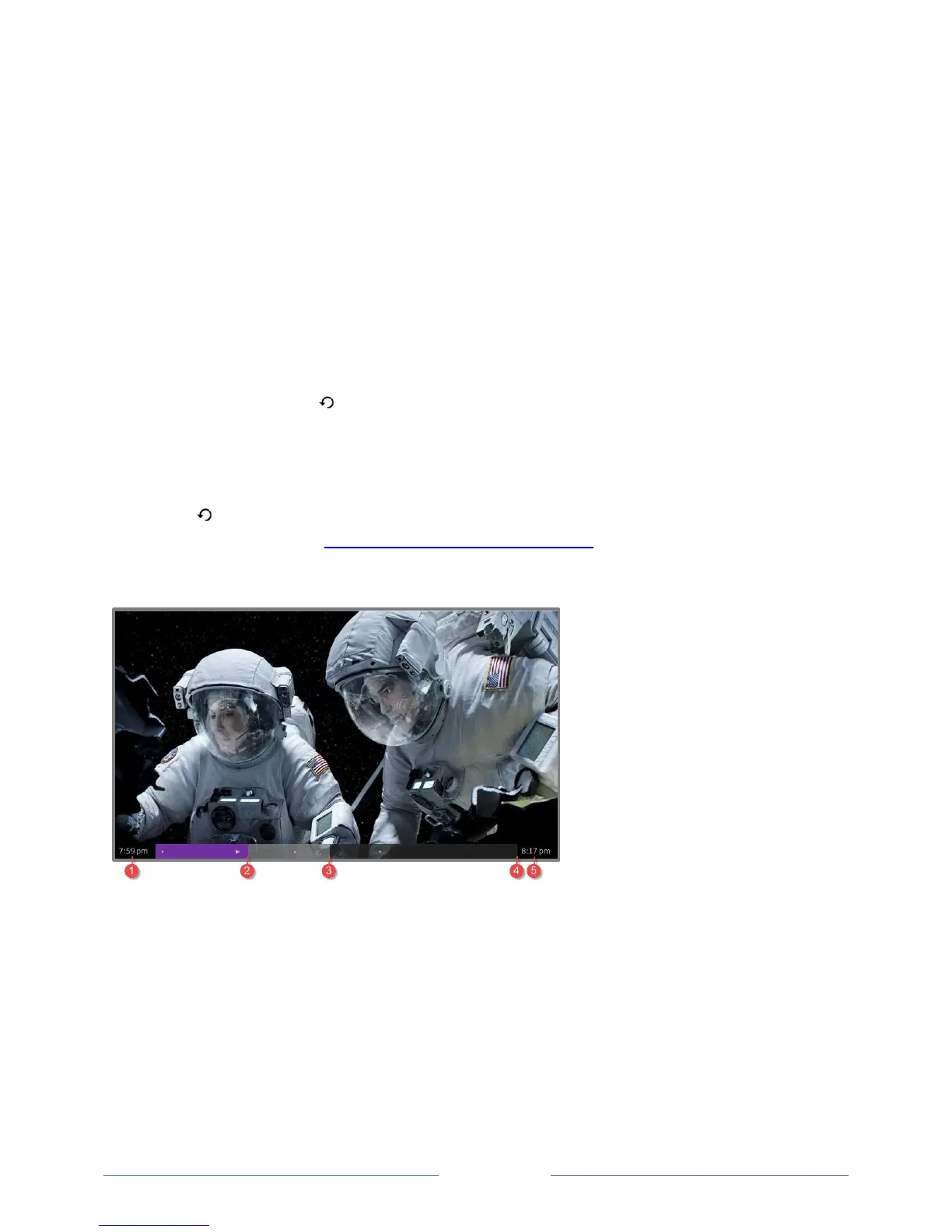
Whenever you use any of the Live TV Pause features, the TV momentarily displays a progress bar:
1. Time at current playback position.
2. Current playback position
3. Extent of pause time, representing the amount of time this channel has been buffered, up to 90
minutes.
4. 90 minute mark, representing the maximum extent of pause time.
5. Current time.
The progress bar also displays tick marks at each half hour point, to help you locate the boundaries
where one show ends and a new one begins.



 To Next Page