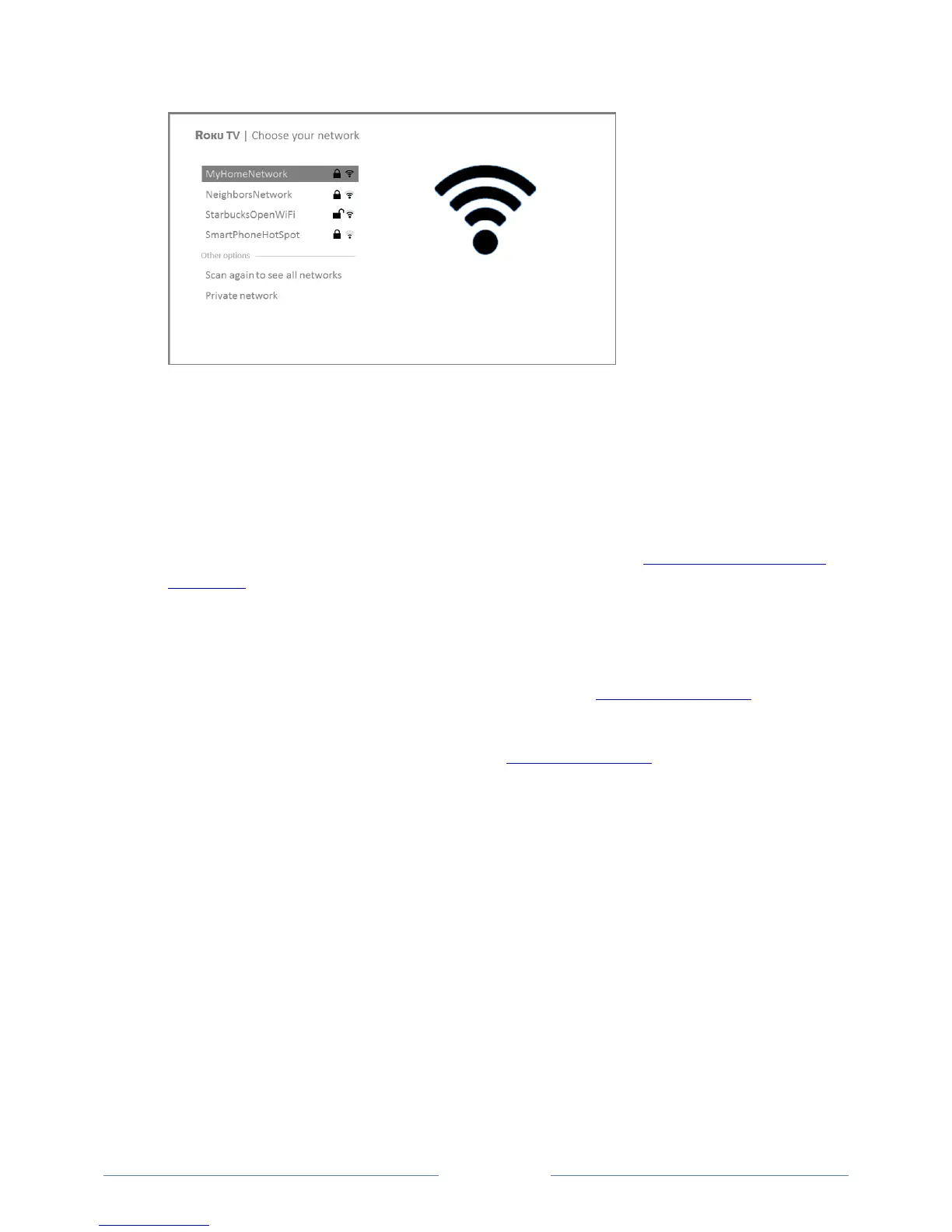
Press the UP or DOWN arrows to highlight the name of your wireless network, and then press
OK to select it.
Note: Some networks, such as those often found in dorm rooms, hotels, and other public places,
require you to read and agree to terms, enter a code, or provide identifying information before
letting you connect to the Internet. If your Roku TV detects that you are connecting to such a
network, it prompts you through the connection process using your compatible smartphone or
tablet to provide the needed information. For more information, see Using your TV in a hotel or
dorm room.
Other options
Connect to the Internet later – If you don’t want to connect to the Internet right now, you
can skip this step and use the TV to watch broadcasts, play games, and watch DVDs. When
you’re ready to connect, it’s easy. We’ll show you how in Benefits of connecting.
Note: If you decide not to connect, Guided Setup skips ahead to setting up the devices that
you’ve connected to your TV. Jump ahead to Connect your devices to continue.
Scan again / Scan again to see all networks – The name of this option depends on the
number of wireless networks within range.
o Scan again appears if the list already shows all available wireless networks within range.
If you don’t see your wireless network name in the list, you might need to adjust the
location of your wireless router or the TV, turn on your router, or make other changes.
When everything is ready, select Scan again to see if your network name now appears in
the list.



 To Next Page