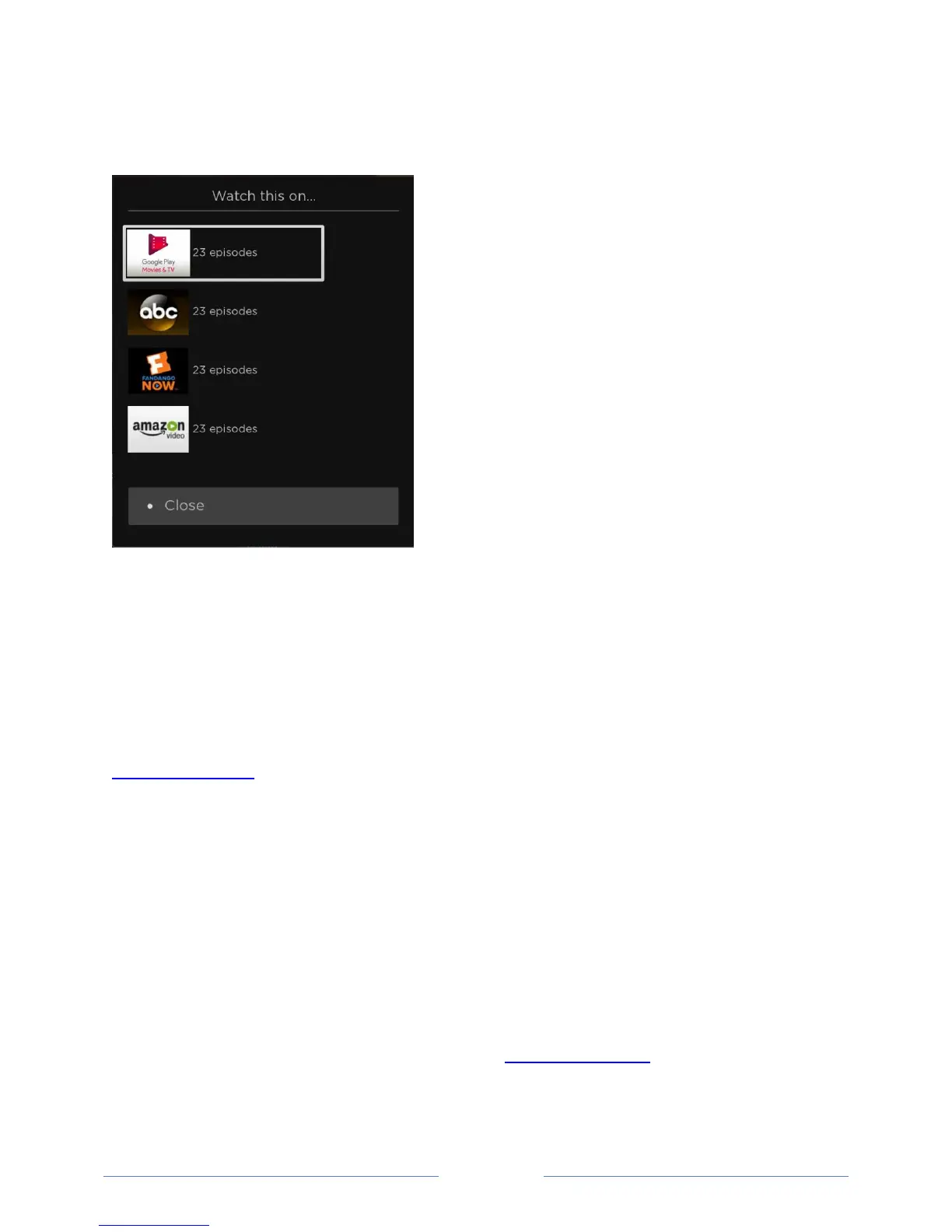
If there are more providers than will fit in the initial More Ways to Watch screen, select See all
providers to see the full list:
Switching TV inputs
Switch to a TV input to access the device connected to that input, for example, a Blu-ray™ player.
Switching inputs is as simple as highlighting the input’s tile in the Home screen, and pressing OK. The
video signal on the input, if any, appears on the screen.
Tip: To learn how to add, remove, rename, and rearrange the tiles on your Home screen, see
Customizing your TV.
Auto-detecting devices
Your TV automatically detects when you connect a new device to an HDMI® input and turn on its power.
The input is automatically added to the Home screen if it isn’t already present.
Adjusting audio/video settings
While watching video content on any input, press to display the Options menu. Press the UP and
DOWN arrows to highlight an option, and then press the LEFT and RIGHT arrows to change the setting.
To learn about each of the audio and video settings, see Adjusting TV settings.



 To Next Page