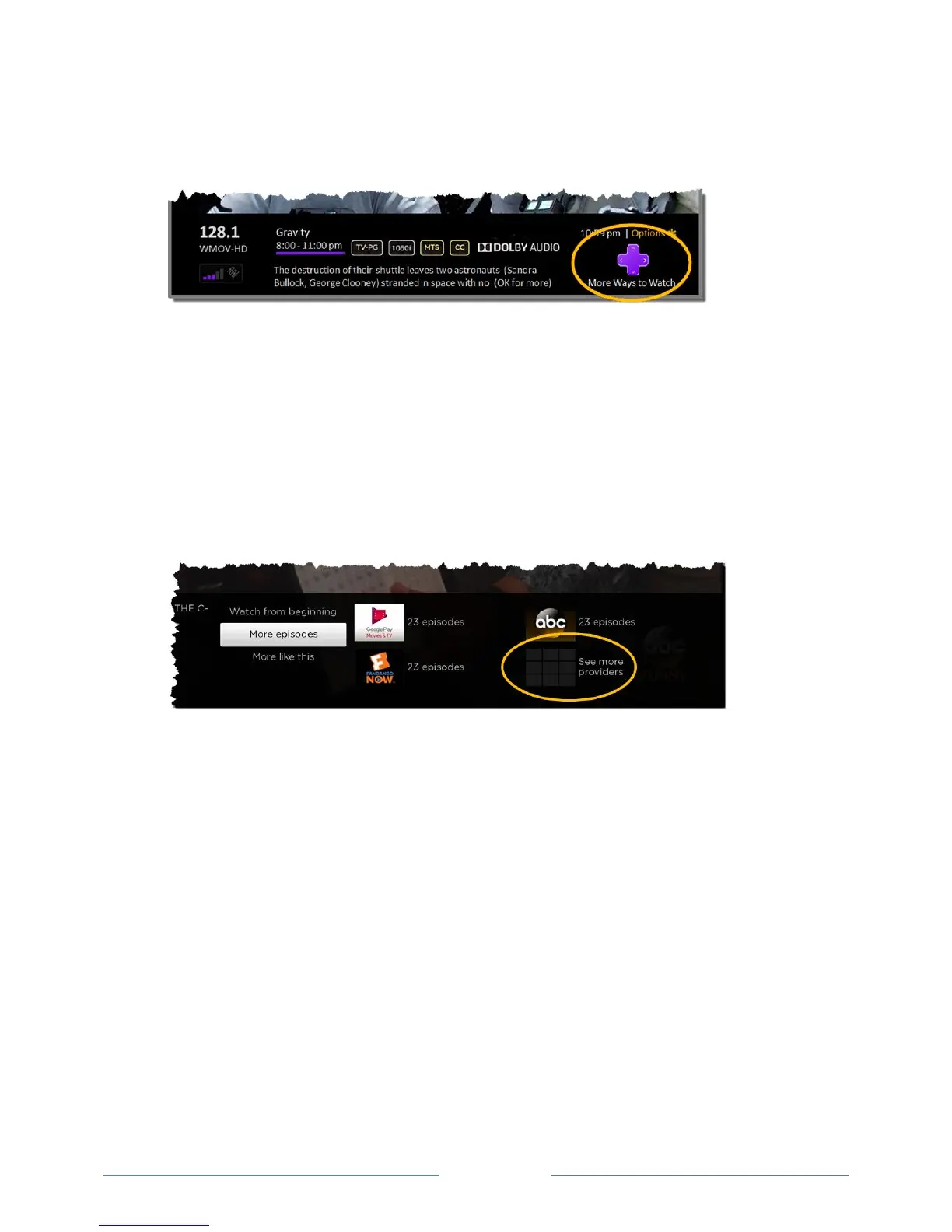
If you miss the notification, you can check the program information banner that appears when
you press OK while watching a TV channel, HDMI, or AV source. If your TV has suggestions,
you’ll see the More Ways to Watch notification in the banner.
Regardless of which More Ways to Watch prompt appears, press the RIGHT arrow to see available
options, if any. The options you’ll see depend on the type of show you’re watching and the available
ways there are to watch, so you might see any or all of the following:
Watch from beginning – Displays streaming channels on which the same TV show or movie is
available. Generally, this option does not appear on first run programs, because streaming
content is not available until a later date.
More episodes – Displays streaming channels where you can find other episodes of the TV show
you are watching. Does not apply to movies.
More like this – Other TV shows or movies with a similar theme.
Press the DOWN arrow to select an option, and then press the RIGHT arrow to select the channel you
want to use to watch from the beginning or watch more episodes, or the other TV show or movie with a
similar theme.
In each case, assuming you’ve already added the channel and signed in as needed, More Ways to Watch
takes you directly to the place in within the streaming channel where you can select and watch the
program.
Keep these points in mind as you use More Ways to Watch:
Streaming channels you’ve already installed appear first in the list of suggestions.
If more than a few streaming channels provide More Ways to Watch, you’ll see a More option.
Select this option to see a scrolling list of available channels.
When you select a streaming channel, you leave the program you are currently watching.
If you’ve used the Live TV Pause feature to pause the program, your paused program buffer is
deleted. In other words, you cannot return to a broadcast channel and resume watching where
you left off.



 To Next Page