Checking for updates on a connected TV
If you’re one of those people who has to have the latest, most up-to-date features the moment they are
available, you can check for updates as often as you want.
To check for updates, navigate to Settings > System > System update, and then select Check now. The
TV responds either with a message saying that your TV is up to date, or with a message saying that an
update is available.
Follow the instructions on the screen to install the system update.
Note: Sometimes system updates install new system software, and other times they install new features
for streaming channels. Therefore, you won’t always see a change in the behavior of your TV after a
system update.
Getting updates on a non-connected TV
If your TV is not connected to the Internet, you can still get system updates by using a USB flash drive
and a computer with an Internet connection.
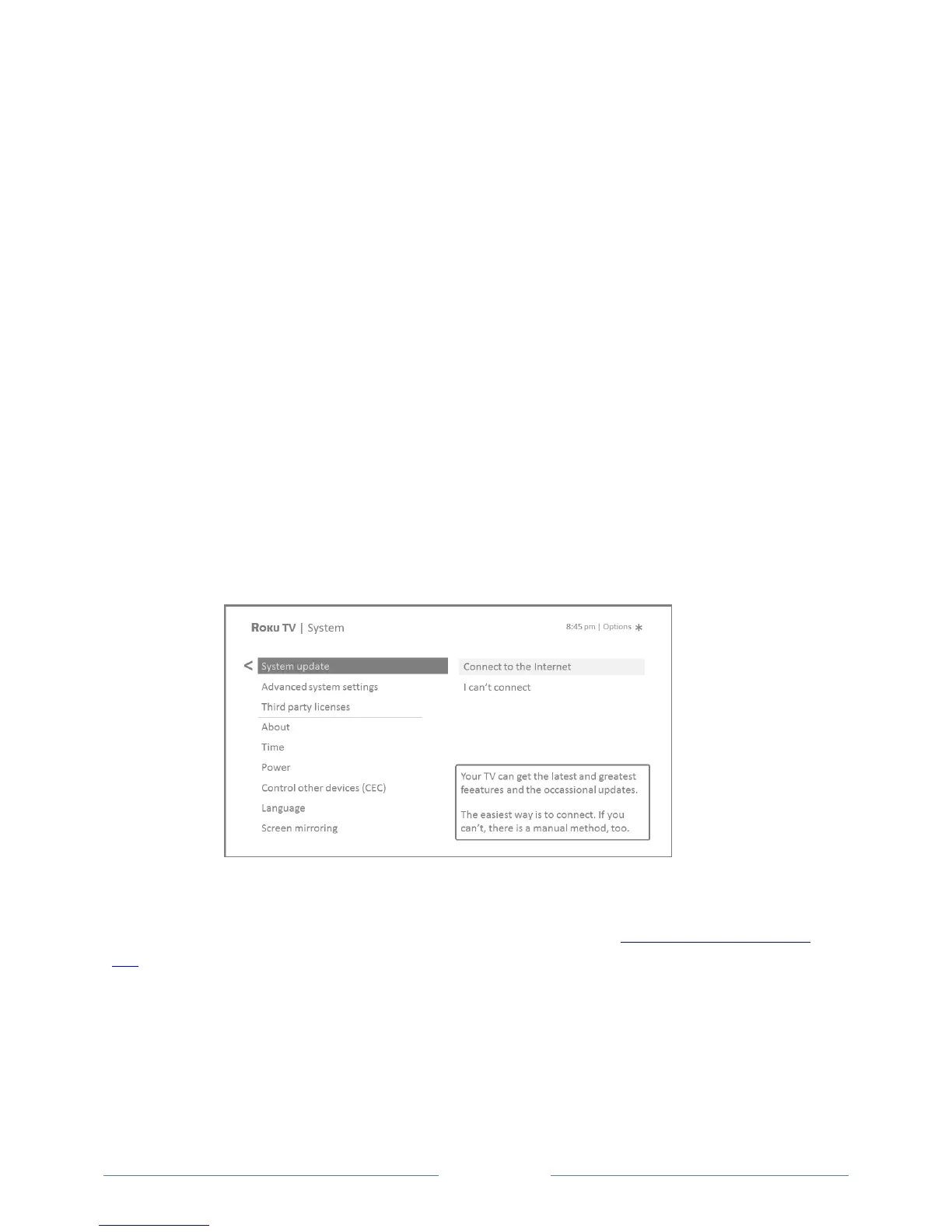
To get a system update, navigate to Settings > System > System update:
The System update screen on a non-connected TV gives you the opportunity to connect your TV to the
Internet to automatically receive updates. We recommend this option if it is possible in your situation.
To proceed, select Connect to the Internet and follow the instructions in What if I didn’t connect my
TV?.
Otherwise, if you can’t connect to the Internet, select I can’t connect, and then follow the instructions
on the screen. Here’s a summary:
1. On an Internet-connected computer, go to the web site displayed on the System update screen.
2. On the USB Update web page, select the correct brand and model, and then click Next.



 To Next Page