120 Hz – On select models only: Enables a higher picture refresh rate.
o On – the TV uses a higher refresh rate, which produces less motion blur.
o Off – the TV uses a 60Hz refresh rate.
Note: The 120 Hz setting is also available in each input’s Options menu, but is not an input-
specific setting. The current setting of the control applies to all inputs.
Settings per input – Lists each TV input. Select an input, and then press to display the Options
menu where you can adjust the input’s settings while watching a live picture and listening to the
sound from that input.
Tip: You don’t have to go to the Settings menu first—you can display an input’s Options menu
and adjust its settings whenever you are watching the input by pressing .
Options menu
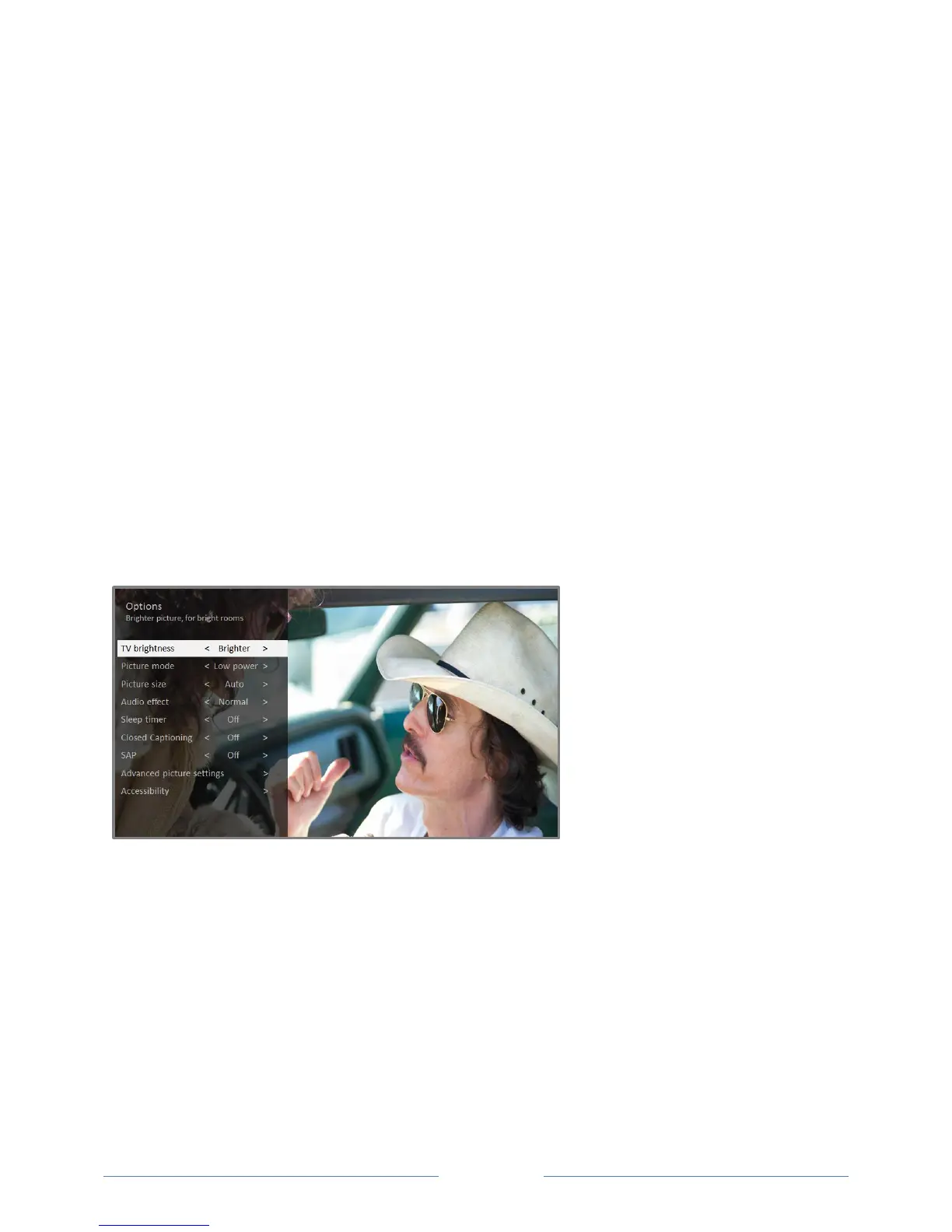
The Options menu for each TV input provides many settings for controlling the appearance of the
picture and the quality of the audio. To view the Options menu, press whenever you are watching a
TV input or streaming a video. The Options menu is a panel that appears over the left side of the screen:
Typical Options menu
To adjust the settings on the Options menu, press the UP or DOWN arrow to highlight a setting, and
then press the LEFT or RIGHT arrow to change the setting. You’ll see the changes you make right away in
picture appearance or audio quality.
Tip: When you highlight a setting, the header text explains the effect of its current value. When you
begin to adjust a setting, the other options are hidden so you can see more of the screen. Even though
the other settings are hidden, you can move the highlight up or down to adjust the other settings. As
soon as you press the UP or DOWN arrow, the other settings become visible again.



 To Next Page