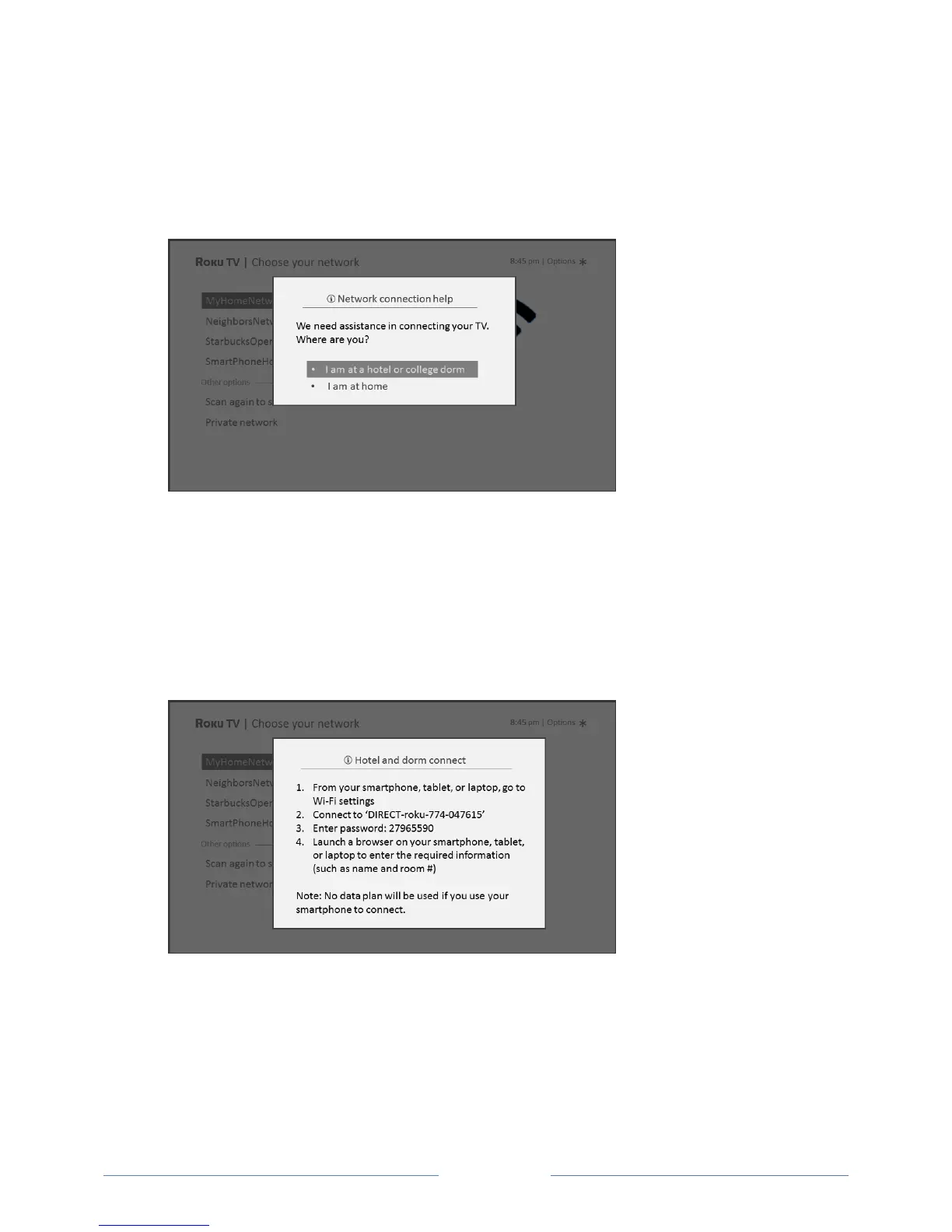
To connect your TV to a restricted network:
1. Either during Guided Setup or after using the Settings > Network menu to set up a new
connection, the TV automatically detects that you are connecting to a restricted network and
displays the following prompt:
Tip: Your TV can connect to a restricted network only if Device connect is enabled in Settings >
System > Advanced system settings. (Device connect is enabled by default, but if you have
disabled it, the TV cannot complete the connection.)
Note: Device connect is not present if the TV is in non-connected mode.
2. After selecting the correct network, highlight I am at a hotel or college dorm, and then press
OK. The TV prompts you to use your smartphone, tablet, or laptop to complete the connection.
3. Use a phone, tablet, or wireless-enabled computer to detect wireless networks. In most cases,
you can simply open the device’s Wi-Fi Settings or Network Settings screen to start scanning.
Note: The phone, tablet, or computer must be on the same wireless network to which you are
connecting the TV.
4. Connect to the network named on your TV screen. The actual network name varies.



 To Next Page