Configuration
Quantum Intelligent EV Charging Pedestal EVQM-V01-R6 Installation and Operation Manual
Page 33 of 52 December 2023
Installer Projects
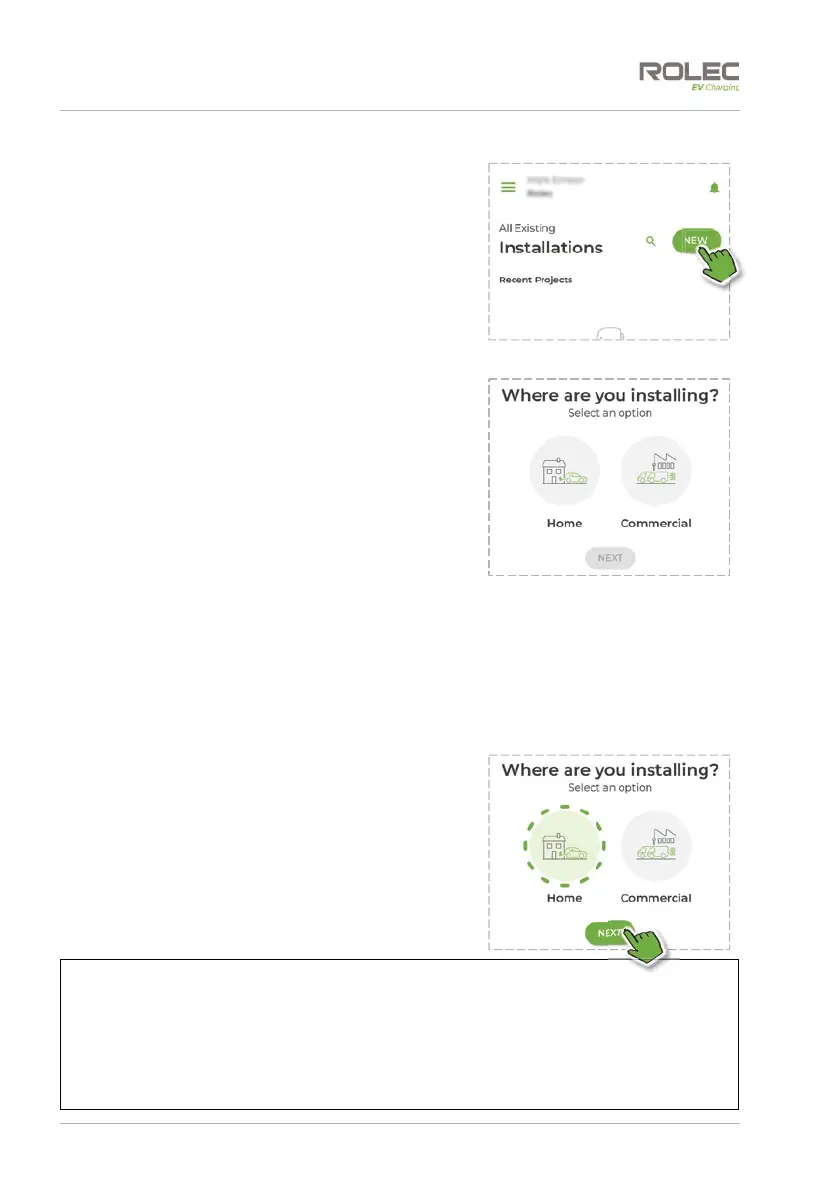
1. On the Installations – Recent Projects screen,
tap the New button.
2. Select whether you are installing a charge
point in a Home or a Commercial
environment.
This will influence some of the settings available
during configuration.
Home and Commercial projects will be placed
in separate groups within the application to
aid their management.
3. Once the appropriate icon is selected, tap the NEXT button to continue.
x If this is a Home installation, you will continue as detailed from step 4 (below).
x If this is a Commercial installation you can set-up the project in advance of
going to the site and you will be required to enter a project name. After
doing this the project will be listed on the Configure your chargepoint screen.
To add a charge point to a project, tap the ADD A CHARGE POINT button
then continue the process from step 4 (below).
4. After tapping the NEXT button, the phone will
open the camera to enable it to scan the
removeable QR code attached to the back of
the Configuration Tag.
x If not already enabled, allow use of the
phone’s camera.
NOTES:
x The charge point ID embedded in the QR code is unique and cannot be used with
a different charge point.
x If the Configuration Tag or QR code is missing, there is a second permanent label
attached to the communication assembly within the charge point.
x Alternatively, it is possible to use the phone’s Bluetooth function to scan for the
charge point.



 To Next Page