3.2
Viewing
the entire route on the
map
It
is
easy to get a map overview of the active route. Do as follows:
1.
2.
3.
Menu
If you are on the Map screen, tap
__
to
return to the Navigation menu.
I
'"
My
Route
1
In
the Navigation menu. tap
-.
Tap
I.
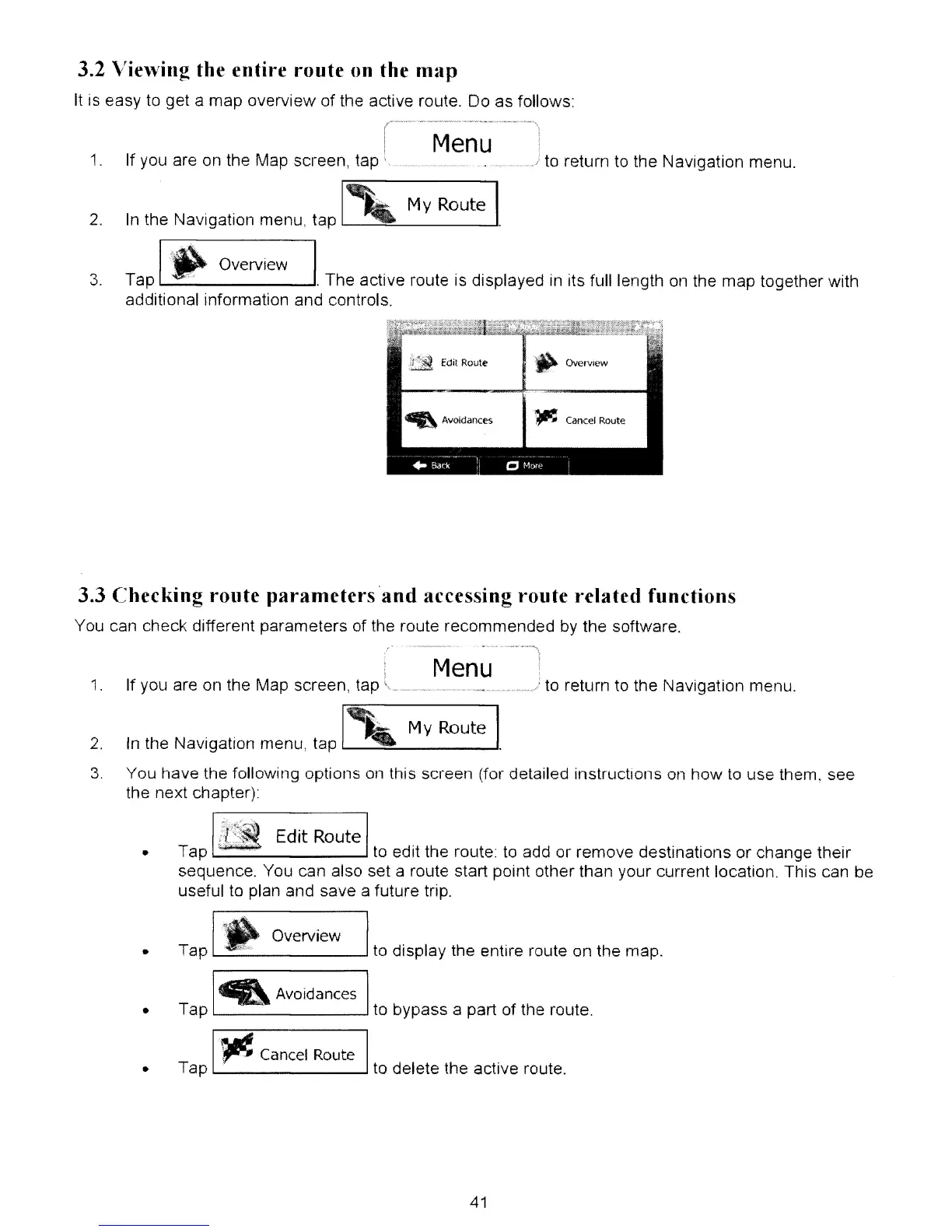
Overview IThe active roule is displayed in its full length on the map togelher with
additional information and controls.
Edit Route
,.
OvervIew
~
Avoidances
~
Cancel Route
3.3
Checking
route
parameters
'and
accessing route related functions
You can check different parameters of the route recommended by the software.
..
_
_/
to
return to the Navigation menu.
1.
2.
Menu
If you are on the Map screen, tap
In the NaVigation menu, tap
1'-
My
Route
I
•
•
•
•
3.
You have the following options
on
this screen (for detailed instructions on how
to
use them, see
the next chapter):
Tap
~
Edit
Route
to
edit the route to add
or
remove destinations or change their
sequence. You can also set a route start point other than your current location. This can be
useful to plan and save a future trip.
Tap
IL, Overview Ito display the entire route on the map.
I
•
Avoidances I
Tap . to bypass a part of the route.
I
"~
Cancel Route I
Tap . to delete the active route.
41


 To Next Page