5.1.6 Speed limit
warning
Maps may contain information about the speed limits of the road segments. The software is able
to
warn
you if you exceed the current limit. This information may not
be
available for your region (ask your local
dealer), or may not
be
fully correct for
all
roads
in
the map. Speed warning can
be
fine-tuned
in
Sound
and Warning settings (page 53).
You can set the relative speed above which the application initiates the warning.
The following alert types are available:
• Audio warning:
you
receive a verbal warning when you exceed the speed limit with the given
percentage.
• Visual warning: the current speed limit is shown
on
the map when you exceed it (for example:
SPEED
LIMIT
50
).
You can also choose to see the speed limit sign
on
the map all the time.
5.2 Settings menu
You can
9.~~gur~_.!~_~_f?!_o.gram
settinqs, and modify the behavior of the software. Tap the following
f
'\
,.
I
Menu
I
1<
Settings
buttons: \ .
),
1...-'_"_'
.....
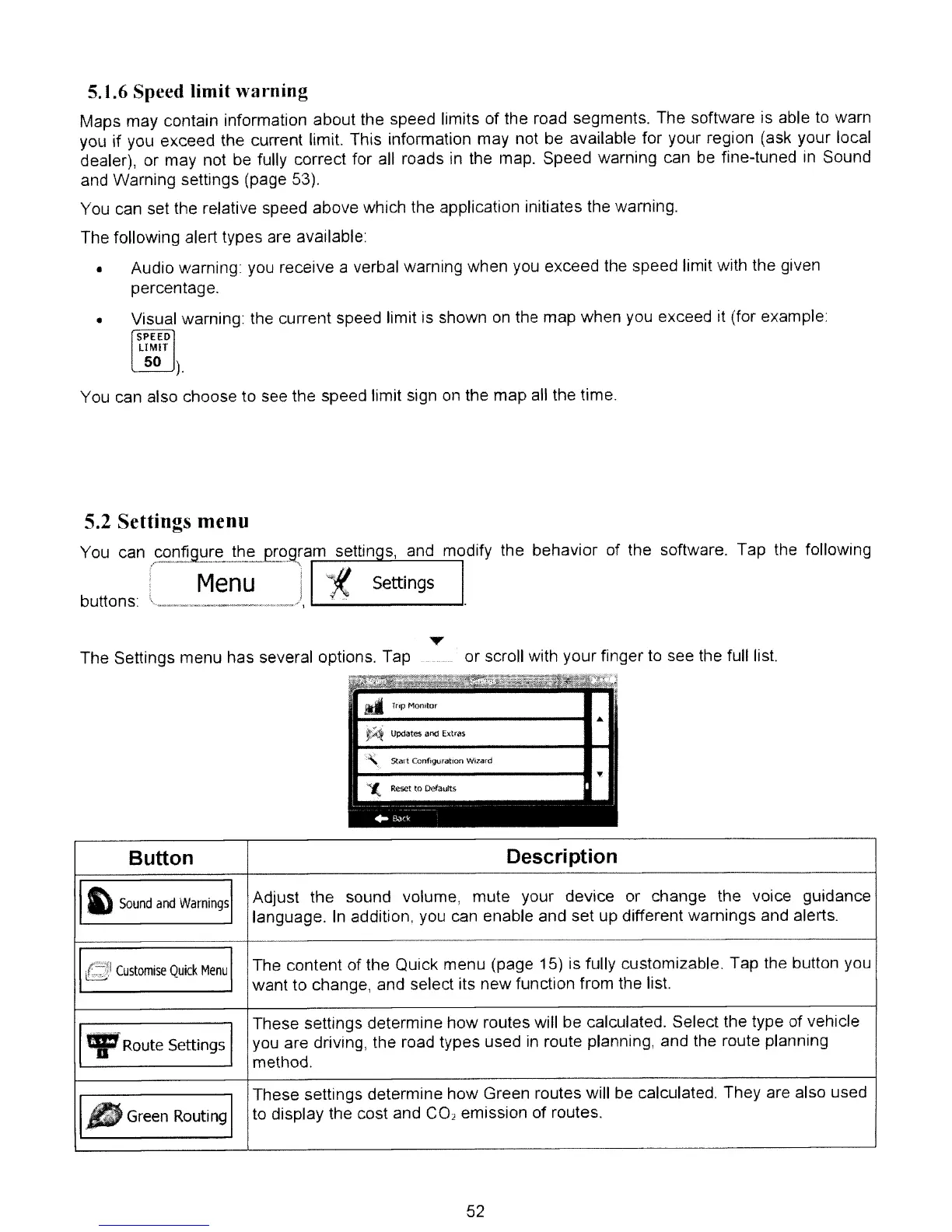
The Settings menu has several options. Tap
or scroll with your finger to see the full list.
II-~----------
....
Start Configuration Wilard
11------------
..
"
~(
Reset
to
DeI<>utt.
Button
Description
II
~
Sound
and
Warnings
I
Adjust the sound volume, mute your device or change the voice
guidance
language.
In
addition. you can enable and set up different warnings and alerts.
,I
Customise
Quick
Menu
I
The content of the Quick menu (page 15) is fully customizable. Tap the button you
want to change, and select its new function from the list.
These settings determine how routes will be calculated. Select the type of vehicle
19-
Route
Settings I
you are driving, the road types used
in
route planning, and the route planning
method.
I.
Green
Routing I
These settings determine how Green routes will
be
calculated. They are also used
to
display the cost and
CO
2
emission of routes.
52


 To Next Page