3.4.7
Changing
the
road
types used in I'oute
planning
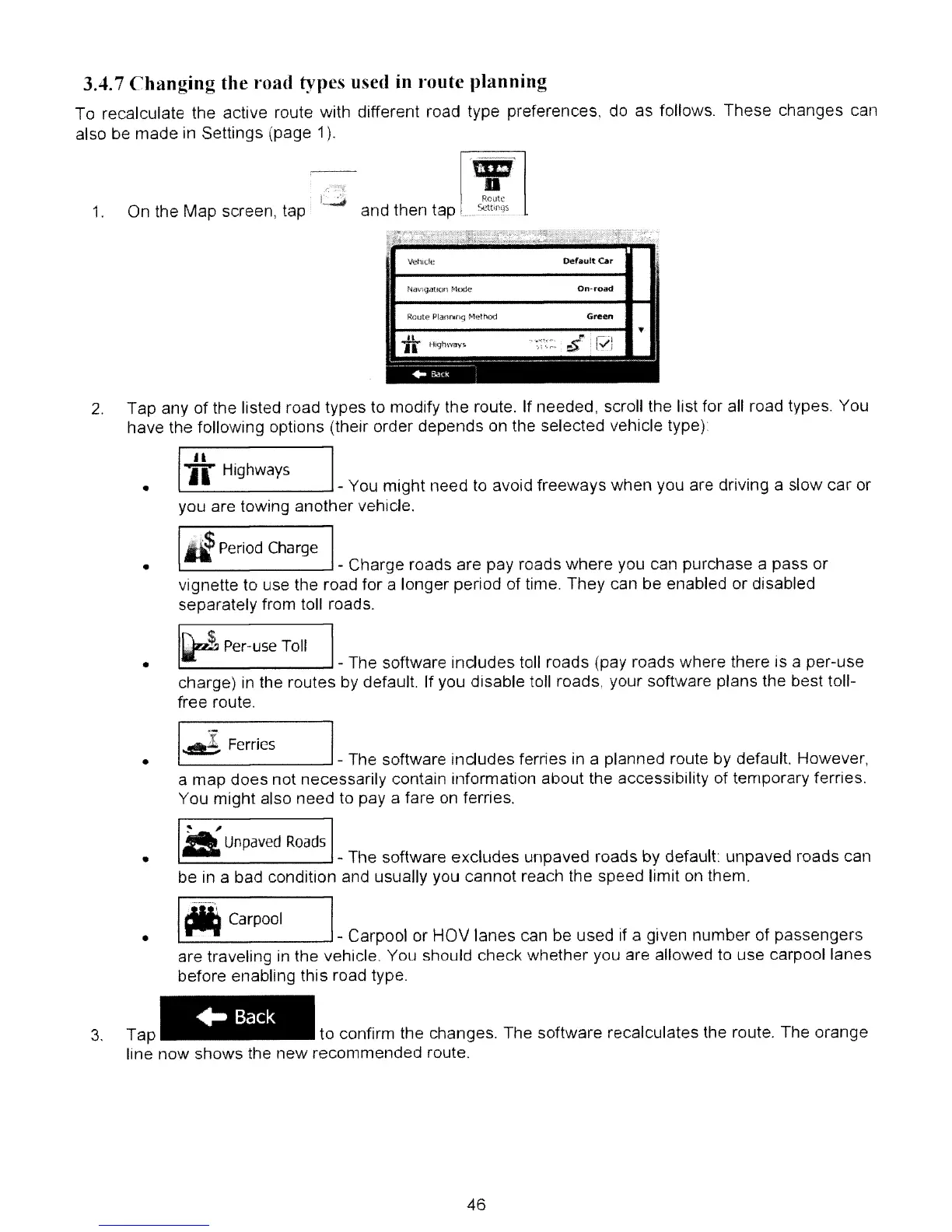
To recalculate the active route with different road type preferences, do as follows. These changes can
also be made in Settings (page 1).
1.
On the Map screen, tap
Route
and then tap Sett""jS
Vehll;le
NiJ\1giJttOfl
fl'lode
Reule Planning Nethod
oefault
car
On~f'oad
Green
•
2.
11------------
...
"
II
'if
'-'''lhw.y,
'----
~------
--
-~--~--
--~---------
---
------
.lldtK
Tap any of the listed road types to modify the route. If needed, scroll the list for all road types. You
have the following options (their order depends on the selected vehicle type)
IH I
..........
Highways
I.
_You might need
to
avoid freeways when you are driving a slow car or
you are towing another vehicle.
•
•
•
•
•
IIPeriod Charge
1...-
--'
- Charge roads are pay roads where you can purchase a pass or
vignette to use the road for a longer period of time. They can be enabled or disabled
separately from toll roads.
I
~$"
Per-use Toll I
If"""'"
_The software includes toll roads (pay roads where there is a per-use
charge)
in
the routes by default. If you disable toll roads, your software plans the best toll-
free route.
I
··~
Ferries
I
- The software Includes femes
In
a planned route by default. However,
a map does not necessarily contain information about the accessibility of temporary ferries.
You might also need to pay a fare
on
ferries.
~
jI
a
Unpaved
Roads
1...-
--'
- The software excludes unpaved roads
by
default: unpaved roads can
be in a bad condition and usually you cannot reach the speed limit
on
them.
1
M
Carpool
I
- Carpool or HOV lanes can be used
if
a given number of passengers
are traveling
in
the vehicle You should check whether you are allowed
to
use carpool lanes
before enabling this road type.
..
Back
3.
Tap to confirm the changes. The software recalculates the route. The orange
line now shows the new recommended route.
46



 To Next Page