Rout(~
Planning
Method
fast
.....
----------
....
ft
Highways
~~
~
~~
=~~~'N~~~_~~
~~
0"
~
~
~~~
o
...
&;"ck
---- : V Next
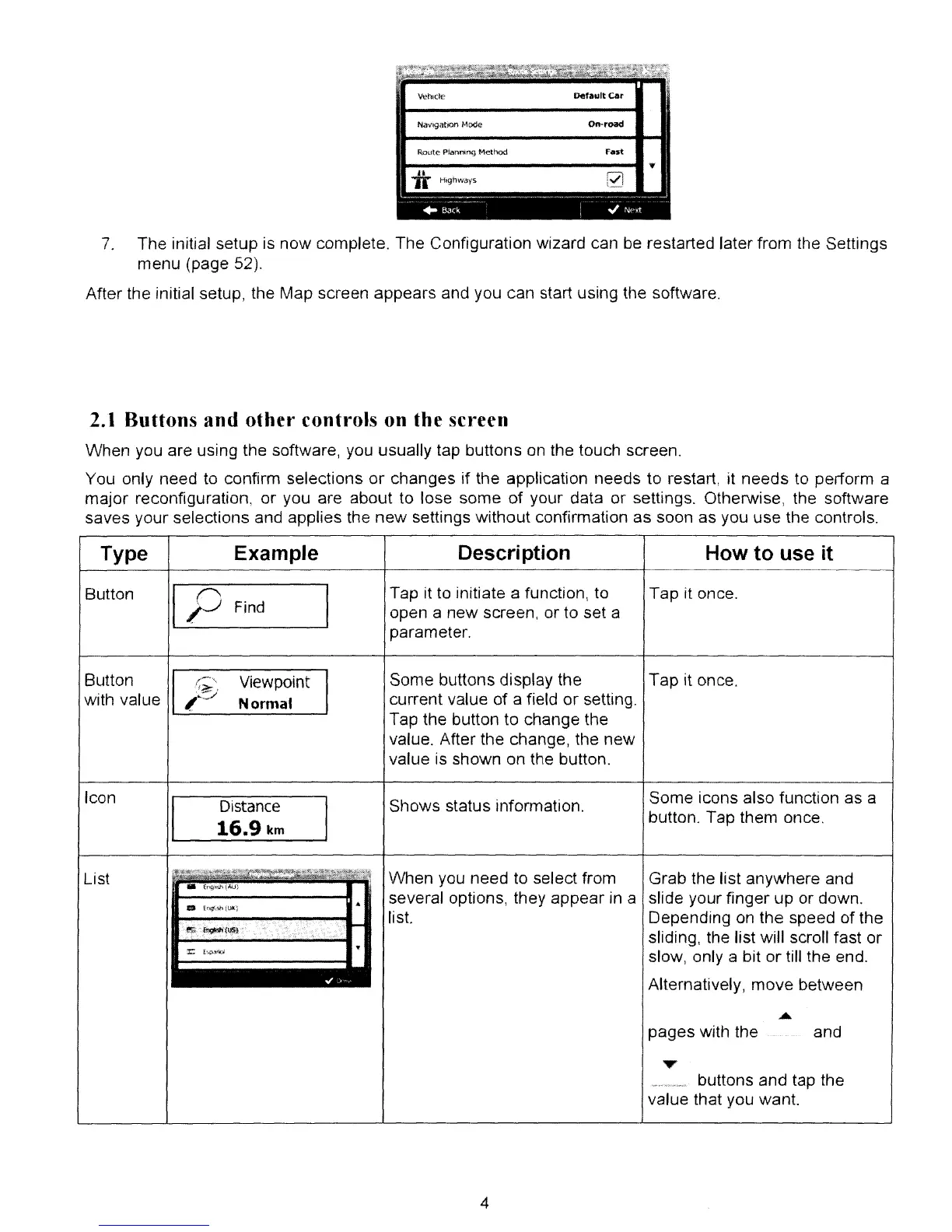
7.
The initial setup is
now
complete. The Configuration wizard can be restarted later from the Settings
menu
(page 52).
After the initial setup, the Map screen
appears
and you can start using the software.
2.1 Buttons and other controls on the screen
When
you are using the software, you usually tap buttons on the touch screen.
You only need to confirm selections
or
changes
if
the application needs
to
restart, it
needs
to perform a
major
reconfiguration,
or
you are about to lose
some
of
your data
or
settings. Otherwise, the software
saves
your
selections and applies the
new
settings
without
confirmation
as
soon as you
use
the controls.
Type
Example
Button
I
p
Find
Button
/-"
.
Viewpoint
.
?~-
with value
L~'J
Normal
Description How to use it
Tap it to initiate a function, to
Tap
it once.
open a
new
screen, or to set a
parameter.
Some buttons display the
Tap
it once.
current value
of
a field
or
setting.
Tap the button
to
change the
value. After the change, the
new
value is shown on the button.
Icon
List
Distance
16.9
km
Shows status information.
When
you need to select from
several options, they
appear
in a
list.
4
Some icons also function as a
button. Tap them once.
Grab the list anywhere and
slide your finger
up
or down.
Depending on the speed
of
the
sliding, the list will scroll fast
or
slow, only a bit
or
till the end.
Alternatively,
move
between
....
pages
with the and
buttons and tap the
value that you want.


 To Next Page