Radio
button
Switch
Slider
@
()
When there are only a few
choices, radio buttons may be
used instead of lists. Only one
value can
be
selected.
When there are only two
choices, a checkmark shows
whether the feature is enabled.
When a feature can be set to
different values in a range, the
software shows
an
indicator on
a gauge that displays and sets
the value.
Tap one of the buttons to
select a new value.
Tap it to turn the switch
on
or
off.
• Drag the handle
to
move the slider to its
new position.
• Tap the slider where
you
want the handle to
appear; the thumb
jumps there.
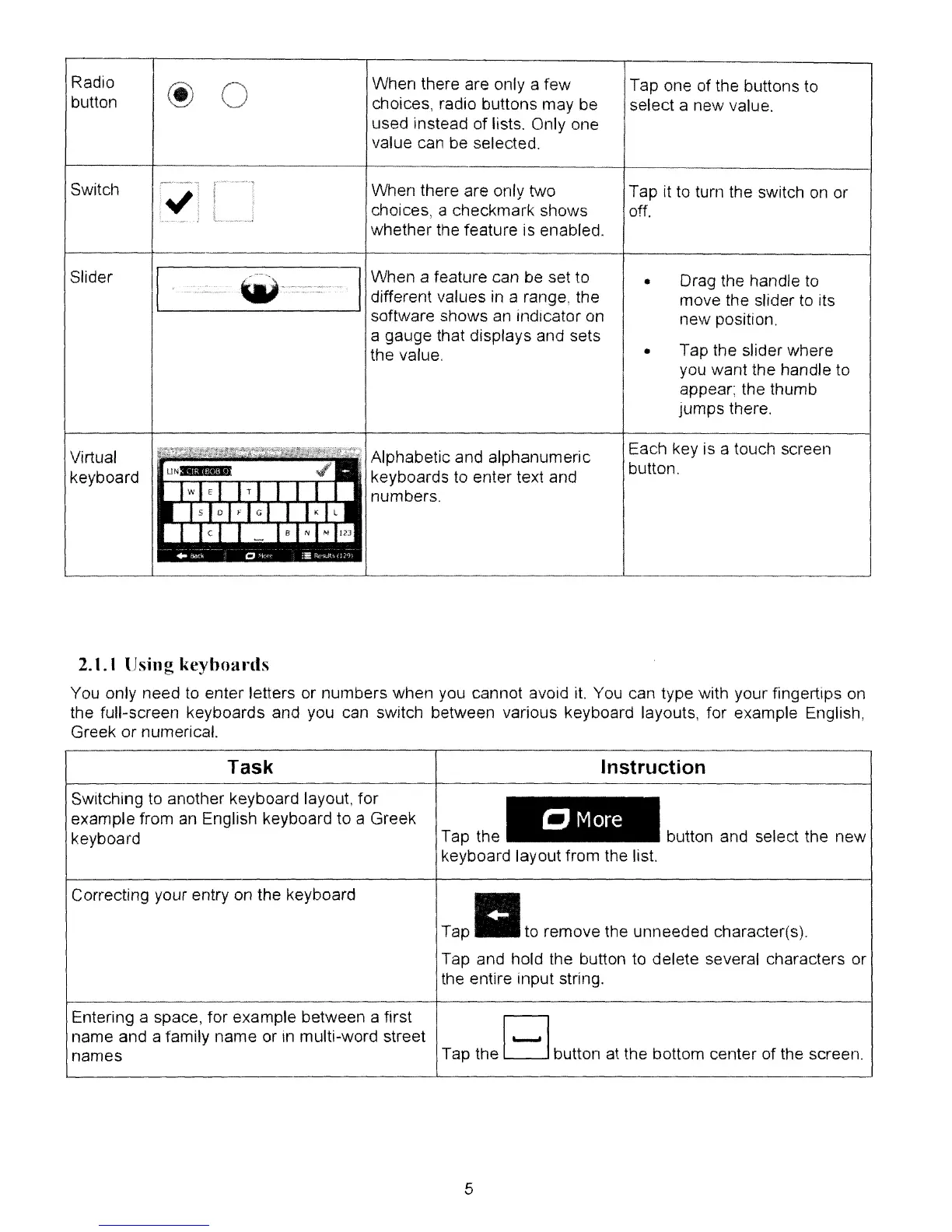
Virtual
keyboard
Alphabetic and alphanumeric
keyboards
to
enter text and
numbers.
Each key is a touch screen
button.
2.1.1 {Ising
keyboards
You
only need
to
enter letters or numbers when
you
cannot avoid
it.
You can type with your fingertips
on
the full-screen keyboards and you can switch between various keyboard layouts, for example English,
Greek or numerical.
Task
SWitching
to
another keyboard layout, for
example from
an
English keyboard to a Greek
keyboard
Correcting your entry
on
the keyboard
Instruction
CMore
Tap the button and select the new
keyboard layout from the list.
Tap
lito
remove the unneeded character(s).
Tap and hold the button
to
delete several characters or
the entire input string.
Entering a space, for example between a first
B
name and a family name or
In
multi-word street
'--'
names Tap the button at the bottom center of the screen.
5



 To Next Page