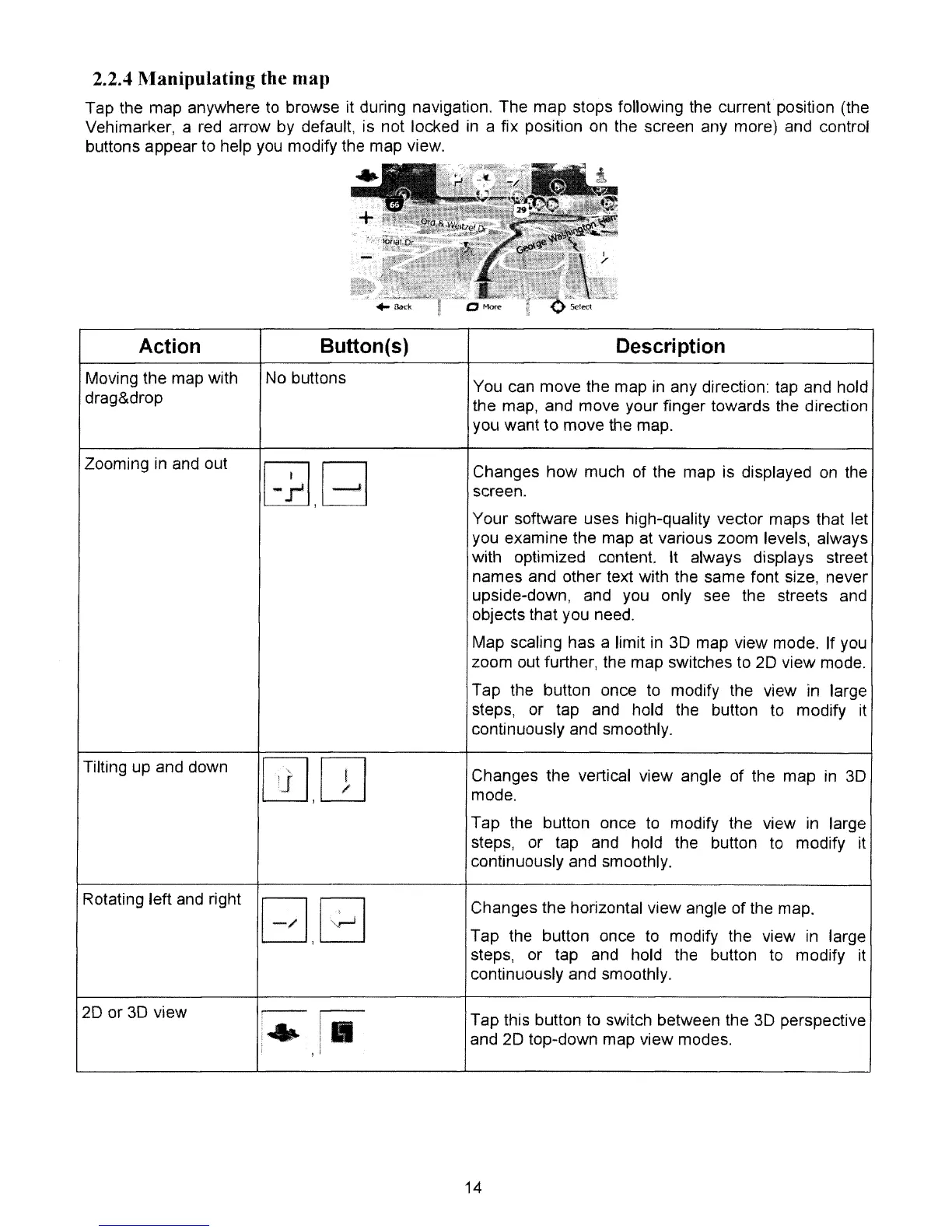
2.2.4 Manipulating the map
Tap the map anywhere
to
browse it during navigation. The map stops following the current position (the
Vehimarker. a red arrow by default. is not locked
in
a fix position on the screen any more) and control
buttons appear to help
you
modify the map view.
Action
Moving the map with
drag&drop
Zooming in
and
out
Tilting up and down
Rotating left and right
20
or 3D view
Button(s)
No buttons
[I),O]
B,B
Description
You can move the map in any direction:
tap
and hold
the map, and move your finger towards the direction
you want to move the map.
Changes how much of the map is displayed
on
the
screen.
Your software uses high-quality vector maps that let
you examine the map at various zoom levels. always
with optimized content. It always displays street
names and other text with the same font size. never
upside-down, and
you
only see the streets and
objects that you need.
Map scaling has a limit in
3D
map view mode. If
you
zoom out further, the map switches
to
20
view mode.
Tap the button once
to
modify the view in large
steps, or tap and hold the button
to
modify it
continuously and smoothly.
Changes the vertical view angle of the map in
3D
mode.
Tap the button once
to
modify the view in large
steps, or tap and hold the button
to
modify it
continuously and smoothly.
Changes the horizontal view angle
of
the map.
Tap the button once
to
modify the view in large
steps, or tap and hold the button
to
modify it
continuously and smoothly.
Tap this button
to
switch between the 3D perspective
and
20
top-down map view modes.
14


 To Next Page