-
-
•
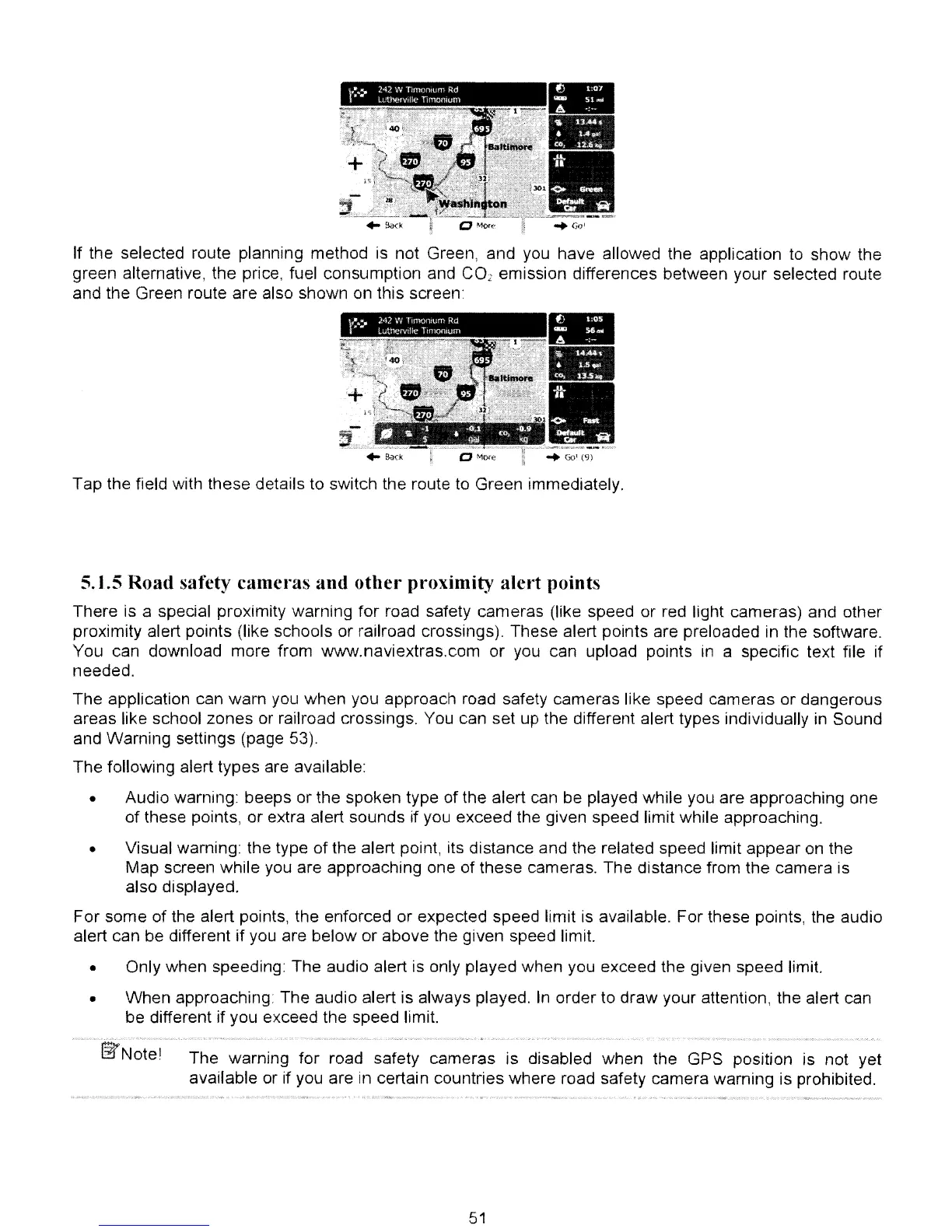
If
the selected route planning method
is
not Green, and you have allowed the application
to
show the
green alternative, the price, fuel consumption and
COL
emission differences between your selected route
and the Green route are also shown on this screen:
-
._
.
,..
<
lO1
••..
"
I
.••.
,
..
"'!'
Tap the field with these details to switch the route to Green immediately.
5.
J.5
Road safety camet·as and other proximity alert points
There is a special proximity warning for road safety cameras (like speed or red light cameras) and other
proximity alert points (like schools or railroad crossings). These alert points are preloaded in the software.
You can download more from www.naviextras,com or
you
can upload points
in
a specific text file if
needed,
The application can warn you when you approach road safety cameras like speed cameras or dangerous
areas like school zones or railroad crossings. You can set
up
the different alert types individually
in
Sound
and Warning settings (page 53).
The following alert types are available:
• Audio warning: beeps or the spoken type of the alert can
be
played while you are approaching one
of these points, or extra alert sounds if you exceed the given speed limit while approaching.
• Visual warning: the type of the alert point, its distance and the related speed limit appear on the
Map screen while you are approaching one of these cameras. The distance from the camera is
also displayed.
For some of the alert points, the enforced or expected speed limit is available. For these points, the audio
alert can be different if you are below or above the given speed limit.
• Only when speeding: The audio alert is only played when you exceed the given speed limit.
• When approaching The audio alert is always played.
In
order to draw your attention, the alert can
be different if you exceed the speed limit.
The warning for road safety cameras is disabled when the GPS position is not yet
available or if you are
in
certain countries where road safety camera warning is prohibited.
51



 To Next Page