Track
Logs
ON
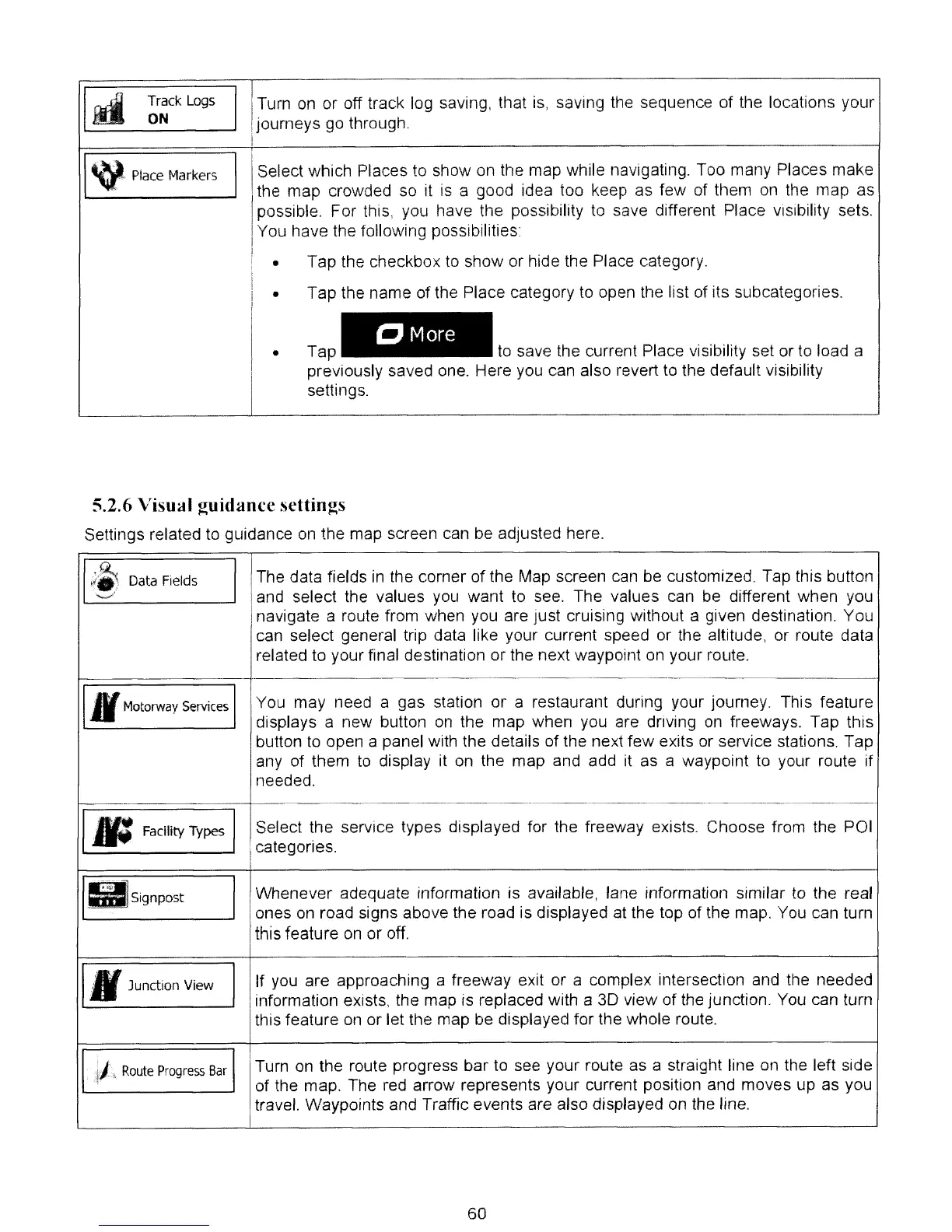
Turn
on
or off track log saving, that
is,
saving the sequence of the locations your
dourneys go through.
!
CMore
Tap
to
save the current Place visibility set or
to
load a
previously saved one. Here you can also revert
to
the default visibility
settings.
ISelect which Places to show on the map while navigating. Too many Places make
,the map crowded
so
it
is
a good idea too keep as few of them
on
the map as
Ipossible. For this,
you
have the possibility to save different Place visibility sets.
IYou have the following possibilities
I
i • Tap the checkbox
to
show or hide the Place category.
I
I • Tap the name of the Place category
to
open the list of its subcategories.
I ·
~
Place
Markers
5.2.6 Visual
guidance
settings
Settings related
to
guidance
on
the map screen
can
be adjusted here.
,;~
Data
Fields
I
The data fields
in
the corner of the Map screen
can
be customized. Tap this button
-....J
and
select the values
you
want to see. The values can
be
different when you
Inavigate a route from when you are
Just
cruising without a given destination. You
ican select general trip data like your current speed or the altitude, or route data
I related
to
your final destination or the next waypoint on your route.
JJ
Motorway
Services
I
You may need a gas station or a restaurant during your journey. This feature
displays a new button
on
the map when you are driVing
on
freeways. Tap this
button
to
open a panel with the details of the next few
eXits
or service stations. Tap
any of them
to
display it
on
the map and add it as a waypoint
to
your route if
~;ded
._.
-----------------------
------
--------------_._--
,-
Facility
Types
I Select the service types displayed for the freeway eXists. Choose from the POI
categones.
'RSignpost
I
Whenever adequate information is available, lane information similar
to
the real
ones
on
road signs above the road
is
displayed
at
the top of the map. You can turn
this feature
on
or off.
1M
Junction View
I
If
you
are approaching a freeway exit or a complex intersection and the needed
information exists, the map is replaced with a 3D view of the junction.
You
can turn
this feature
on
or let the map
be
displayed for the whole route.
ii,
Route
Progress
Bar
I
Turn
on
the route progress bar to see your route as a straight line on the left side
of the map. The red arrow represents your current position and moves up as you
travel. Waypoints and Traffic events are also displayed on the line.
60


 To Next Page