j,"..;.
242
W
Tn.,.,,,,,,",,,
Rd
,-
Luthervdle TImonium
8.
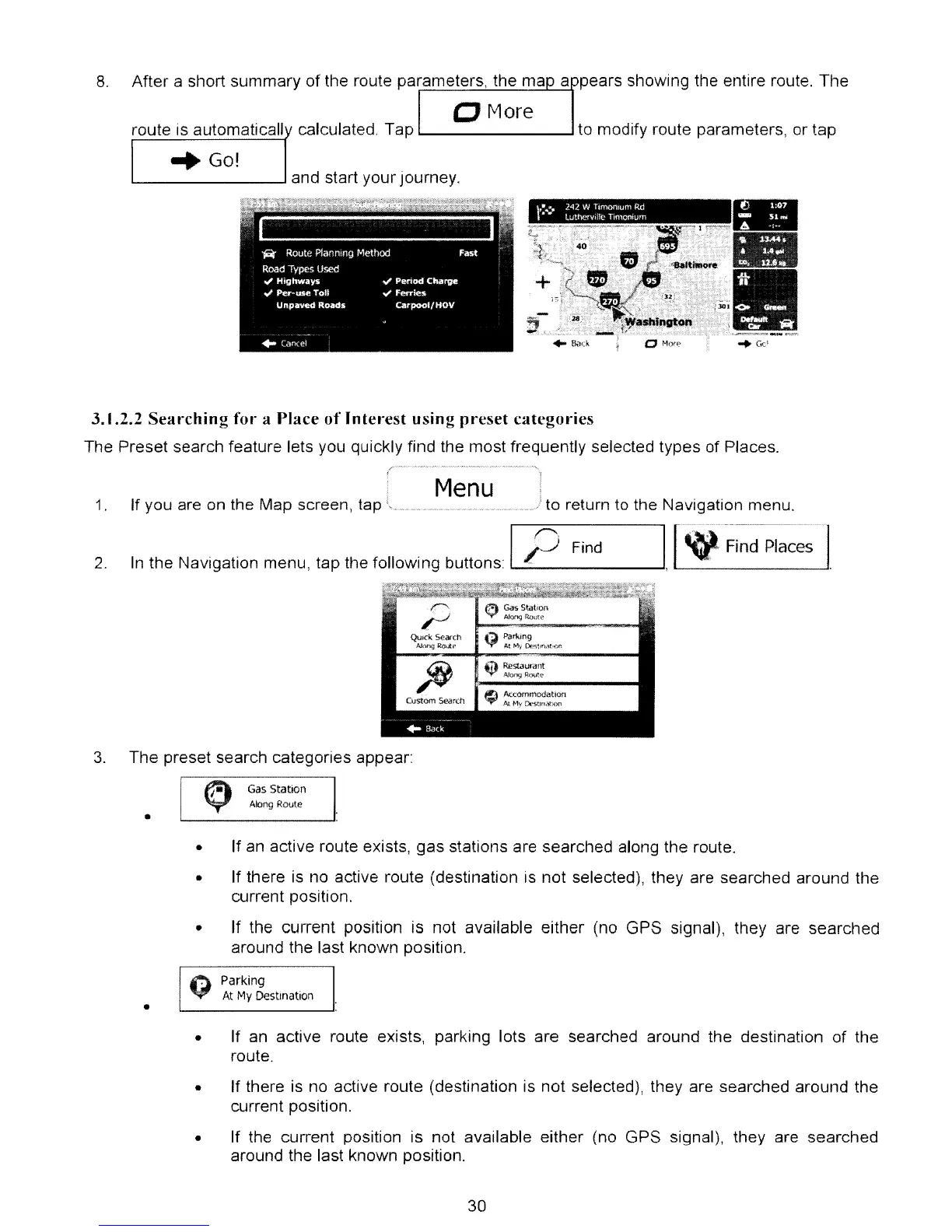
After a short summary
of
the route parameters, the map appears showing the entire route. The
CJ
More
route IS automaticall calculated. Tap '--- ---' to modify route parameters, or tap
"Go!
L-.-
--I
and start your journey.
3.1.2.2
Searching
for a Place
of
Interest
using
preset
categories
The Preset search feature lets you quickly find the most frequently selected types of Places.
1. If you are on the Map screen, tap
Menu
to return to the Navigation menu.
2.
In
the Navigation menu, tap the following buttons:
11-...;~_r-_·_Fi_n_d
I,
[~-;;~-~-p~~~~~
l.
QuIck Searcll
Along
RcYl.~
Custom Search
Gas Stillion
Along Rotlte
3.
The preset search categories appear:
~
Gas
Station
V
AlOng
Route
•
• If an active route exists, gas stations are searched along the route.
• If there is no active route (destination is not selected), they are searched around the
current position.
• If the current position is not available either (no GPS signal), they are searched
around the last known position.
Q
Parking
At
My
Destination
•
•
If an active
route
route.
exists, parking lots are searched around the destination
of
the
• If there is no active route (destination is not selected), they are searched around the
current position.
• If the current position is not available either (no GPS signal), they are searched
around the last known position.
30



 To Next Page