26 • Creating a Soft Panel for Ultritouch Ultritouch+Ultrix User Guide (v1.0)
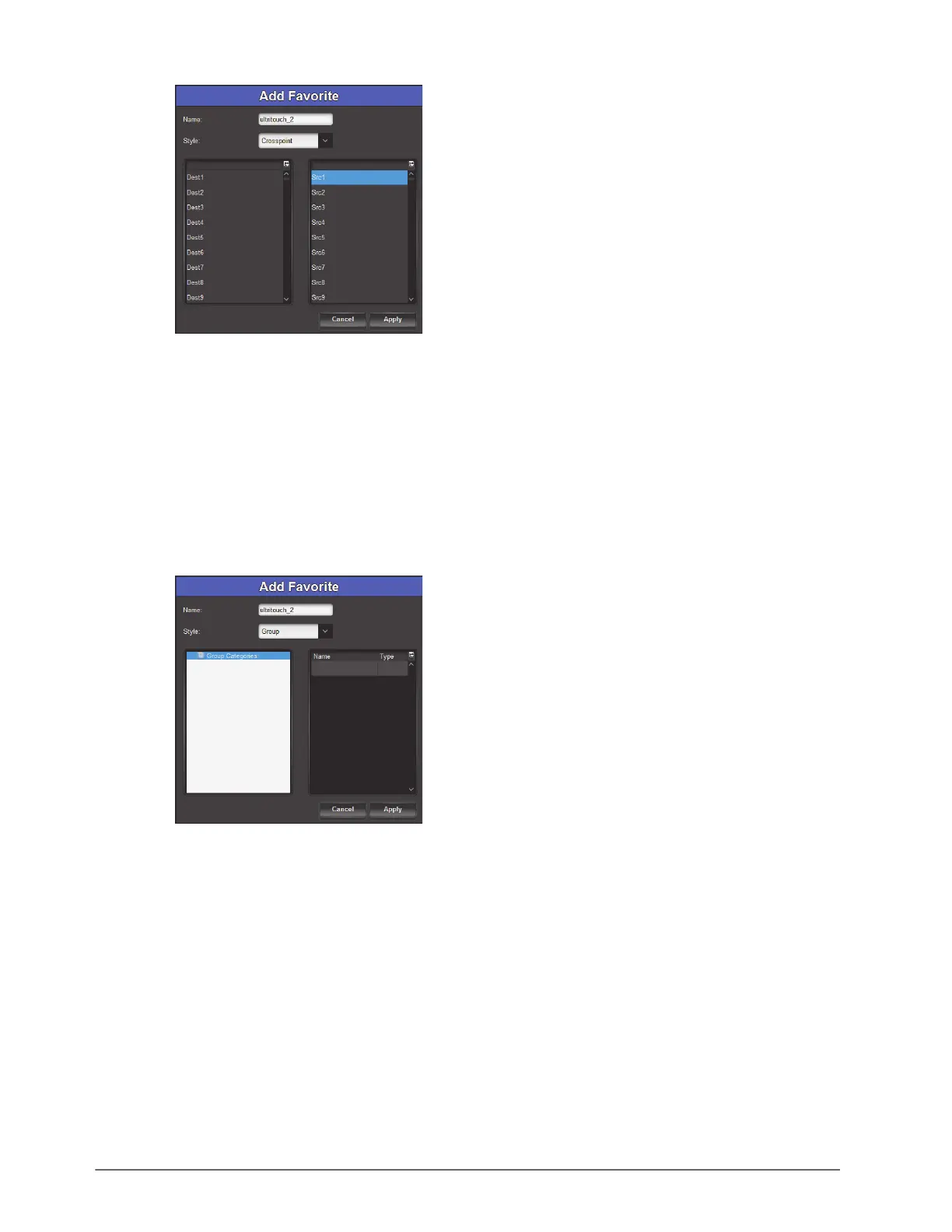
2. Use the left column to specify the destination for the crosspoint switch.
3. Use the right column to specify the source for the crosspoint switch.
4. Click
Apply.
The Add Favorites dialog closes.
The Favorites table updates to include the new button type.
To configure a Group button
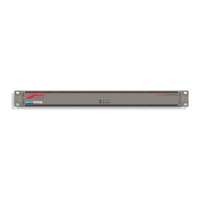
1. Set the Style to Group.
The dialog updates to display a list of defined group categories in the current database.
2. Use the left column to navigate to the list of configured groups on the router.
3. Use the right column to select the group you want to access when the Favorite button is tapped on the panel.
4. Click
Apply.
The Add Favorites dialog closes.
The Favorites table updates to include the new button type.
To configure a Salvo button
1. Set the Style to Salvo.
The dialog updates to display a list of configured salvos in the current database.
2. Select the salvo to execute when this Favorite button is tapped on the panel.
3. Click
Apply.
The Add Favorites dialog closes.


 To Next Page