3. Description of the QABrowser
Starting the QABrowser
Piranha & QABrowser Reference Manual
2014-06/5.5C
38
troubleshooting chapter , or visit the RTI website for more information.
Real-time Display and Waveforms3.3
This section will show how to make a measurement with the Piranha and the
QABrowser. It is illustrated with an example using a radiographic X-ray unit. The
operation of the QABrowser has a general structure and the described procedures
applies also to other modalities. You can also follow this example using a
mammography or a dental system. You must then of course make the appropriate
selections of X-ray systems and your screen might look different from the screens
shown in this manual. However, you will be able to learn and follow the workflow of the
QABrowser. You will find specific information on how to perform different types of
measurements in the Measurements section.
Set up the Piranha as described in topic Setting Up the Piranha .
3.3.1 Using the Real-Time Display
There are two main measuring modes; Real-Time Display (RTD) and Applications in
the QABrowser. We will first see how to use the RTD to measure different parameters
and viewing waveforms. Earlier in the topic Setting Up the Piranha was showed how
to set up the Piranha system and how to start the QABrowser.
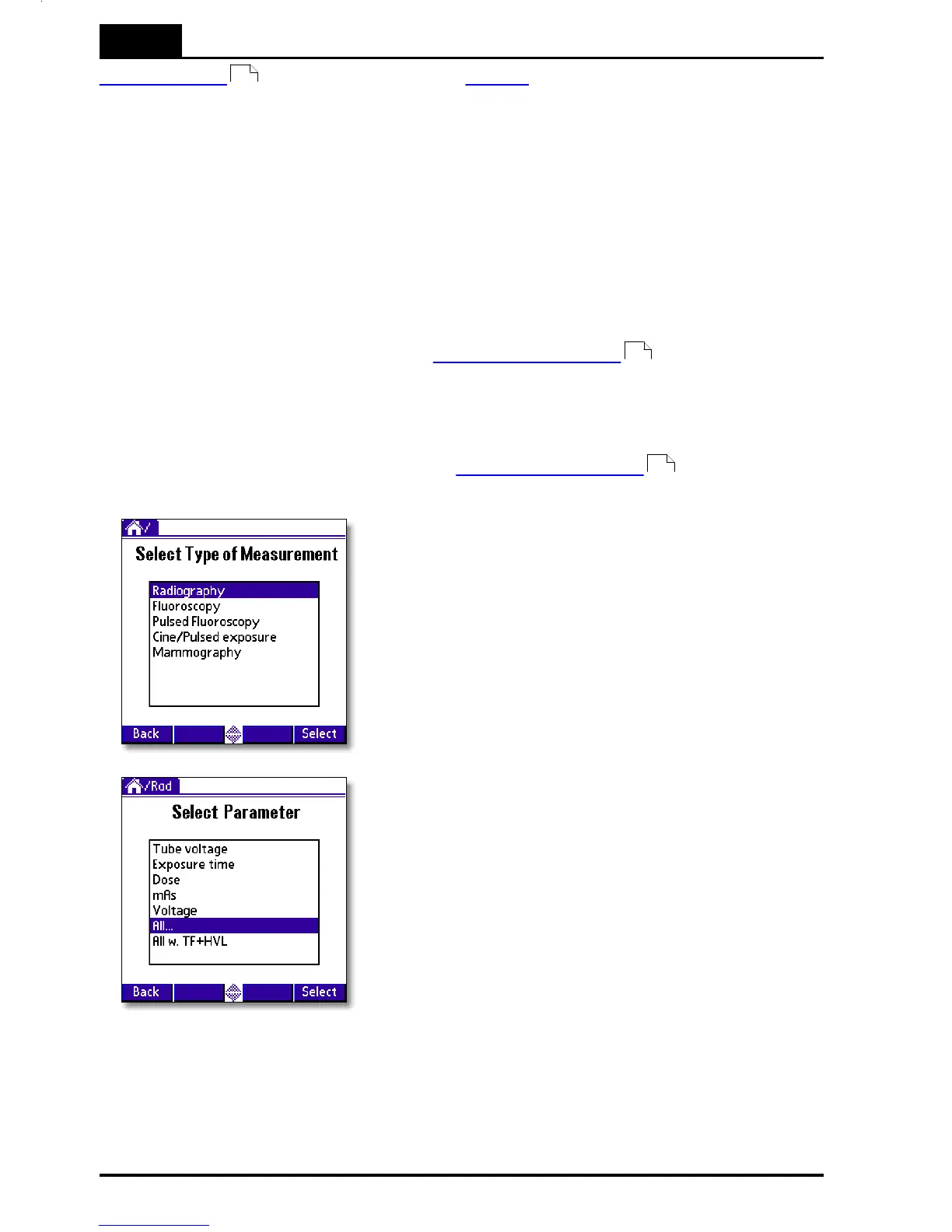
1. A list with different type of measurements is shown.
Note that the number of items in the list is
depending on the configuration of your Piranha
system. Your list may have other choices than the
list shown here. To view items not visible, tap the
arrow or use the scroll button on the handheld
computer.
For this example, select Radiography.
2. A list with all different parameters are shown. You
can select to measure a single parameter or all at
the same time. In this example select All.
Note that the parameters shown here, are the ones
that are available with the current configuration of
your system, including attached probes. For
instance must your MAS probe be attached for the
mAs parameter to be shown.


 To Next Page