EasyManua.ls Logo

Samsung BD-D7500 - Wireless Network

Samsung BD-D7500
93 pages
Print Icon
To Next Page IconTo Next Page
To Previous Page IconTo Previous Page
Loading...
Connections
Wireless Network
Your
player
has
built
in
Wi-Fi
capability.
You
can
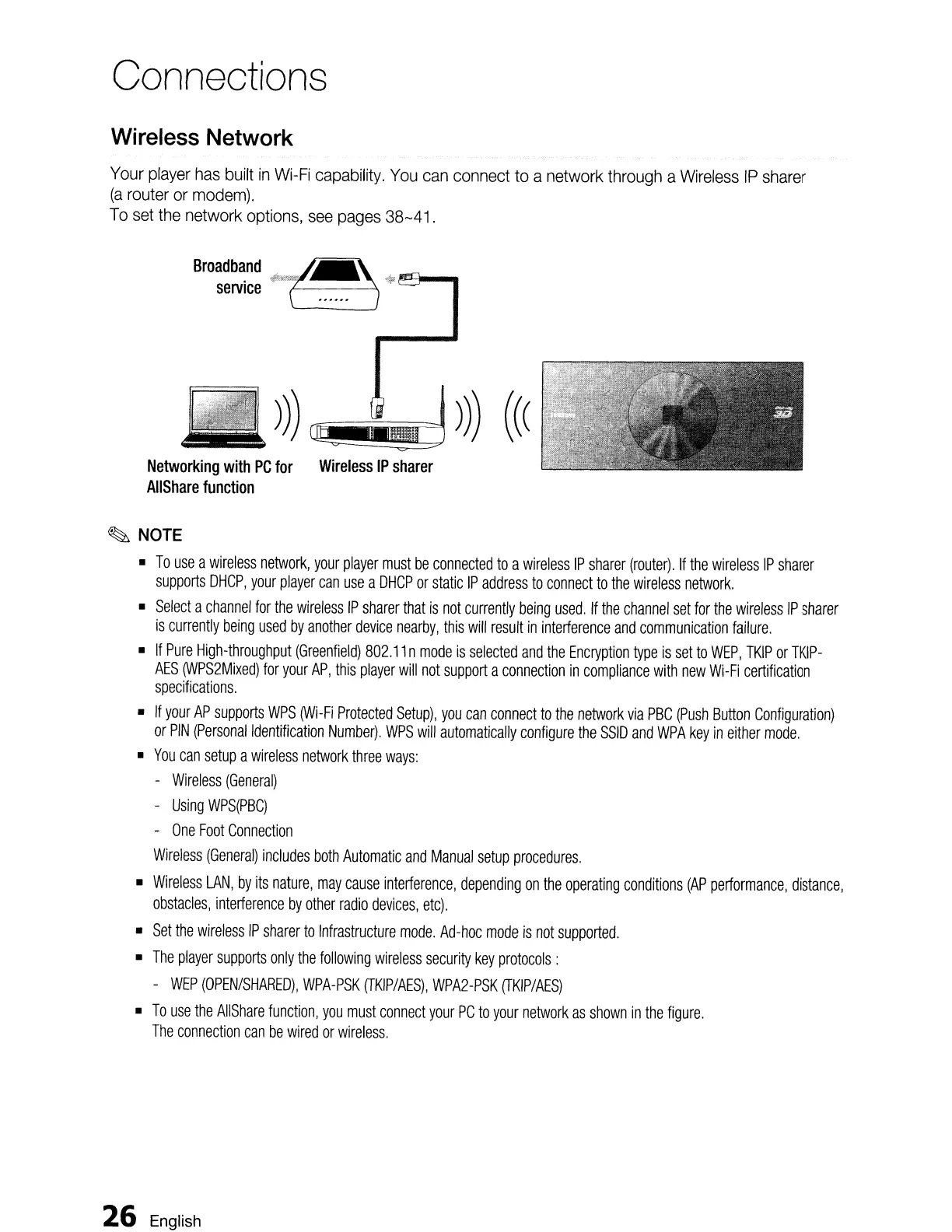
connect to a network through a
Wireless
IP
sharer
(a
router
or
modem).
To
set
the
network options,
see
pages
38-41.
Networking
with
PC
for
Wireless
IP
sharer
AIIShare
function
~
NOTE
•
To
use
a
wireless
network,
your
player
must
be
connected
to
a
wireless
IP
sharer
(router).
If
the
wireless
IP
sharer
supports
DHCP
,
your
player
can
use
a
DHCP
or
static
IP
address
to
connect
to
the
wireless
network.
•
Select
a
channel
for
the
wireless
IP
sharer
that
is
not
currently
being
used.
If
the
channel
set
for
the
wireless
IP
sharer
is
currently
being
used
by
another
device
nearby,
this
will
result
in
interference
and
communication
failure.
•
If
Pure
High-throughput
(Greenfield)
802.11
n
mode
is
selected
and
the
Encryption
type
is
set to
WEP,
TKIP
or
TKIP-
AES
(WPS2Mixed)
for
your
AP,
this
player
will
not
support
a
connection
in
compliance
with
new
Wi-Fi
certification
specifications.
•
If
your
AP
supports
WPS
(Wi-Fi
Protected
Setup),
you
can
connect
to
the
network
via
PBC
(Push
Button
Configuration)
or
PIN
(Personal
Identification
Number).
WPS
will
automatically
configure
the
SSID
and
WPA
key
in
either
mode.
•
You
can
setup
a
wireless
network
three
ways:
-
Wireless
(General)
-
Using
WPS(PBC)
-
One
Foot
Connection
Wireless
(General)
includes
both
Automatic
and
Manual
setup
procedures.
•
Wireless
LAN,
by
its
nature,
may
cause
interference,
depending
on
the
operating
conditions
(AP
performance,
distance,
obstacles,
interference
by
other
radio
devices,
etc).
•
Set
the
wireless
IP
sharer
to
Infrastructure
mode.
Ad-hoc
mode
is
not
supported.
•
The
player
supports
only
the
following
wireless
security
key
protocols:
-
WEP
(OPEN/SHARED),
WPA-PSK
(TKIP/AES),
WPA2-PSK
(TKIP/AES)
•
To
use
the
AIiShare
function,
you
must
connect
your
PC
to
your
network
as
shown
in
the
figure.
The
connection
can
be
wired
or
wireless.
26
English

Table of Contents