EasyManua.ls Logo

Samsung BD-D7500 - Accessing the Settings Menu; Display

Samsung BD-D7500
93 pages
Print Icon
To Next Page IconTo Next Page
To Previous Page IconTo Previous Page
Loading...
Setup
o
f)
e
Accessing
the
Settings
Menu
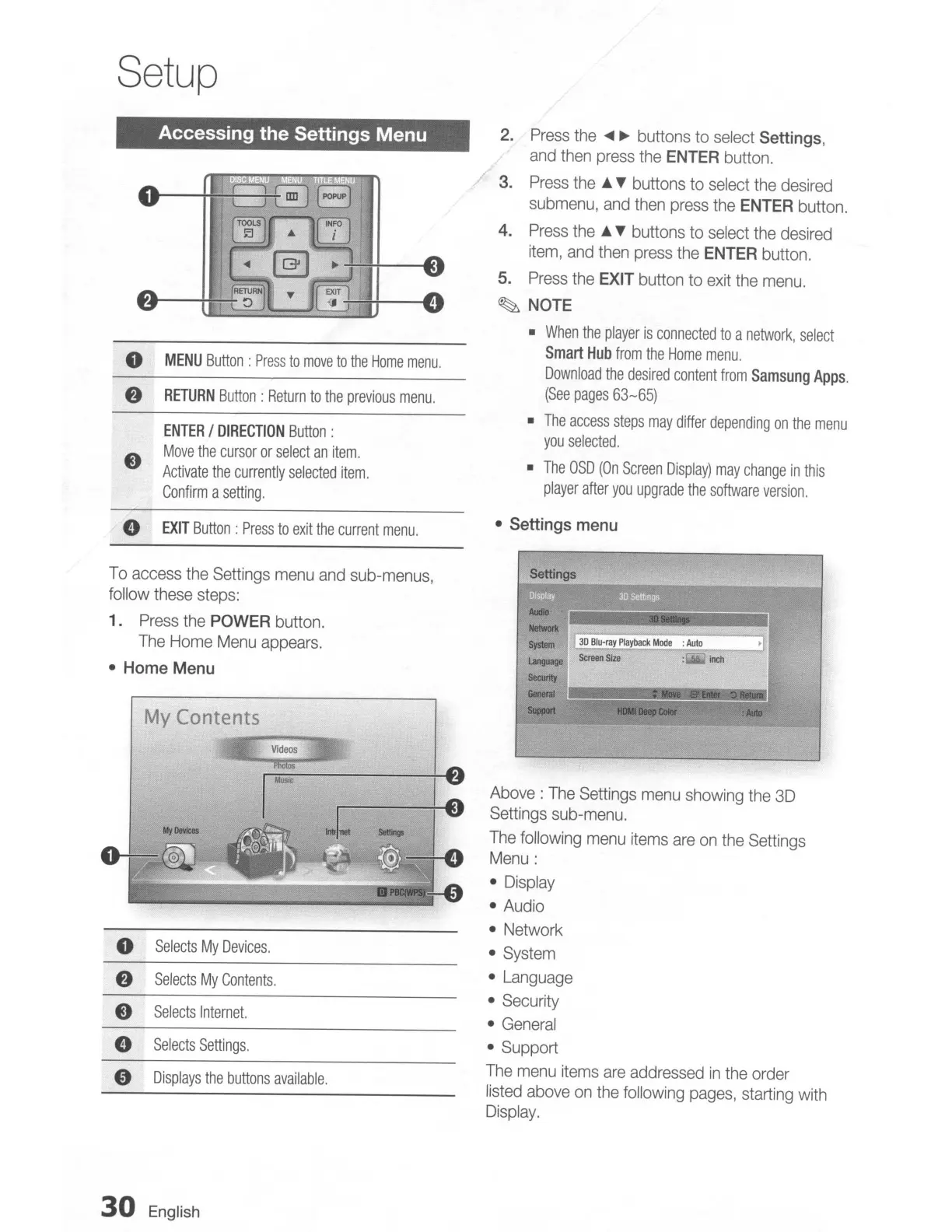
MENU
Button:
Press
to
move
to
the
Home
menu.
RETURN
Button:
Return
to
the
previous
menu.
ENTER
/
DIRECTION
Button:
Move
the
cursor
or
select
an
item.
Activate
the
currently
selected
item.
Confirm
a
setting.
EXIT
Button:
Press
to
exit
the
current
menu.
2.
Press
the
....
~
buttons
to
select
Settings,
and
then
press
the
ENTER
button.
3.
Press
the
...
T buttons
to
select
the
desired
submenu,
and
then
press
the
ENTER
button.
4.
Press
the
...
T buttons to
select
the
desired
item,
and
then
press
the
ENTER
button.
5.
Press
the
EXIT
button to
exit
the
menu.
~
NOTE
•
When
the
player
is
connected
to
a
network,
select
Smart
Hub
from
the
Home
menu.
Download
the
desired
content
from
Samsung
Apps.
(See
pages
63-65)
•
The
access
steps
may
differ
depending
on
the
menu
you
selected.
•
The
OSD
(On
Screen
Display)
may
change
in
this
player
after
you
upgrade
the
software
version.
• Settings menu
Settings
I
30
Rlu-IllY
P1aybacl<
Mode
:
Auto
•r
Screen
Size
:UiiI
inch
To
access
the
Settings
menu
and
sub-menus,
follow
these
steps:
1.
Press
the
POWER
button.
The
Home
Menu
appears.
• Home Menu
My Contents
o
Selects
My
Devices.
f)
Selects
My
Contents.
e
Selects
Internet.
e
Selects
Settings.
o
Displays
the
buttons
available.
30
English
Aldo
NelWOO<
System
Language
Securtty
General
_~~~.~iI
Support
__
""'Olloi'
.
AulD
Above:
The
Settings
menu
showing
the
3D
Settings
sub-menu.
The
following
menu
items
are
on
the
Settings
Menu:
•
Display
•
Audio
• Network
•
System
•
Language
•
Security
•
General
• Support
The
menu
items
are
addressed
in
the
order
listed
above
on
the
following
pages,
starting
with
Display.

Table of Contents