EasyManua.ls Logo

Samsung BD-D7500 - Playing Back a USB Storage Device

Samsung BD-D7500
93 pages
Print Icon
To Next Page IconTo Next Page
To Previous Page IconTo Previous Page
Loading...
•
Zoom:
Select
to
enlarge
the current picture.
(Enlarged
up
to 4
times)
• Rotate:
Select
to
rotate
the picture.
(This
will
rotate
the
picture
either
clockwise
or
counter
clockwise.)
• Picture Settings:
Select
this
if
you
want
to
adjust the picture
quality.
• Information:
Shows
the picture information
including the
name
and
size,
etc.
~
NOTE
•
To
enable
the
background
music
function,
the
photo
file
must
be
in
the
same
storage
media
as
the
music
file.
However,
the
sound
quality
can
be
affected
by
the
bit
rate
of
the
MP3
file,
the
size
of
the
photo,
and
the
encoding
method.
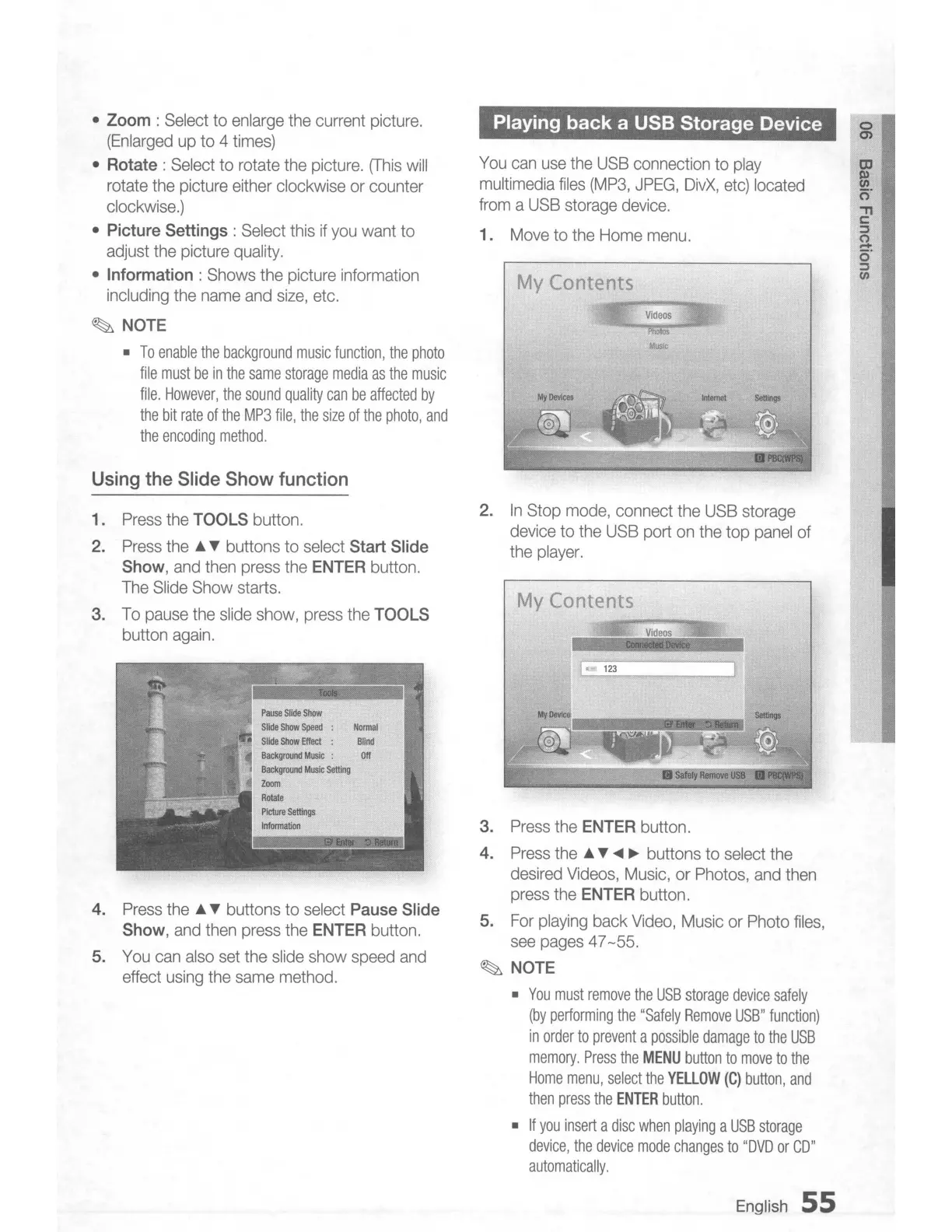
Using
the
Slide
Show
function
1.
Press
the TOOLS button.
2.
Press
the
l.
T buttons to
select
Start Slide
Show,
and
then
press
the
ENTER button.
The
Slide
Show
starts.
3.
To
pause
the
slide
show,
press
the
TOOLS
button
again.
4.
Press
the
l.
T buttons to
select
Pause Slide
Show,
and
then
press
the ENTER button.
5.
You
can
also
set
the
slide
show
speed
and
effect
using
the
same
method.
Playing back a USB Storage Device
You
can
use
the
USB
connection
to
play
multimedia
files
(MP3,
JPEG,
DivX,
etc)
located
from
a
USB
storage
device.
1.
Move
to
the
Home
menu.
My
Contents
Videos
2.
In
Stop
mode,
connect
the
USB
storage
device
to
the
USB
port
on
the
top
panel
of
the
player.
My
Contents
3.
Press
the ENTER button.
4.
Press
the
l.
T
~
~
buttons to select the
desired
Videos,
Music,
or
Photos,
and
then
press
the ENTER button.
5.
For
playing
back
Video,
Music
or
Photo
files,
see
pages
47-55.
~
NOTE
•
You
must
remove
the
USB
storage
device
safely
(by
performing
the
"Safely
Remove
USB"
function)
in
order
to
prevent
a
possible
damage
to
the
USB
memory.
Press
the
MENU
button
to
move
to
the
Home
menu,
select
the
YElLOW
(C)
button,
and
then
press
the
ENTER
button.
•
If
you
insert
a
disc
when
playing
a
USB
storage
device,
the
device
mode
changes
to
"DVD
or
CD"
automatically.
English
55

Table of Contents