EasyManua.ls Logo

Samsung BD-D7500 - Audio Sync; Network; Network Settings

Samsung BD-D7500
93 pages
Print Icon
To Next Page IconTo Next Page
To Previous Page IconTo Previous Page
Loading...
Setup
Audio Sync
In
some
cases
when
the
player
is
connected to a
digital
TV,
the
audio
signal
may
not
synchronize
with
the
video
signal.
If
this
occurs,
adjust
the
audio
delay
time
to
match
the
video
signal.
•
You
can
set
the
audio
delay
time
between
0
msec
and
200
msec.
Adjust
it
to
the
optimal
setting.
~
NOTE
•
The
audio
delay
time
you
specify
may
not
be
exact
depending
on
the
played
content.
Network
Before
you
begin,
contact
your
ISP
to
find
out
if
your
IP
address
is
static
or
dynamic.
If
it
is
dynamic,
and
you
are
using
a
wired
or
wireless
connection,
we
recommend
using
the
Auto
procedures.
If
you
are
using
a
wireless
connection
and
your
router
has
the
capability,
you
can
use
WPS(PBC)
or
One
Foot
Connection.
If
your
IP
address
is
static,
you
must
use
the
manual
set
up
procedure for
both
wired
and
wireless
connections.
Network Settings
To
begin
setting
up
the
network connection for
your
player,
follow
these
steps:
1.
In
the
Home
menu,
press
the
....
~
buttons
to
select
Settings,
and
then
press
the
ENTER
button.
2.
Press
the
A T buttons
to
select
Network,
and
then
press
the
ENTER
button.
3.
Press
the
A T buttons
to
select
Network
Settings,
and
then
press
the
ENTER
button.
4.
Press
the
A T buttons to
select
Wired,
Wireless
(General),
WPS(PBC)
or
One
Foot
Connection,
and
then
press
the
ENTER
button.
5.
If
you
have
a
wired
network,
go
to
Wired
Network
below.
If
you
have
a
wireless
network,
go
to
Wireless
Network
on
pages
39-41.
38
English
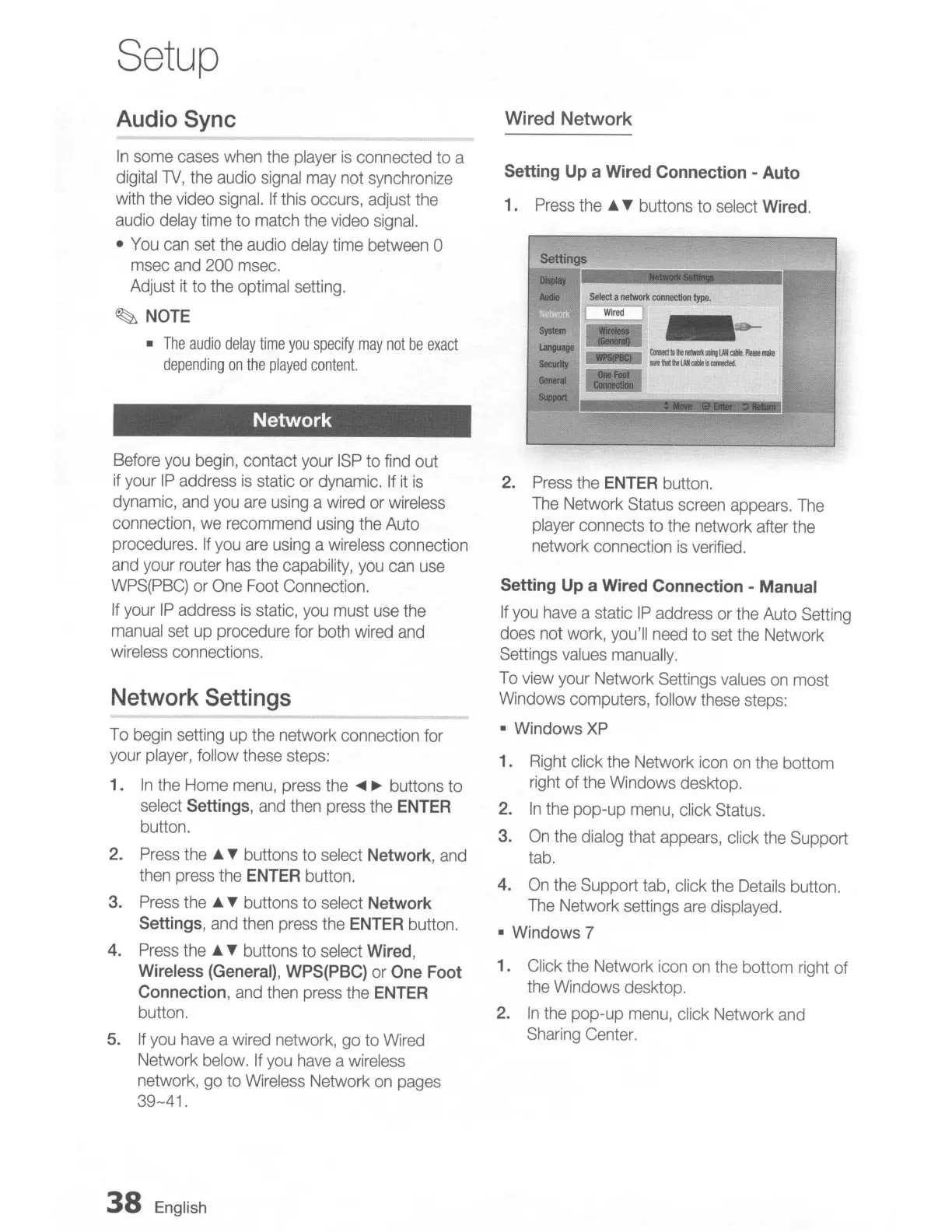
Wired Network
Setting
Up
a
Wired
Connection -
Auto
1.
Press
the
A T buttons
to
select
Wired.
Settings
1lIIII*I
1-----.Il1r'-1
AudIo
~!!§
CnI:I"Ile_"'INIC11le._
...
:=
snlll
..
INI<31ioIl_
2.
Press
the
ENTER
button.
The
Network
Status
screen
appears.
The
player
connects
to
the
network after
the
network connection
is
verified.
Setting
Up
a Wired Connection - Manual
If
you
have
a static
IP
address
or
the
Auto
Setting
does
not
work,
you'll
need
to
set
the
Network
Settings
values
manually.
To
view
your
Network
Settings
values
on
most
Windows
computers, follow
these
steps:
• WindowsXP
1.
Right
click
the
Network
icon
on
the
bottom
right
of
the
Windows
desktop.
2.
In
the
pop-up
menu,
click
Status.
3.
On
the
dialog
that
appears,
click
the
Support
tab.
4.
On
the
Support
tab,
click
the
Details
button.
The
Network settings
are
displayed.
• Windows 7
1. Click
the
Network
icon
on
the
bottom
right
of
the
Windows
desktop.
2.
In
the
pop-up
menu,
click Network
and
Sharing
Center.

Table of Contents