EasyManua.ls Logo

Samsung BD-D7500 - Playing a Video; Playback; 3 D Converter

Samsung BD-D7500
93 pages
Print Icon
To Next Page IconTo Next Page
To Previous Page IconTo Previous Page
Loading...
Basic
Functions
2.
Press
the
PLAY
( ) button.
Playing a Video
Adjusting the 3D Depth
The
3D
Depth
function
lets
you
adjust
the
3D
depth of
20
to
3D
conversions.
Values
range
from
1 to
10.
The
higher
the
number,
the
deeper the
3D
depth.
1.
When
you
are
viewing
converted
3D
contents,
press
the
TOOLS
button.
2.
Press
the
....
buttons
to
select
30
Oepth.
3.
Adjust
the
3D
Depth
using
the
....
~
buttons.
3.
You
can
toggle
between
20
and
3D
by
pressing
the
20.30
button
repeatedly.
If
you
are
playing
3D
contents
in
the
3D
mode,
you
cannot
use
this
function.
~
NOTE
You
can't
convert
20
contents
into
3D
or
use
the
20
to
3D
button
In
the
following
cases:
-
When
the
player
is
not
connected
with
an
HOMI
cable
-
When
the
connected
TV
does
not
support
3D
-
When
you
are
playing
3D
contents
(disc,
file).
20
content
is
converted
into
the
following
3D
formats:
- 1
D8Dp
24fps
:
Output
to
1080p
24
fps
3D.
-
Others:
Output
to
nop
3D.
-
Photo
files:
Output
to
nop
3D.
20
content
that
the
player
can
convert
to
3D:
-
2D
content
that
supports
3D
conversion
-
Smart
Hub
content,
DVD
Video,
BO-ROM,
veo,
Video
files,
and
photo
files.
When
you
use
the
3D
converter,
the
Bonusview
function
is
not
available.
(Depending
on
the
disc,
a
black
outline
appears.)
Some
viewers
may
experience
discomfort
while
viewing
3D
contents
such
as
dizziness,
nausea,
and
headaches.
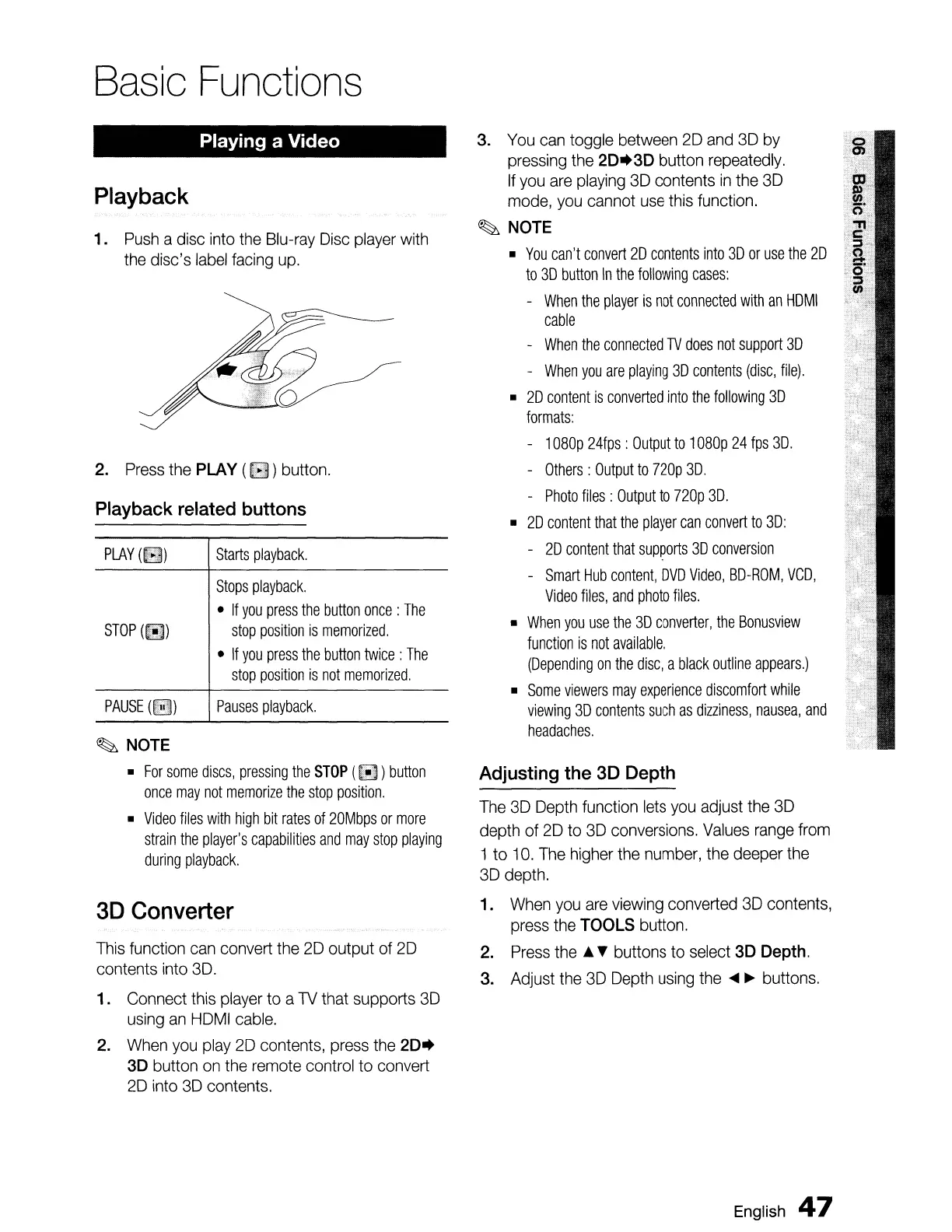
Pauses
playback.
Starts
playback.
Stops
playback.
If
you
press
the
button
once:
The
stop
position
is
memorized.
If
you
press
the
button
twice:
The
stop
position
is
not
memorized.
PAUSE(~)
STOP
(l!B)
PLAY(~)
3D
Converter
~
NOTE
For
some
discs,
pressing
the
STOP
(
~
)
button
once
may
not
memorize
the
stop
position.
Video
files
with
high
bit
rates
of
2DMbps
or
more
strain
the
player's
capabilities
and
may
stop
playing
during
playback.
This
function
can
convert
the
20
output of
20
contents
into
3D.
1. Connect this
player
to a 1V that supports
3D
using
an
HDMI
cable.
2.
When
you
play
20
contents,
press
the
20.
30
button
on
the
remote
control to convert
20
into
3D
contents.
Playback related buttons
Playback
1.
Push
a disc
into
the
Blu-ray
Disc
player
with
the
disc's
label
facing
up.
English
47

Table of Contents

Related product manuals