EasyManua.ls Logo

Samsung BD-D7500 - Starting Smart Hub for the First Time

Samsung BD-D7500
93 pages
Print Icon
To Next Page IconTo Next Page
To Previous Page IconTo Previous Page
Loading...
Network
Services
You
can
enjoy
various
network
services
such
as
Smart
Hub
or
BD-L1VE
by
connecting
the
player
to
your
network.
Read
the
following
instructions
before
using
any
network
service.
1. Connect the
player
to
the
network.
(See
pages
25-26)
2.
Configure
the
network
settings.
(See
pages
38-42)
Using Smart Hub
Using
Smart
Hub,
you
can
stream
movies,
videos,
and
music
from
the
Internet,
access
various
for
payor free-of-charge applications
and
view
them
on
your
lV.
Application content
includes
news,
sports,
weather
forecasts,
stock market quotes,
maps,
photos,
and
games.
You
can
also
start
this
function
by
SMART
~
UB
pressing
the
SMART
HUB
button
on
the
remote
control.
Starting
Smart
Hub
for
the
First
Time
To
start
Smart
Hub
for
the
first
time,
follow
these
steps:
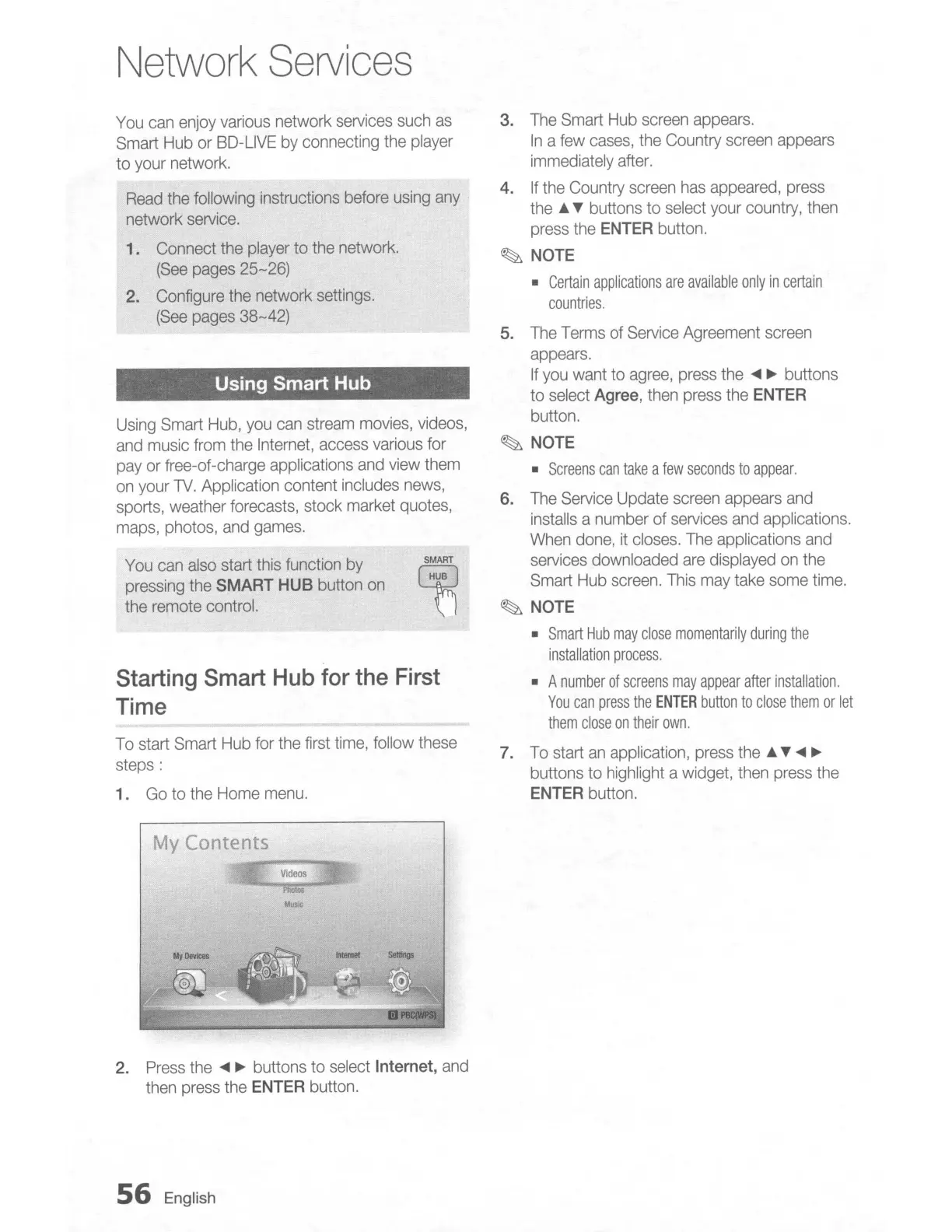
1.
Go
to
the
Home
menu.
My
Contents
Music
2.
Press
the
~
~
buttons
to
select
Internet,
and
then
press
the
ENTER
button.
56
English
3.
The
Smart
Hub
screen
appears.
In
a
few
cases,
the
Country
screen
appears
immediately
after.
4.
If
the
Country
screen
has
appeared,
press
the
.&
T buttons
to
select
your
country,
then
press
the
ENTER
button.
~
NOTE
Certain
applications
are
available
only
in
certain
countries.
5.
The
Terms
of
Service
Agreement
screen
appears.
If
you
want
to
agree,
press
the
~ ~
buttons
to
select
Agree,
then
press
the
ENTER
button.
~
NOTE
Screens
can
take
a
few
seconds
to
appear.
6.
The
Service
Update
screen
appears
and
installs
a
number
of
services
and
applications.
When
done,
it
closes.
The
applications
and
services
downloaded
are
displayed
on
the
Smart
Hub
screen.
This
may
take
some
time.
~
NOTE
Smart
Hub
may
close
momentarily
during
the
installation
process.
A
number
of
screens
may
appear
after
installation.
You
can
press
the
ENTER
button
to
close
them
or
let
them
close
on
their
own.
7.
To
start
an
application,
press
the
.&
T
~
~
buttons
to
highlight a widget,
then
press
the
ENTER
button.

Table of Contents

Related product manuals