EasyManua.ls Logo

Samsung BD-D7500 - 3 D Settings

Samsung BD-D7500
93 pages
Print Icon
To Next Page IconTo Next Page
To Previous Page IconTo Previous Page
Loading...
Display
Screen Size
o
01
Lets
you
enter
the
actual
screen
size
of your 1V
so
that the
player
can
adjust
the
image
according to
the
screen
size
and
display
an
optimal
3D
image.
(For
3D
displays
bigger
than
116
inches,
simply
setting
it
as
116
is
also
a
safe
choice.)
CAUTION
•
If
you
want
to
enjoy
3D
content,
connect
a
3D
device
(3D
compliant
AV
receiver
or
TV)
to
the
player's
HOMI
OUT
port
using
a
high-speed
HOMI
cable.
Put
on
3D
glasses
before
playing
the
3D
content.
•
The
player
outputs
3D
signals
only
through
HOM
I
cable
connected
to
the
HOM
I
OUT
port.
•
As
the
video
resolution
in
3D
play
mode
is
fixed
according
to
the
resolution
of
the
original
3D
video,
you
can
not
change
the
resolution
to
your
preference.
•
Some
functions
such
as
BO
Wise,
screen
size
adjustment,
and
resolution
adjustment
may
not
operate
properly
in
3D
play
mode.
•
You
must
use
a
high-speed
HOMI
cable
for
proper
output
of
the
3D
signal.
•
Stay
at
least
three
times
the
width
of
the
screen
from
the
TV
when
watching
3D
images.
For
example,
if
you
have
a
46
inch
screen,
stay
138
inches
(11.5
feet)
from
the
screen.
-
Place
the
3D
video
screen
at
eye
level
for
the
best
3D
picture.
•
When
the
player
is
connected
to
some
3D
devices,
the
3D
effect
may
not
function
properly.
•
"Blu-ray
3D"
and
"Blu-ray
3D"
logo
are
trademarks
of
the
Blu-ray
Disc
Association.
Aulo
30
Blu-ray
Playback
Mode
SCreen
Size
Audlo
Network
system
language
5ecurIIy
General
1Ig~~.~~.
Suppor1
Settings
_-_--~~~---~I
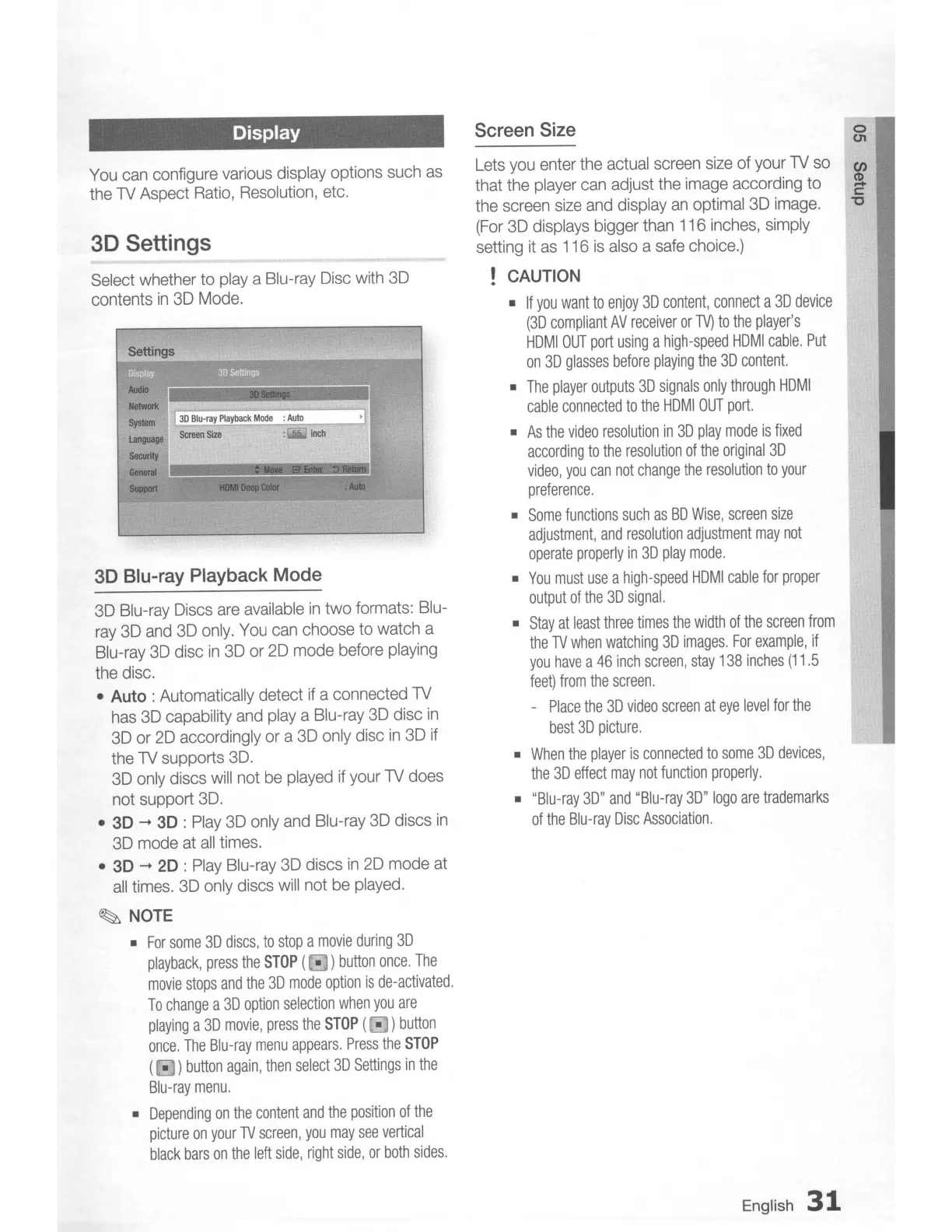
3D Blu-ray Playback
Mode
3D
Blu-ray
Discs
are
available
in
two formats:
Blu-
ray
3D
and
3D
only.
You
can
choose to watch a
Blu-ray
3D
disc
in
3D
or
2D
mode
before
playing
the
disc.
•
Auto:
Automatically detect
if
a connected 1V
has
3D
capability
and
playa
Blu-ray
3D
disc
in
3D
or
2D
accordingly or a
3D
only
disc
in
3D
if
the
1V supports
3D.
3D
only
discs
will
not
be
played
if
your 1V
does
not support
3D.
• 3D - 3D :
Play
3D
only
and
Blu-ray
3D
discs
in
3D
mode
at
all
times.
• 3D - 2D :
Play
Blu-ray
3D
discs
in
2D
mode
at
all
times.
3D
only
discs
will
not
be
played.
~
NOTE
•
For
some
3D
discs,
to
stop
a
movie
during
3D
playback,
press
the
STOP
( • )
button
once.
The
movie
stops
and
the
3D
mode
option
is
de-activated.
To
change
a
3D
option
selection
when
you
are
playing
a
3D
movie,
press
the
STOP
( • )
button
once.
The
Blu-ray
menu
appears.
Press
the
STOP
( • )
button
again,
then
select
3D
Settings
in
the
Blu-ray
menu.
•
Depending
on
the
content
and
the
position
of
the
picture
on
your
TV
screen,
you
may
see
vertical
black
bars
on
the
left
side,
right
side,
or
both
sides.
3D Settings
Select
whether to playa
Blu-ray
Disc
with
3D
contents
in
3D
Mode.
You
can
configure
various
display
options
such
as
the 1V Aspect
Ratio,
Resolution,
etc.
English
31

Table of Contents