EasyManua.ls Logo

Samsung BD-D7500 - BD-Livetm; Using the Aiishare Function

Samsung BD-D7500
93 pages
Print Icon
To Next Page IconTo Next Page
To Previous Page IconTo Previous Page
Loading...
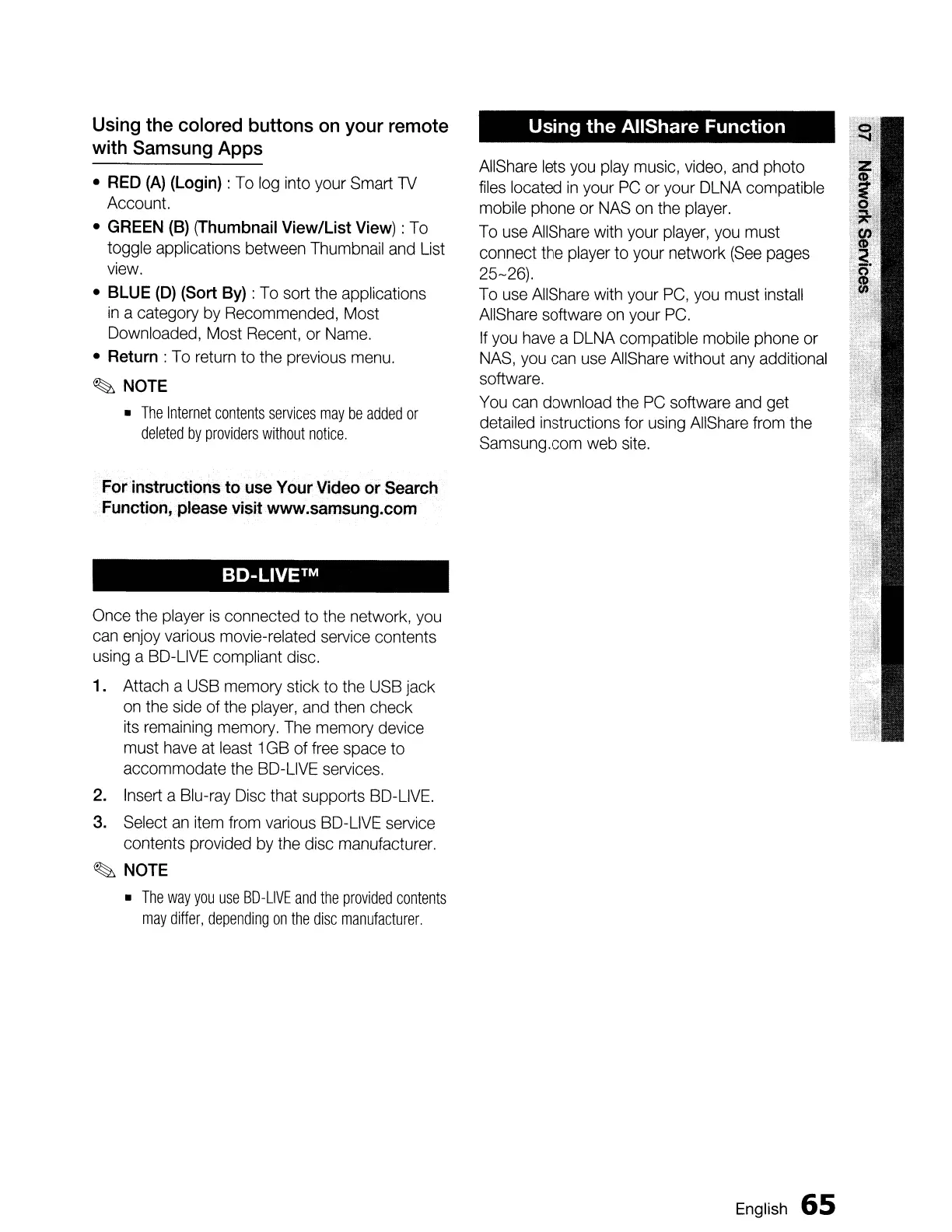
Using the colored buttons
on
your remote
with Samsung Apps
RED
(A)
(Login)
:
To
log
into your Smart
TV
Account.
GREEN
(B)
(Thumbnail
View/List
View)
:
To
toggle applications between Thumbnail
and
List
view.
BLUE
(D)
(Sort
By)
:
To
sort
the
applications
in
a category
by
Recommended, Most
Downloaded, Most
Recent,
or
Name.
Return:
To
return
to
the
previous
menu.
~
NOTE
The
Internet
contents
services
may
be
added
or
deleted
by
providers
without
notice.
For
instructions
to
use
Your Video
or
Search
.
Function,
please
visit
www.samsung.com
BD-LiVETM
Once
the
player
is
connected to
the
network.
you
can
enjoy
various
movie-related
service
contents
using
a
BD-L1VE
compliant disc.
1. Attach a
USB
memory stick
to
the
USB
jack
on
the
side
of
the
player,
and
then
check
its
remaining
memory.
The
memory device
must
have
at
least
1
GB
of
free
space to
accommodate
the
BD-L1VE
services.
2.
Insert
a Blu-ray
Disc
that supports
BO-L1VE.
3.
Select
an
item
from
various
BO-L1VE
service
contents provided
by
the disc manufacturer.
~
NOTE
The
way
you
use
SO-LIVE
and
the
provided
contents
may
differ,
depending
on
the
disc
manufacturer.
Using
the
AIIShare
Function
AllShare
lets
you
play
music,
video,
and
photo
files
located
in
your
PC
or your
DLNA
compatible
mobile phone
or
NAS
on
the
player.
To
use
AIiShare
with
your
player,
you
must
connect
the
player
to your network
(See
pages
25-26).
To
use
AIiShare
with
your
PC,
you
must
install
AllShare
software
on
your
PC.
If
you
have
a
DLNA
compatible mobile phone
or
NAS,
you
can
use
AllShare
without
any
additional
software.
You
can
download the
PC
software
and
get
detailed instructions for
using
AIiShare
from
the
Samsung.com web
site.
English
65

Table of Contents

Related product manuals