EasyManua.ls Logo

Samsung BD-D7500 - Page 64

Samsung BD-D7500
93 pages
Print Icon
To Next Page IconTo Next Page
To Previous Page IconTo Previous Page
Loading...
Network
Services
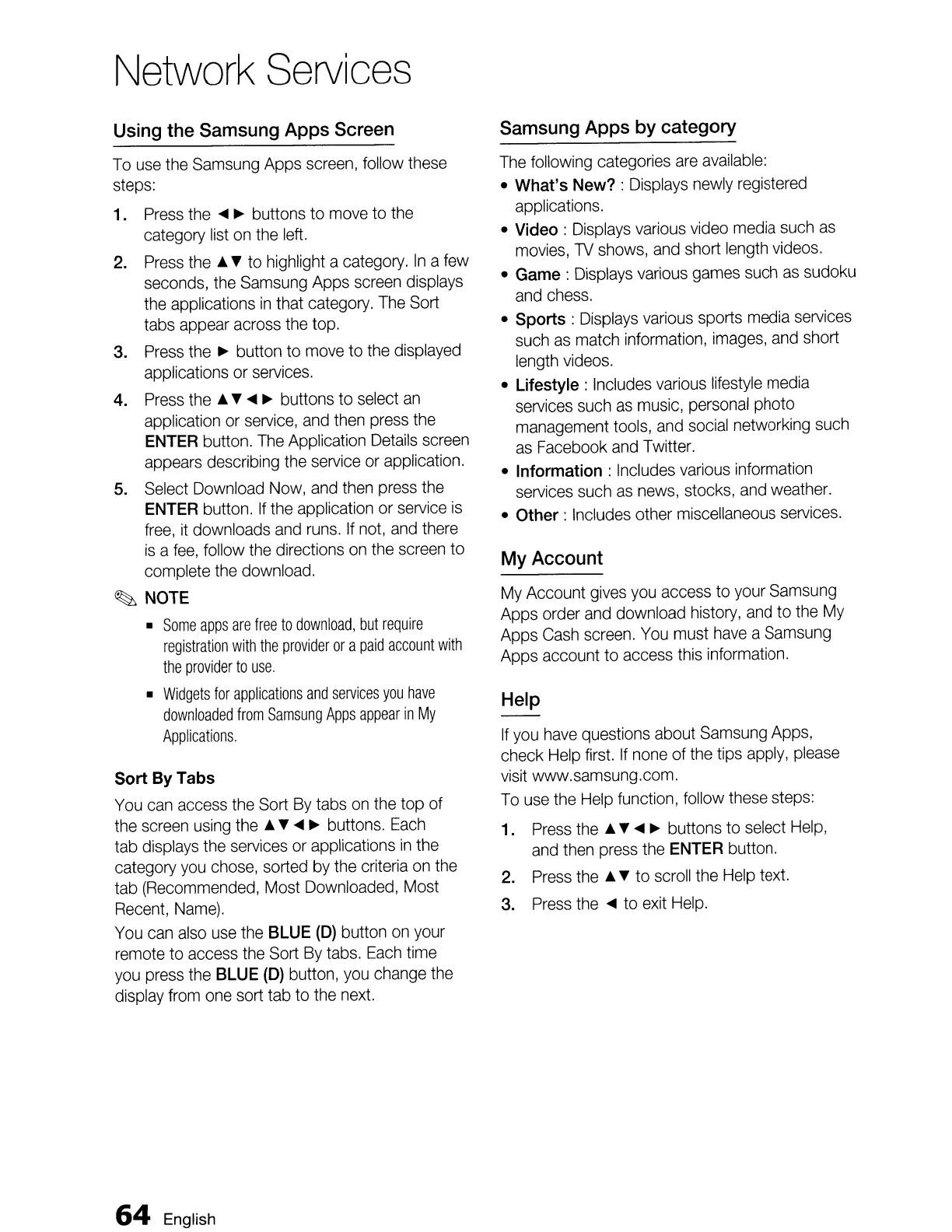
Using the Samsung Apps Screen
To
use
the
Samsung
Apps
screen,
follow
these
steps:
1.
Press
the
....
~
buttons to
move
to
the
category
list
on
the
left.
2.
Press
the
••
to highlight a
category,
In
a
few
seconds,
the
Samsung
Apps
screen
displays
the
applications
in
that category.
The
Sort
tabs
appear
across
the
top.
3.
Press
the
~
button
to
move
to
the
displayed
applications
or
services.
4.
Press
the
......
~
buttons
to
select
an
application
or
service,
and
then
press
the
ENTER
button.
The
Application
Details
screen
appears
describing
the
service
or
application,
5.
Select
Download
Now,
and
then
press
the
ENTER
button,
If
the
application
or
service
is
free,
it
downloads
and
runs,
If
not,
and
there
is
a
fee,
follow
the
directions
on
the
screen
to
complete
the
download.
~
NOTE
Some
apps
are
free
to
download,
but
require
registration
with
the
provider
or
a
paid
account
with
the
provider
to
use,
Widgets
for
applications
and
services
you
have
downloaded
from
Samsung
Apps
appear
in
My
Applications,
Sort
By
Tabs
You
can
access
the
Sort
By
tabs
on
the
top of
the
screen
using
the
......
~
buttons.
Each
tab
displays
the
services
or
applications
in
the
category
you
chose,
sorted
by
the
criteria
on
the
tab
(Recommended,
Most
Downloaded,
Most
Recent,
Name).
You
can
also
use
the
BLUE
(0) button
on
your
remote
to access
the
Sort
By
tabs.
Each
time
you
press
the
BLUE
(0) button,
you
change
the
display
from
one
sort tab
to
the
next.
64
English
Samsung Apps by category
The
following categories
are
available:
What's
New?
:
Displays
newly
registered
applications.
Video:
Displays
various
video
media
such
as
movies,
TV
shows,
and
short
length
videos.
Game :
Displays
various
games
such
as
sudoku
and
chess,
Sports:
Displays
various
sports
media
services
such
as
match information,
images,
and
short
length
videos.
Lifestyle:
Includes
various
lifestyle
media
services
such
as
music,
personal
photo
management
tools,
and
social
networking
such
as
Facebook
and
Twitter.
Information:
Includes
various
information
services
such
as
news,
stocks,
and
weather.
Other:
Includes
other
miscellaneous
services.
My Account
My
Account
gives
you
access
to
your
Samsung
Apps order
and
download
history,
and
to
the
My
Apps
Cash
screen.
You
must
have
a
Samsung
Apps account
to
access
this information.
Help
If
you
have
questions about
Samsung
Apps,
check
Help
first.
If
none
of
the
tips
apply,
please
visit
www.samsung.com.
To
use
the
Help
function, follow
these
steps:
1.
Press
the
......
~
buttons to select
Help,
and
then
press
the
ENTER
button.
2.
Press
the
••
to
scroll
the
Help
text.
3.
Press
the
....
to
exit
Help.

Table of Contents

Related product manuals