EasyManua.ls Logo

Samsung BD-D7500 - Page 40

Samsung BD-D7500
93 pages
Print Icon
To Next Page IconTo Next Page
To Previous Page IconTo Previous Page
Loading...
Setup
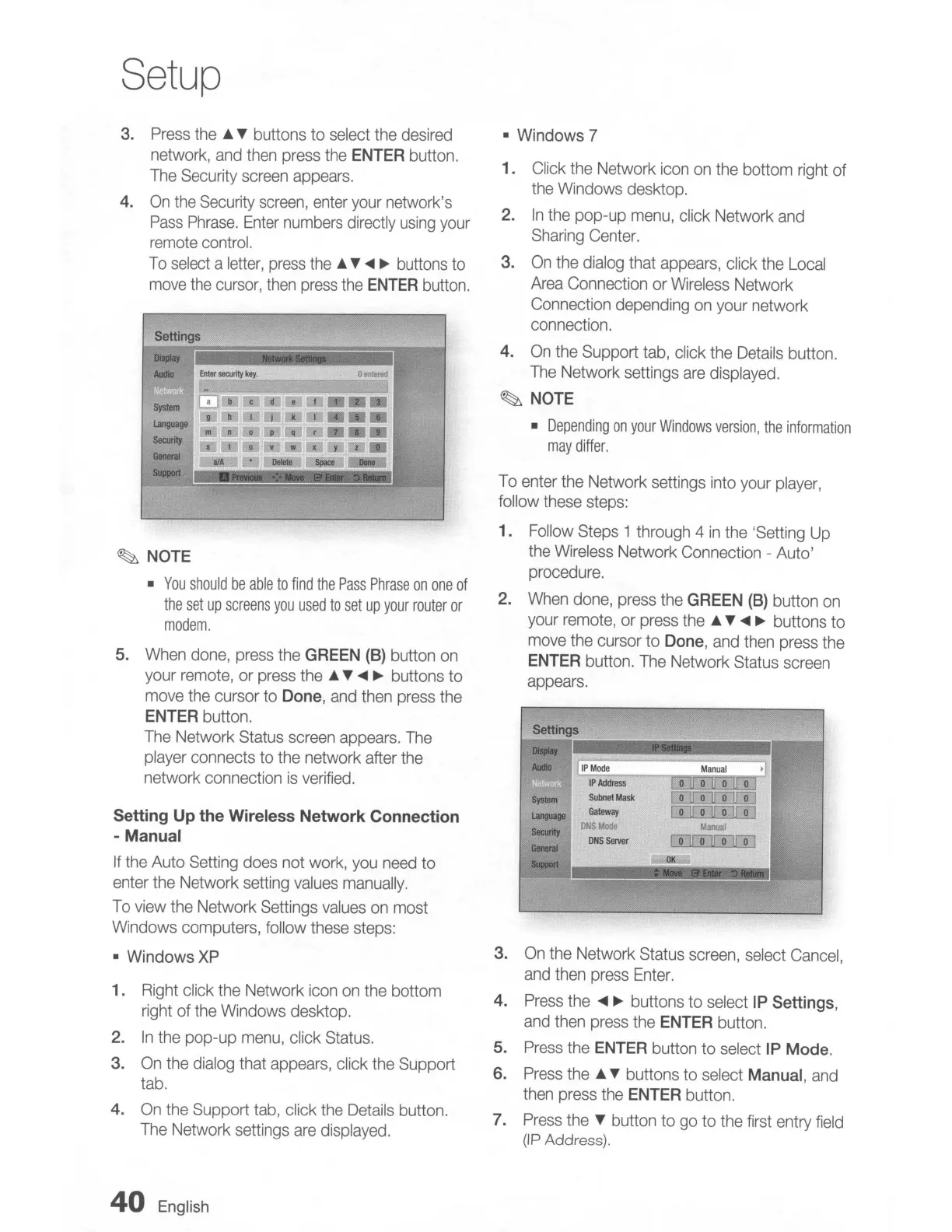
3.
Press
the
..
T buttons
to
select
the
desired
network,
and
then
press
the
ENTER
button.
The
Security
screen
appears.
4.
On
the
Security
screen,
enter
your
network's
Pass
Phrase.
Enter
numbers
directly
using
your
remote
control.
To
select
a
letter,
press
the
..
T
<lIII
~
buttons
to
move
the
cursor,
then
press
the
ENTER
button.
System
language
SecuritY
General
SUpport~_I!i
IJi;.
~
NOTE
You
should
be
able
to
find
the
Pass
Phrase
on
one
of
the
set
up
screens
you
used
to
set
up
your
router
or
modem.
5.
When
done,
press
the
GREEN
(B)
button
on
your
remote,
or
press
the
..
T
<lIII
~
buttons to
move
the
cursor
to
Done,
and
then
press
the
ENTER
button.
The
Network Status
screen
appears.
The
player
connects to
the
network
after
the
network connection
is
verified.
Setting Up the Wireless Network Connection
- Manual
If
the
Auto
Setting
does
not
work,
you
need
to
enter
the
Network
setting
values
manually.
To
view
the
Network Settings
values
on
most
Windows
computers, follow
these
steps:
Windows
XP
1.
Right
click
the
Network
icon
on
the
bottom
right
of
the
Windows
desktop.
2.
In
the
pop-up
menu,
click
Status.
3.
On
the
dialog
that
appears,
click
the
Support
tab.
4.
On
the
Support
tab,
click
the
Details
button.
The
Network settings
are
displayed.
40
English
Windows 7
1. Click
the
Network
icon
on
the
bottom
right
of
the
Windows
desktop.
2.
In
the
pop-up
menu,
click Network
and
Sharing
Center.
3.
On
the
dialog
that
appears,
click
the
Local
Area
Connection
or
Wireless
Network
Connection
depending
on
your
network
connection.
4.
On
the
Support
tab,
click
the
Details
button.
The
Network settings
are
displayed.
~
NOTE
Depending
on
your
Windows
version,
the
information
may
differ.
To
enter
the
Network settings
into
your
player,
follow
these
steps:
1.
Follow
Steps
1 through 4
in
the
'Setting
Up
the
Wireless
Network
Connection
- Auto'
procedure.
2.
When
done,
press
the
GREEN
(B)
button
on
your
remote,
or
press
the
..
T
<lIII
~
buttons to
move
the
cursor
to
Done,
and
then
press
the
ENTER
button.
The
Network
Status
screen
appears.
Settings
....,
'r
l"
AudIa
IIIP
Mode
Manual
IP
Address
I 0
11
O.U
0
It
0)
System
SUbnet
Mask
IT1JTlITl[OJ
laf9Jage
Gateway
mmmm
DNSMO<J.
ManuaJ
SecuritY
DNS
server
Olt
0
II
0
0
General
OK:J.
SUpport
l!'
3.
On
the
Network
Status
screen,
select
Cancel,
and
then
press
Enter.
4.
Press
the
<lIII
~
buttons
to
select
IP
Settings,
and
then
press
the
ENTER
button.
5.
Press
the
ENTER
button
to
select
IP
Mode.
6.
Press
the"
T buttons
to
select
Manual,
and
then
press
the
ENTER
button.
7.
Press
the
T button to
go
to
the
first
entry
field
(IP
Address).

Table of Contents

Related product manuals