Playback/Editing
102
Transferring files to your Windows computer
No. Description
1
Open menus.
2
Display files in the selected folder.
3
Switch to the Photo edit mode.
4
Switch to the Video edit mode.
5
Switch to the Sharing mode. (to send files by email or
upload files to websites, such as Flickr or YouTube)
6
Enlarge or reduce the thumbnails in the list.
7
Select a file type.
8
View files in the selected folder on your computer.
9
Show or hide files on the connected camera.
0
View files in the selected folder on the camera.
!
View files as thumbnails or on a map.
@
Browse folders stored on the camera.
#
Browse folders stored on your computer.
$
Move to the previous or next folder.
%
Print files, view files on a map, store files in My Folder, or
register faces.
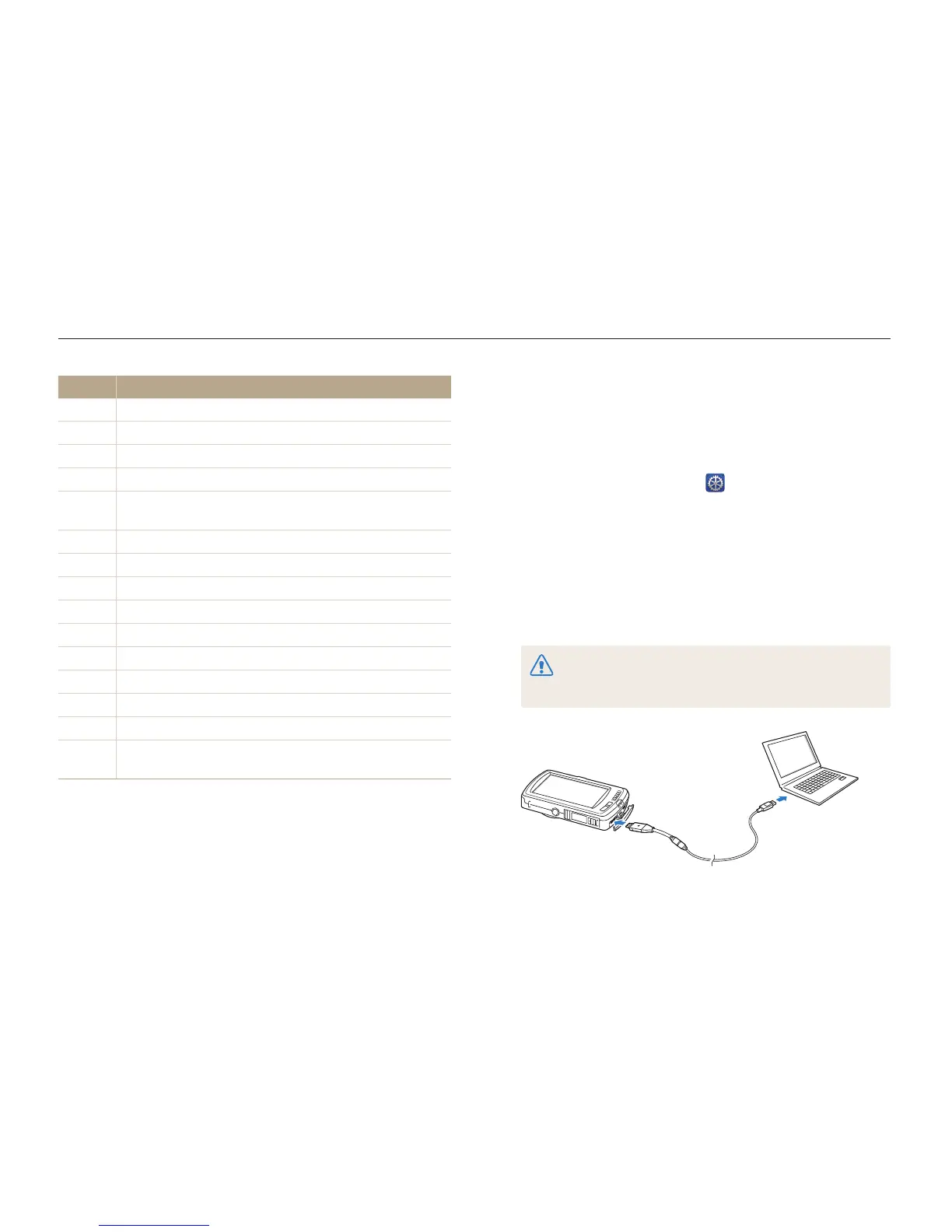
Transferring files by connecting the camera
as a removable disk
Connect the camera to your Windows computer as a removable
disk.
1
On the Home screen, touch .
2
Touch Connectivity, and then turn off PC Software by
touching the setting button.
3
Turn off the camera.
4
Connect the camera to your computer with the USB
cable.
You must plug the end of the cable with the indicator light (
S
) into
your camera. If the cable is reversed, it may damage your files. The
manufacturer is not responsible for any loss of data.


 To Next Page