Playback/Editing
93
Editing a photo
Rotating a photo
1
In Playback mode, locate a photo, and then touch
m
.
2
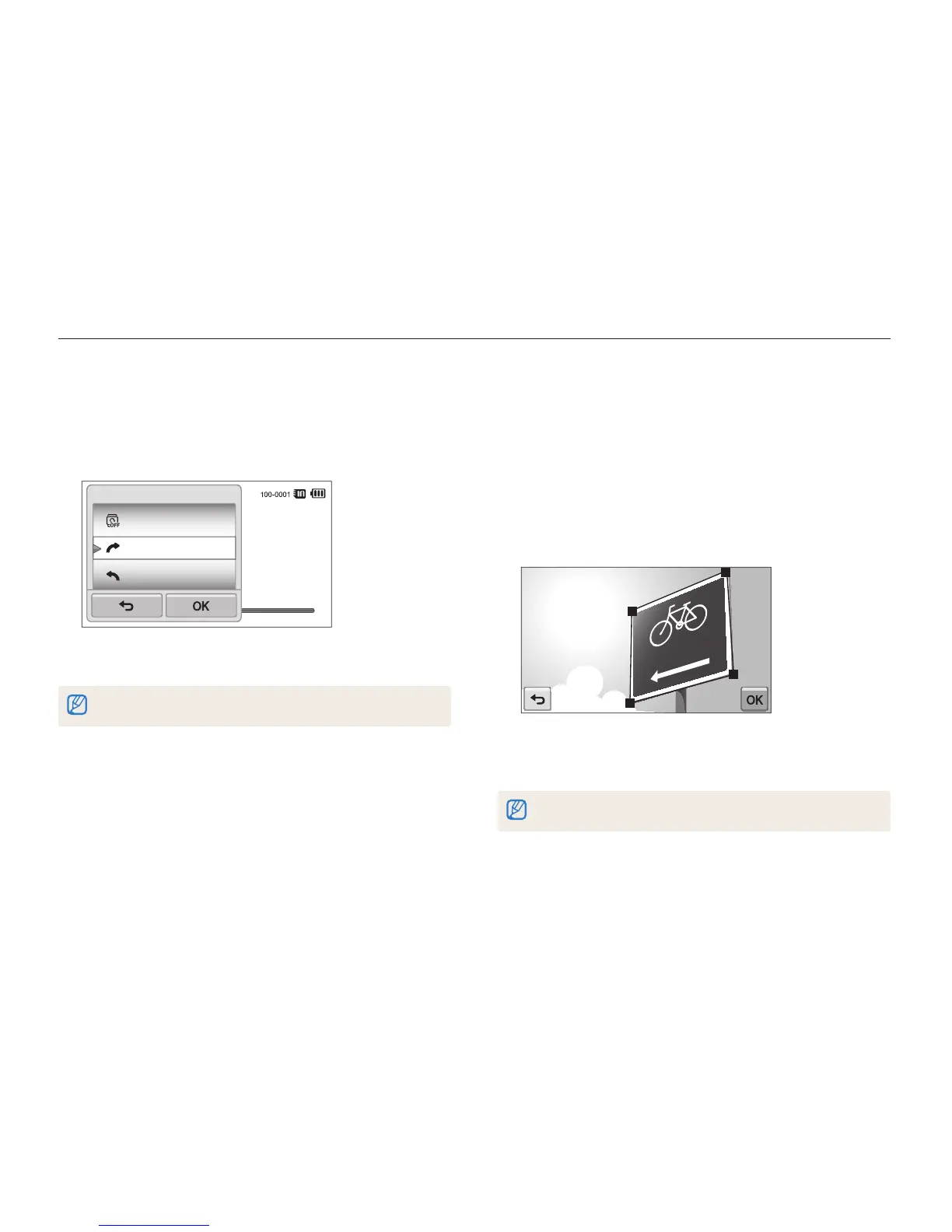
Touch Rotate, and then select a rotate option.
Rotate
Right 90˚
Left 90˚
Rotate
3
Touch
o
to save.
The camera will overwrite the original file.
Using Smart Crop
Use Smart Crop to select objects in a photo and save the
cropped area as a new file.
1
In Playback mode, locate a photo, and then touch
m
.
2
Touch Smart Crop.
3
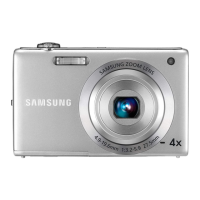
Touch 4 points on the screen to select an area.
•
You can re-select the area by dragging the 4 points.
4
Touch
o
to save.
•
The cropped photo is saved as a new file.
The size of the new file may be smaller than the original.


 To Next Page