Basic functions
24
Using the Home screen
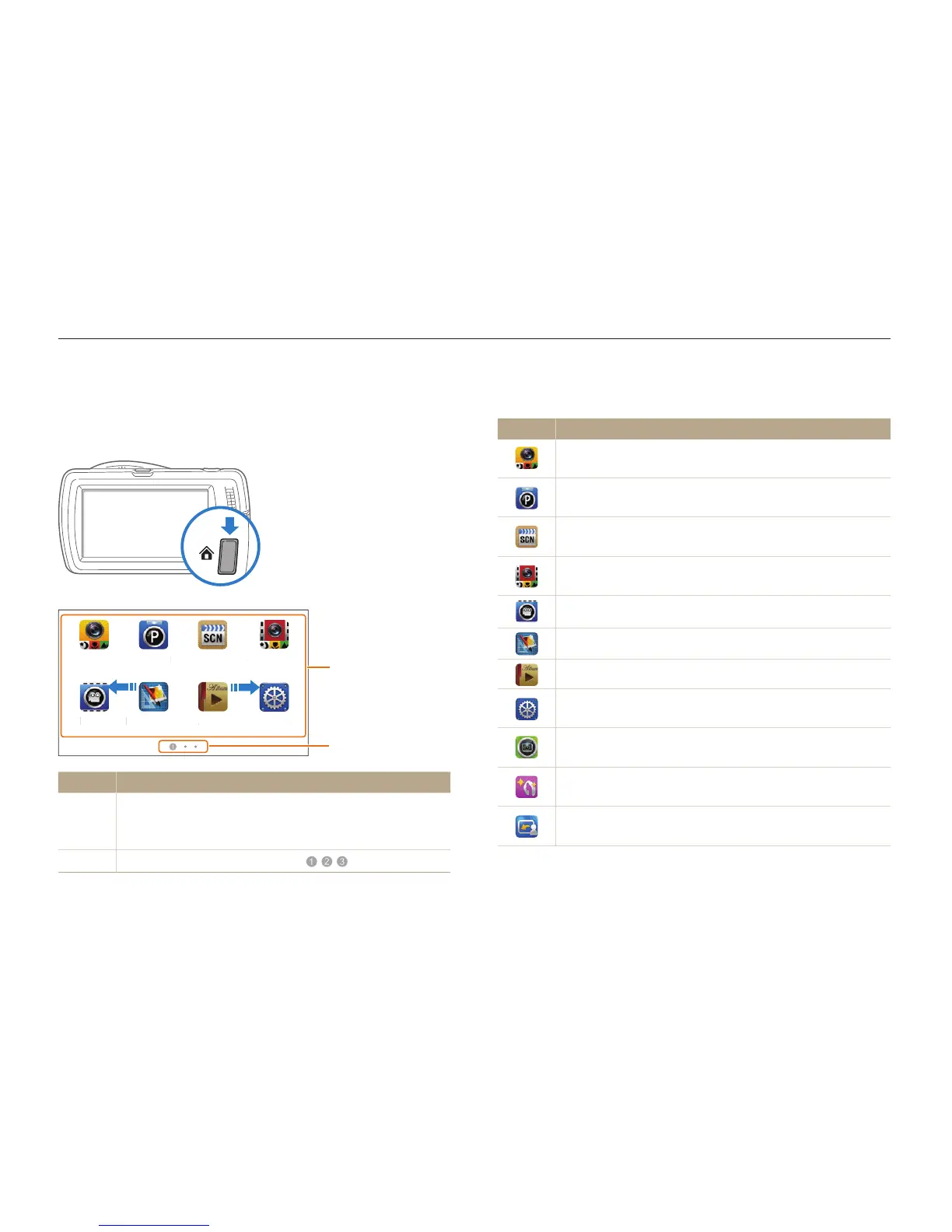
You can select a shooting mode or access the settings menu by touching the icons on the Home screen.
Accessing the Home screen
In Shooting or Playback mode, press [HOME]. Press [HOME]
again to return to the previous mode.
Smart Auto Scene Smart MovieProgram
SettingsAlbumPhoto EditorMovie
1
2
No. Description
1
Touch an icon to access a mode or function.
•
Scroll to another page by dragging or flicking the touch
pen on the screen.
2
The number of the current page. ( )
Icons on the Home screen
Icon Description
Smart Auto: Capture a photo using a scene mode
selected automatically by the camera. (p. 33)
Program: Capture a photo using manually setting options.
(p. 38)
Scene: Capture a photo using options that are preset for a
specific scene. (p. 36)
Smart Movie: Record a video using a scene mode
selected automatically by the camera. (p. 40)
Movie: Record a video. (p. 39)
Photo Editor: Edit photos with various effects. (p. 94)
Album: View files by category in Smart album. (p. 83)
Settings: Adjust settings to match your preferences.
(p. 108)
Vignetting: Capture a photo or record a video with a
vignetting effect. (p. 46)
Beauty Shot: Capture a portrait with options to hide facial
imperfections. (p. 37)
Magic Frame shot: Capture a photo with various frame
effects. (p. 43)


 To Next Page