Playback/Editing
94
Editing a photo
Adjusting your photos
Learn how to adjust the brightness, contrast, or saturation and
how to correct the red-eye effect. If the center of a photo is dark,
you can adjust it to be brighter. The camera will save an edited
photo as a new file, but may convert it to a lower resolution.
•
You can adjust brightness, contrast, and saturation and apply Smart
Filter effects at the same time.
•
You cannot apply the ACB, Face Retouch, and Red-eye Fix effects
at the same time.
Adjusting brightness, contrast, or saturation
1
On the Home screen, touch .
•
The most recent file will be displayed.
2
Touch a photo.
3
Touch
m
an adjusting option.
Icon Description
Brightness
Contrast
Saturation
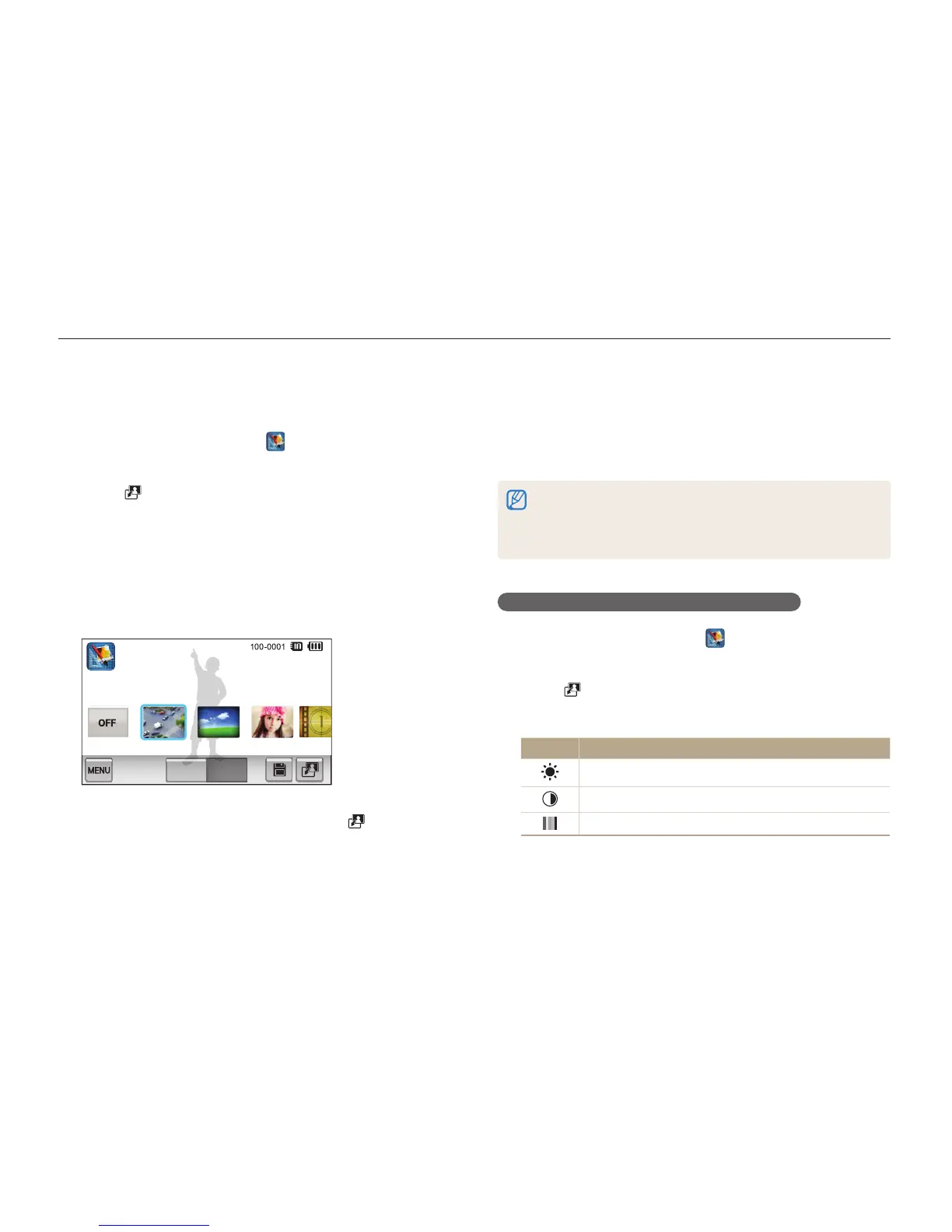
Applying Smart Filter effects
Apply special effects to your photos.
1
On the Home screen, touch .
•
The most recent file will be displayed.
2
Touch a photo.
3
Touch
m
Smart Filter.
4
Select a filter.
•
To see available filter options, refer to page 72.
•
To view the original photo, touch Before.
•
To view the photo with the filter effect, touch After.
Before After
5
Touch
V
to save your changes or touch to exit
without saving.


 To Next Page