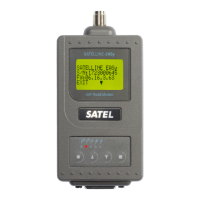
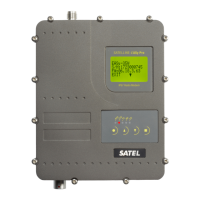
SATEL-EASy+
User guide
Version 1.33
51
10 Display and push buttons
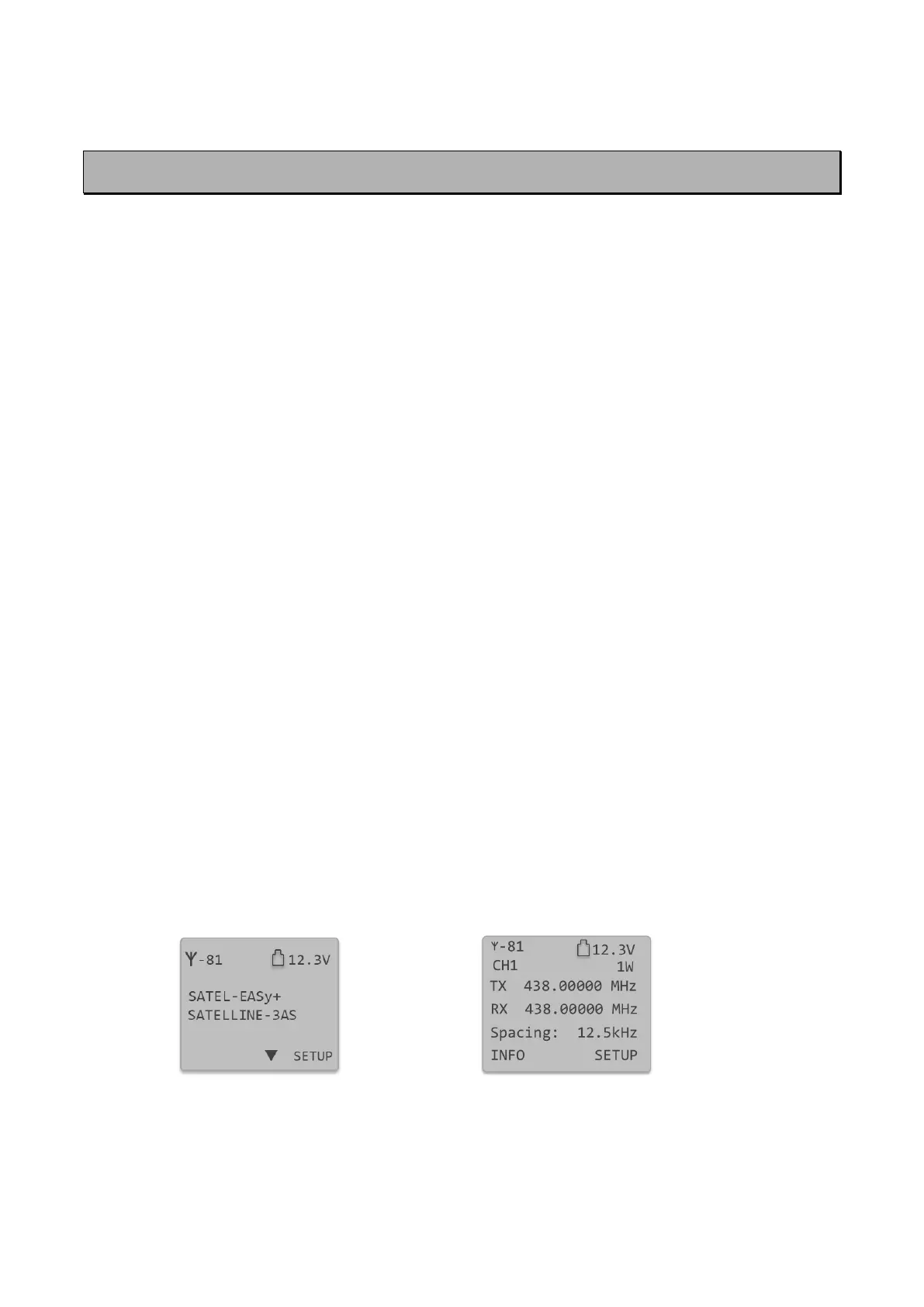
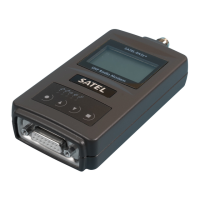
SATEL-EASy Pro+ includes a LCD (Liquid Crystal Display) with a backlight. In the Data Transfer
Mode the display will show the operating settings of the radio modem, for example the radio
field strength and the supply voltage. By using the push buttons and the display, it is possible to
change most of the settings of the radio modem, without the need for an external terminal. The
display backlight illuminates automatically as soon as a button is pressed.
When the SETUP-push button () is pressed, a settings menu is opened. It contains several sub-
menus that can be selected in order to change the settings. You can always return to the
previous higher level of the menu structure by pressing the CANCEL (or BACK) push button (●).
Pressing the or button changes settings or moves in the menu. Selections are confirmed
by pressing the SELECT or SET button. In case of numerical values the digit to be changed is
selected by pressing the NEXT button (see following page).
The SATEL-EASy+ includes following “LCD Mode” options for the models that are equipped with
LCD UI:
- Normal (factory default)
o Allows the user to read and change the parameters via push buttons and LCD display
- Read-only
o Allows the user to read the parameters from the display but modifying them is
possible only via configuration software
- SURV
o Selectable parameters via LCD UI: channel, compatibility, Repeater -mode, FEC –
mode. NOTE! Channel list forced ON. Channel list parameters must be configured
properly. Asterisk (*) next to the power level means that the active power level is set
to be lower than the current channel allows.
See chapter 12, “Channel List” for detailed information
- SURV Read-only
o Allows the user to read the SURV parameters from the display but modifying them is
possible only via configuration software. See chapter 12, “Channel List” for detailed
information
Normal/Read-only “LCD Mode”. SURV/SURV Read-only “LCD Mode”.
The “LCD Mode” can be configured via SATEL configuration software tools or SL commands. See
chapter 9, “Configuration” for additional information.


 To Next Page