SATEL PERFECTA 13
Using the arrow keys
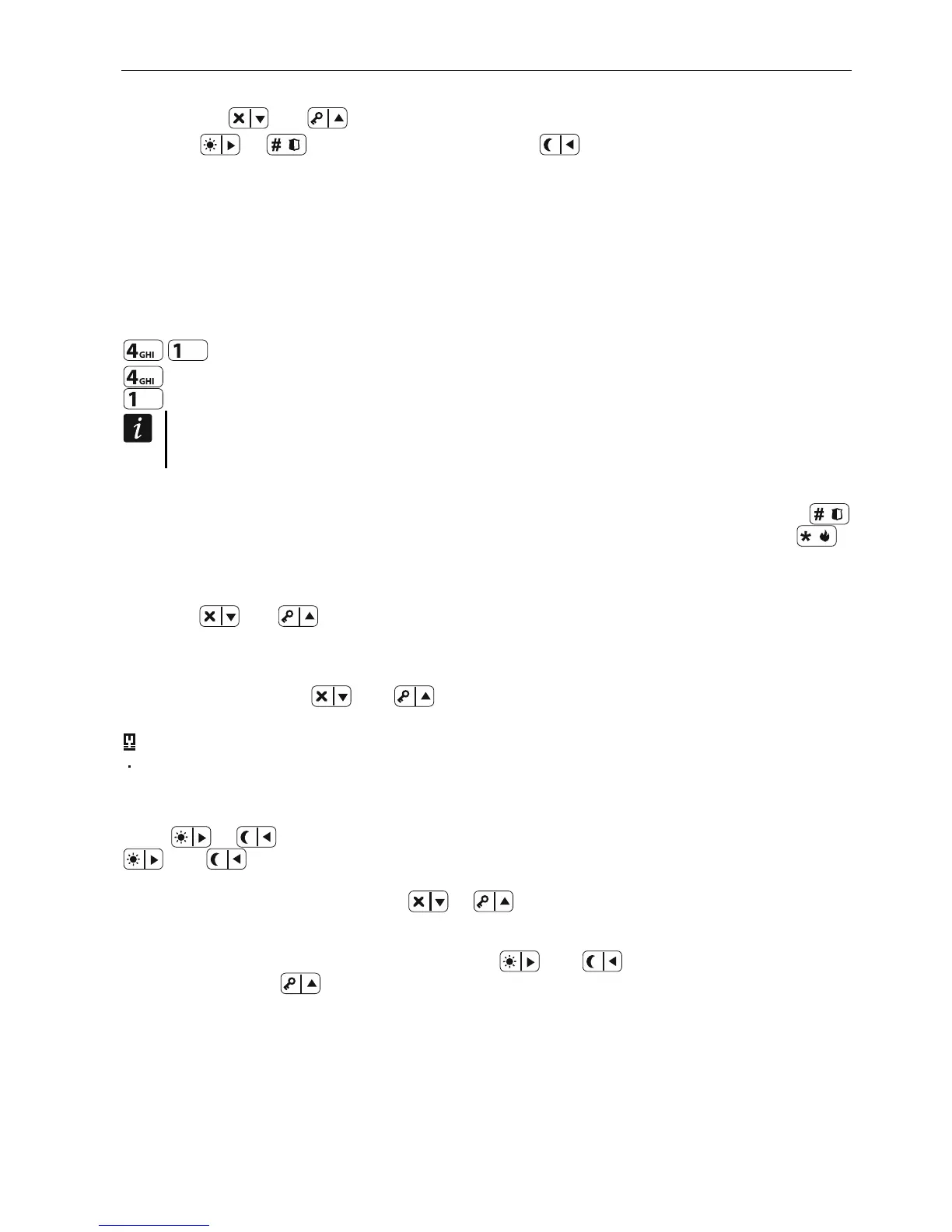
1. Using the and keys, find the required submenu or function.
2. Press or to open a submenu (use the key to go back to the main menu)
selec d fu
For n, enter the user menu and then press
or run a function.
Using the number shortcuts
Most submenus and functions are designated by numbers. To find these numbers, refer to
section “User functions list”. Using the number keys, enter the number of submenu / function
to enter the submenu / run the function. You can enter at once a sequence of several digits
(corresponding to successive numbers of submenus and functions) to quickly run the
te nction.
example, to start the zone inhibiting functio
, where:
- entering the 4.ZONE BYPASSES submenu,
- running the 1.INHIBIT function.
Remember that the sequence of digits which starts a function e.g. from the main menu
level will not start the same function from the submenu level.
6.7.2 Data editing
The editing method depends on the type of data. Having completed the editing, press
to save the changes. If you want to exit the function without saving the changes, press .
Selection the le-choi from sing ce list
ly selected item is presented. You can scroll the list In the lower line of the display, the current
using the and keys.
Selection from the multip -choice list
In
le
u can choose from is presented. You can
s
the lower line of the display, one of the items yo
croll the list using the and keys. The fol
ght corner of the display:
lowing symbol is situated in the upper
ri
– displayed item is selected / option is enabled,
– displayed item is not selected / option is disabled.
Press any number key to change the currently shown symbol for another one.
If you want to see the status of all items (these can be e.g. zones, outputs, options, etc.),
press
or . The numbers around the display allow the items to be identified. Use the
and keys to move the cursor. After hovering the cursor over the selected item,
by pressing any number key. If you want to restore the previous you can change its status
way of presentation of the list, press
or .
e the number keys. Use the
Entering decimal values
and
To enter digits, us keys to move the cursor. In
some functions, the
key deletes the character on the left side of the cursor.
Entering names
The characters that can be entered by using the keys are presented in Table 1. Keep
pressing the key until the required character appears. Long press the key to display the digit
assigned to it.
Shown on the right side in the upper line of the display is information about the letter case:
[ABC] or [abc] (it will be displayed after pressing any ke d will be visible for a few seconds
after the last keystroke
y an
).




 To Next Page