Chapter 3: Installation
Updating the iNSIGHT 20 and iNSIGHT 30 Drivers and Scanner Utilities
Operator’s Guide 79
20 and iNSIGHT 30 Drivers and Scanner Utilities
Software” on page 48 for instructions on a
complete re-installation.
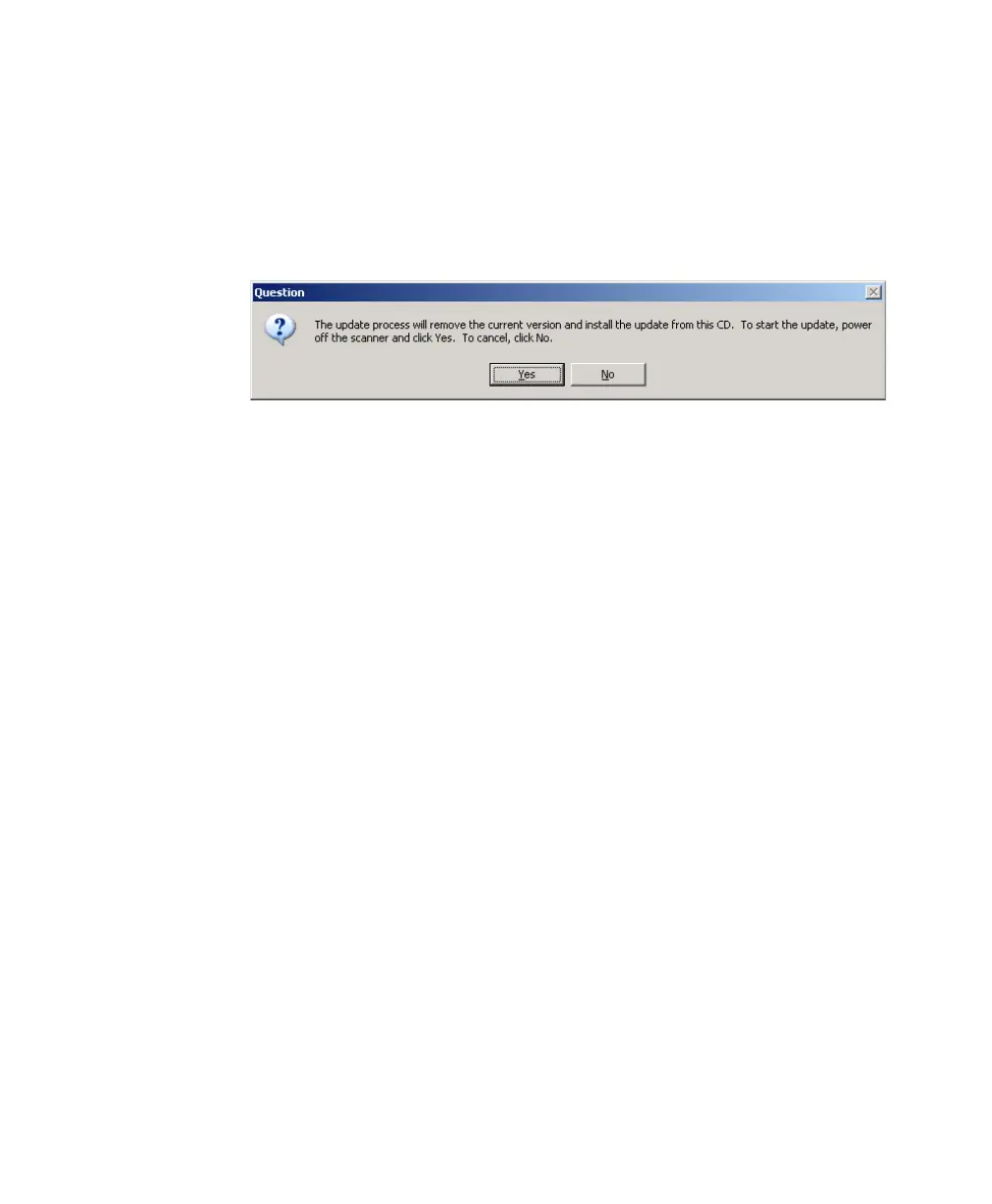
2. Click Update/Repair iNSIGHT 20 and iNSIGHT
30 Drivers and Scanner Utilities. The Question
message box appears.
3. Click Yes to remove the current version and install the
update from the CD. A message box appears asking
you to wait while the update is taking place.
4. When the update routine has completed removing the
outdated components, the Welcome dialog appears.
5. From this point forward, the update procedure is
identical to the original installation procedure. See
“Installing the iNSIGHT 20 and iNSIGHT 30 Drivers
and Scanner Utilities Software” on page 48 beginning
with step 2 for detailed instructions on how to
complete the update process.
6. When the Select Option dialog box reappears, the
update is complete. There is no need to re-calibrate
the scanner, or to run the document imaging test.
NOTE:
If, for some reason, the calibration file is missing
when you attempt to exit the Select Option dialog
box, you will be prompted to run the calibration
program. You should do so if you receive that
prompt.


 To Next Page