25
User Manual
position by the time the simulation is activated.
To start the Simulator:
Place the cursor at your desired position + [MENU] + "Advanced Options" +
[ENTER'] + "Simulation Mode" + [ENTER] + "Simulation Mode" + [ENTER]
+ "On" + [ENTER]
You might insert the Speed, Heading, date and time values:
[MENU] + "Advanced Options" + [ENTER'] + "Simulation Mode" + [ENTER]
+ "Speed"/"Heading"/"Date"/"Time" + [ENTER] + enter values + [ENTER]
To select the Cursor Control in Chart page use the cursor up/down to adjust the
Speed and the cursor left/right to adjust the Course:
[MENU] + "Advanced Options" + [ENTER'] + "Simulation Mode" + [ENTER]
+ "Cursor Control" + [ENTER] + "On" + [ENTER]
1.10 CONTROLLING THE DISPLAY
This paragraph describes how to change the display mode and how to move
around the chart by changing the chart scale.
Changing Display Mode
[MENU] + "Page" + [ENTER]
TM11/T-59.05:
[DATA]
T-59.09:
[PAGE]
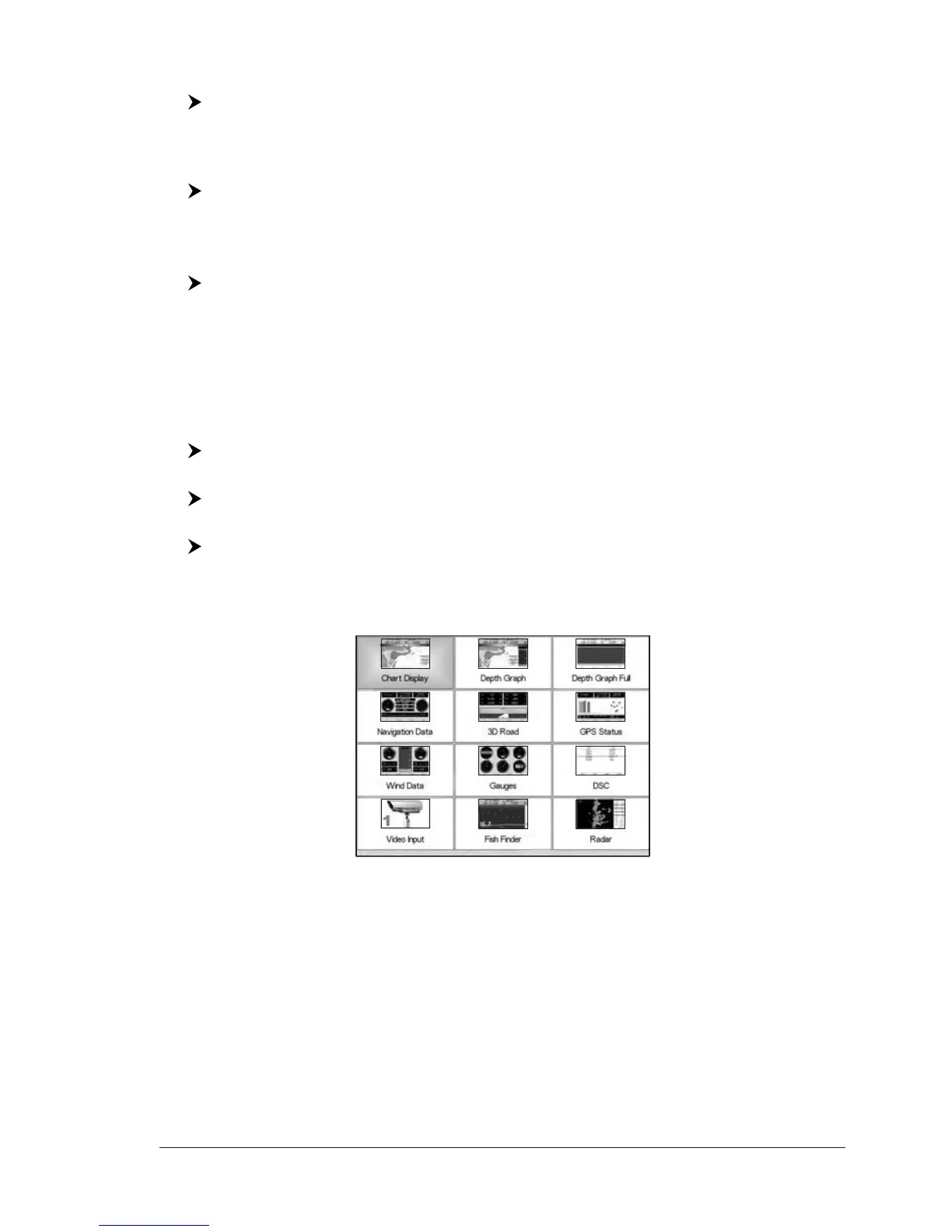
An icons menu
1
appears on the screen: it shows the available pages.
NOTE
1
NOT AVAILABLE FOR T-59.01. An items menu is shown in place of the icons menu.
Fig. 1.10 - Example of Page Selection menu
Move the cursor to select the page you want and the press [ENTER]: the selected
page (or another icons menu
1
) appears.
In the following figures examples of pages are shown. Please notice that for some
chart plotters the boxes position may differ depending on the configuration chosen.



 To Next Page