81
User Manual
OUT] changes to Zoom 2X.
5.3.5 Chart/Fish page
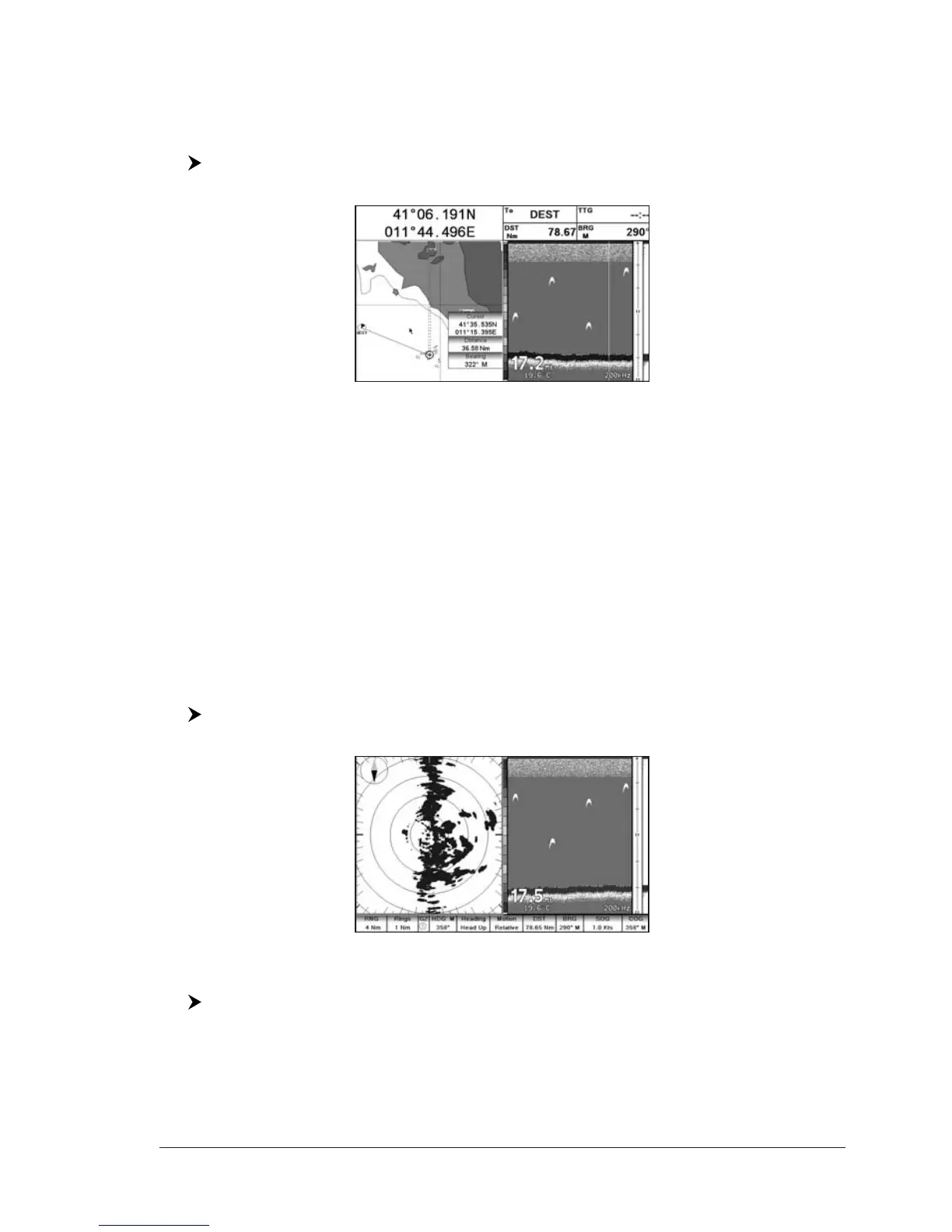
To display the Chart page on the left half of the screen and the Fish Finder
Echogram on the right half of the screen, follow this procedure:
[MENU] + "Page" + [ENTER] + "Fish Finder" + [ENTER] + "Chart/Fish" +
[ENTER]
Fig. 5.3.5 - Fish Finder Chart/Fish page
The MENU key (to change the active window)
When in Chart/Fish mode pressing [MENU]:
♦ if the focus (the active window) in on the Chart, the Functions menu is
shown. Pressing again [MENU] opens the Fish Finder Setup menu and
moves the focus to the Fish Finder.
♦ if the focus (the active window) in on the Fish Finder, the Fish Finder
Setup menu is shown. Pressing again [MENU] opens the Functions
menu and moves the focus to the Chart.
NOTE When focus is on the Chart page, all keys work in cartography standard mode.
TM7ce/TM7ci:
5.3.6 Fish Finder and Radar pages
To display the Radar page on the left half of the screen and the Fish Finder
Echogram on the right half of the screen, follow this procedure:
[MENU] + "Page" + [ENTER] + "Fish Finder" + [ENTER] + "Radar/FF" +
[ENTER]
Fig. 5.3.6 - Radar/FF page
Otherwise to display the Radar and Fish Finder Combo pages, follow this procedure:
[MENU] + "Page" + [ENTER] + "Fish Finder" + [ENTER] + "Radar/FF/Chart/
Nav Data" + [ENTER]



 To Next Page