ADN Digital Conference System | 109
Using the “Conference Manager” software
왘 Select an object from the “Equipment”, “Images” or “Microphone Unit(s)”
library panels. The selected object is highlighted in blue.
왘 Drag the object onto the canvas.
If the object can be dropped at the current cursor position, the object and the
icon are displayed next to the mouse pointer. If the object cannot be dropped
at the current cursor position, the icon is displayed.
왘 Drop the object at the desired position.
The object is placed on the canvas in standard size.
You can also place rectangles and circles as follows:
왘 Right-click the desired object.
The context menu of graphic objects appears.
왘 Click “Add”.
The object is placed in the center of the canvas.
Creating and positioning a
freeform path
왘 In the “Equipment” library panel, select the Freeform Path tool and place it on
the canvas (see page 108).
The starting point of the freeform path is set.
왘 Use mouse clicks to add anchor points to the freeform path.
왘 Double-click the last anchor point of the path.
The freeform path is complete.
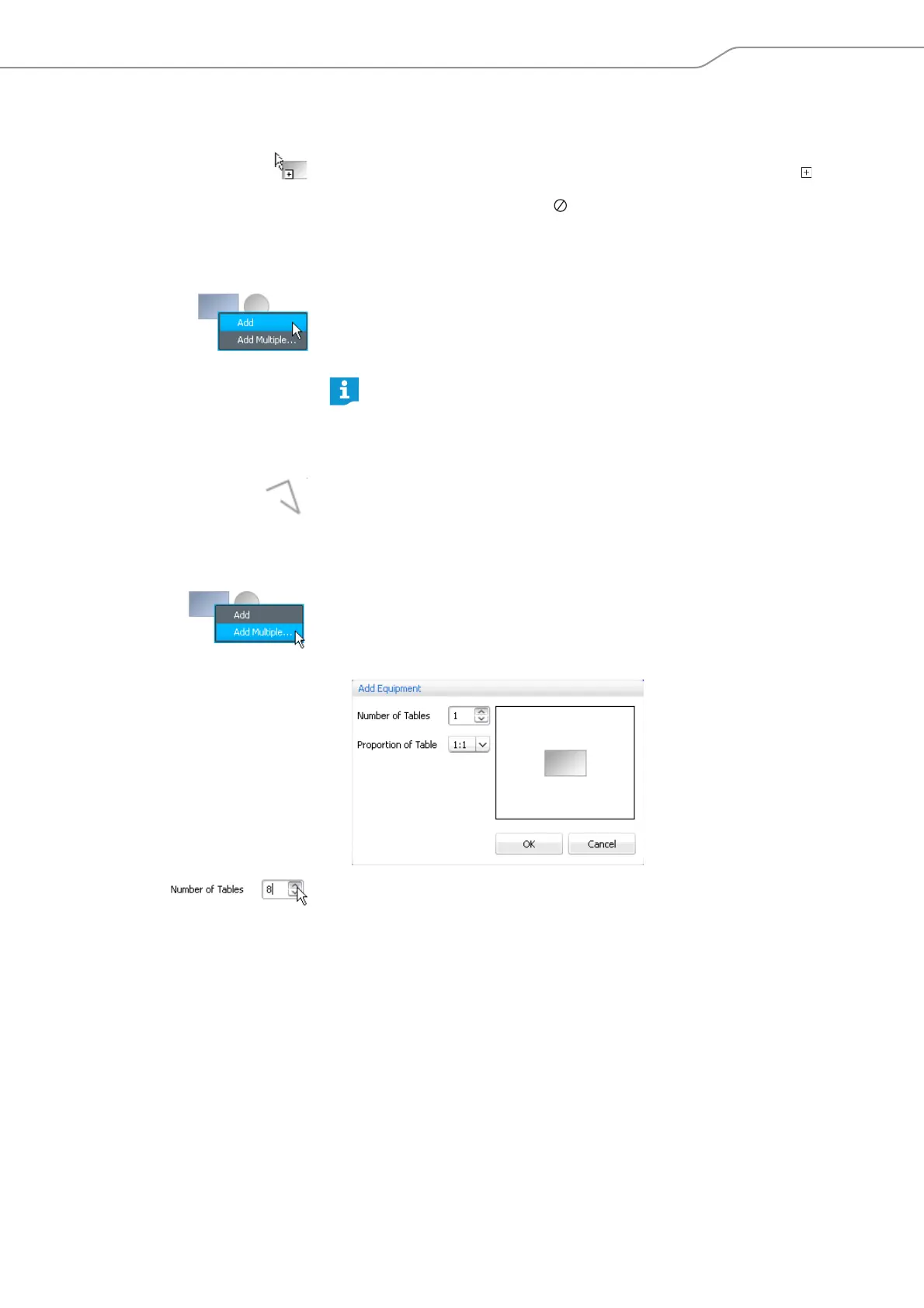
Placing several objects on the canvas To place several rectangles or circles on the canvas:
왘 Right-click the desired object.
The context menu of graphic objects appears.
왘 Click “Add Multiple...”.
The “Add Equipment” window appears.
왘 Enter the desired number of rectangles or circles into the “Number of Tables”
field.
You can predefine the color and border of the graphic objects so that the
placed objects already have the desired properties (see “Defining fill, line
and border attributes” on page 111).



 To Next Page